Working with PDF files for presentations is a common challenge for students, professionals, and business teams across all industries. PDFs are great for sharing static content, but they lock text, images and layouts in place. You cannot adjust wording, reposition elements or tweak design details directly inside a standard PDF file.
Many people spend hours manually recreating slides when they receive content in PDF format. This repetitive work slows down project timelines and leads to inconsistent formatting across your presentation. Copying text line by line often breaks original layouts and creates messy, unpolished slides.
Basic file conversion tools often fail to deliver editable results. Most simple converters turn PDFs into flat image-based slides. Every element becomes unselectable, leaving you right back where you started with no room for edits.
This is where the best PDF to PPT converter for editable slides makes a real difference. This specialized tool extracts original text, graphics and layouts properly, so every slide remains fully editable after conversion.
In this in-depth tutorial, we will cover the limitations of standard conversion methods, key advantages of professional tools, essential features to look for, real-world use cases, and a detailed step-by-step workflow to get clean, editable PowerPoint slides every single time.
Common Problems With Regular PDF to PPT Conversion Tools
Before learning how to use a high-quality converter, it is important to understand why basic tools fall short for anyone who needs editable presentation content. These issues affect casual users and professional presenters alike.
Static image-only output
Most basic converters treat the entire PDF page as a single image. Once converted to PPT, you cannot highlight text, change fonts, move pictures or adjust bullet points. The slide acts just like a locked PDF.
Broken formatting and messy layouts
Simple conversion engines often scramble original alignment. Text boxes shift out of place, tables split apart, and headings separate from body content. Fixing these issues takes just as long as rebuilding slides from scratch.
Lost text quality and font errors
Many generic tools replace original fonts with default system styles. Special symbols, custom fonts and formatted text disappear, ruining the professional look of your presentation material.
Incomplete content extraction
Long PDF documents with multiple pages often lose chunks of content during conversion. Sections cut off mid-sentence or entire pages fail to load inside the new PowerPoint file.
No support for tables and charts
Presentations frequently include data tables, graphs and infographics. Standard converters turn these complex elements into static visuals that you cannot edit or update with new numbers.
Slow performance for large files
Lengthy PDFs with dozens of pages lag or crash on basic platforms. Users face long wait times or failed conversions when working with detailed reports and full presentation documents.
Key Benefits of the Best PDF to PPT converter for editable slides
Choosing the best PDF to PPT converter for editable slides completely changes your file conversion workflow. It solves all the issues above and adds practical advantages that boost your productivity for daily presentation work.
Fully selectable and editable slide content
The top converter extracts every text block, shape and graphic as independent PowerPoint elements. You can click, edit, delete or move any part of the slide just like content created directly inside PPT.
Preserves original layout and design
Professional conversion technology keeps page alignment, margins, column structures and visual hierarchy intact. Your converted slides match the original PDF design without extra cleanup work.
Retains original fonts, styles and formatting
Font types, font sizes, bold text, colors and paragraph styles carry over perfectly. You will not need to reformat every line of text after finishing the conversion process.
Maintains editable tables, charts and graphics
Data tables, embedded charts, icons and illustrations stay fully functional. You can update numbers, adjust chart styles and modify table cells directly within the new PowerPoint slides.
Saves massive amounts of manual work
Instead of recreating every slide from the ground up, you convert files in minutes. This frees up hours of time to focus on refining your message, adding speaker notes and practicing your presentation.
Works for all presentation scenarios
Whether you convert short one-page PDFs or full multi-page documents, the tool delivers reliable results. It fits classroom projects, business meetings, corporate training and client-facing presentations.
Supports quick batch processing
Many top versions let you convert multiple PDF files or multiple pages at once. Batch functionality streamlines work for teams that handle large volumes of presentation content regularly.
Must-Have Features of a Reliable Best PDF to PPT converter for editable slides
Not every converter marketed for presentations is built to produce editable slides. When selecting your tool, focus on these core features that define the best PDF to PPT converter for editable slides on the market.
True text extraction technology
Look for tools that separate text from background elements properly. This feature ensures all written content becomes individual editable text boxes inside PowerPoint, rather than embedded images.
Layout retention engine
A dedicated layout preservation feature keeps columns, text boxes, image positions and spacing consistent across every converted page. This cuts down post-conversion editing drastically.
Font and style preservation
Advanced tools recognize embedded fonts, text colors, highlights and special formatting. Your slides maintain a polished, professional appearance straight after conversion.
Editable table and chart conversion
This is a non-negotiable feature for data-heavy presentations. Tables and charts must convert into native PowerPoint objects that you can edit, resize and update freely.
Page range selection
You do not always need to convert an entire PDF. The ability to pick specific page ranges lets you extract only the slides you need, instead of sorting through unnecessary content later.
High-resolution image output
Graphics, photos and logos should convert in full quality. Blurry images ruin presentation quality, so always choose a tool that maintains original image resolution.
Simple, user-friendly interface
A clean layout means you can start converting files immediately. Complicated settings and confusing menus slow down even basic conversion tasks for new and experienced users.
Stable performance for large files
The tool should handle long PDFs with dozens or hundreds of pages without freezing or crashing. Reliable performance is critical for business and academic users working with extensive documents.
Common Use Cases for PDF to PPT Conversion With Editable Slides
A high-quality best PDF to PPT converter for editable slides serves a wide range of users and professional tasks. Below are the most frequent scenarios where this tool becomes an essential part of daily work.
Student classroom presentations
Students often receive lecture notes, study guides and reading materials in PDF format. Converting these files into editable PPT slides makes it easy to build class presentations, add talking points and adjust content for group projects.
Business meeting slides
Employees regularly receive reports, memos and company documents as PDFs. Turning these into editable presentation slides lets teams pull key information for team meetings, internal reviews and department updates quickly.
Client and sales presentations
Sales teams work with product catalogs, specification sheets and marketing documents stored as PDF files. Editable slides allow staff to customize messaging, add client-specific details and tailor presentations for different audiences.
Corporate training materials
HR and training departments maintain training guides and handbooks in PDF form. Converting these files to editable PPT makes it simple to update content, add new policies and create interactive training slides for staff.
Academic and research presentations
Researchers and educators work with research papers, journals and study documents. Editable presentation slides let them highlight key findings, reorganize content and prepare slides for seminars and academic talks.
Conference and event slides
Event organizers compile agendas, speaker materials and event briefs in PDF. Full edit access allows teams to rearrange slides, add event branding and adjust timing notes for live conference presentations.
Updating old presentation content
Many teams archive old presentations as PDF for storage. Converting these archived files back into editable PPT slides makes it simple to refresh content, update data and reuse layouts for new projects.
Step-by-Step Guide: How to Use Best PDF to PPT converter for editable slides
Follow this simple, actionable workflow to convert any PDF into fully editable PowerPoint slides. These steps work for all file sizes and content types, from simple text pages to data-heavy reports.
Step 1: Prepare your source PDF file
First, locate the PDF you plan to convert. Double-check the content to remove any unnecessary pages, blank spaces or outdated sections before starting conversion.
If you only need specific pages, note down the page numbers. This will let you select a custom range later and avoid converting extra content. Make sure the file opens correctly on your device to prevent loading errors.
Step 2: Launch the PDF to PPT converter tool
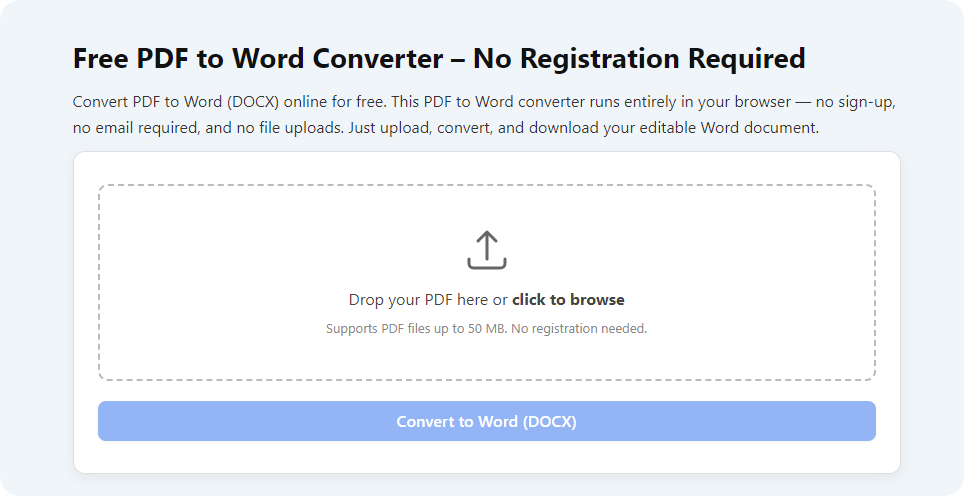
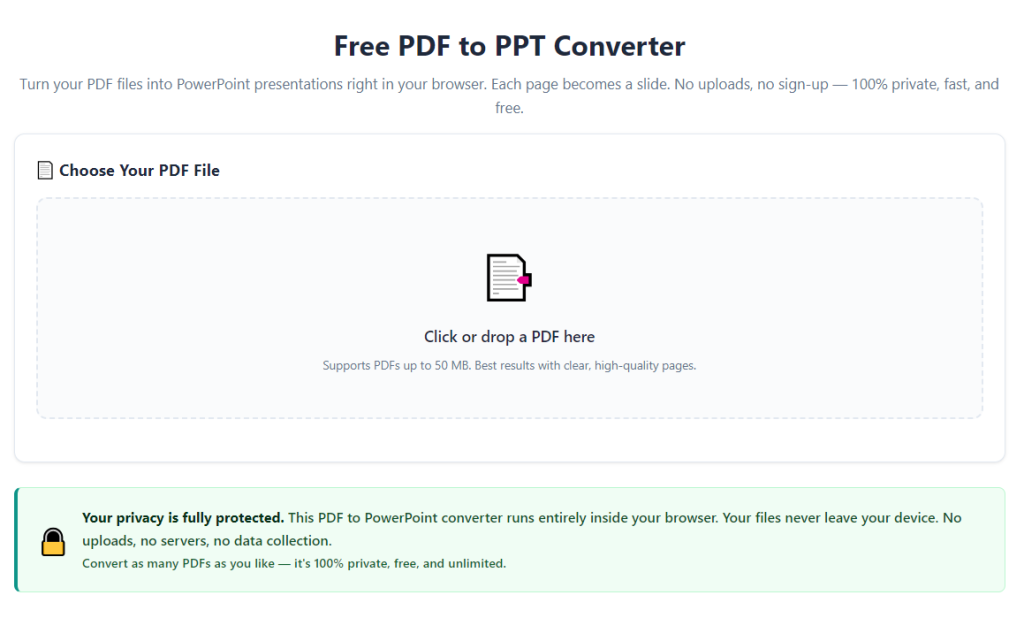
Open your chosen converter in your browser or desktop application. Navigate to the main conversion section designed for PDF to PowerPoint tasks.
Take a moment to review the main controls. Locate the file upload area, page selection options and output settings. Familiarizing yourself with the interface makes the process faster for future use.
Step 3: Upload your PDF document
Click the upload button and select your prepared PDF file from your device storage. Wait a few seconds for the file to load completely inside the tool.
For multiple files, use the batch upload feature if available. Confirm the file name and page count shown on screen match your original document to avoid working with the wrong file.
Step 4: Configure conversion settings for editable slides
This step is critical for getting fully editable output. First, select PowerPoint or PPT as your target output format.
Locate the layout and content settings. Enable options for text extraction, editable tables and font preservation. Turn off any "image-only" conversion modes, as these will lock your slides.
If you only need certain pages, enter your custom page range. Leave the range set to all pages if you plan to convert the entire document.
Step 5: Start the conversion process
Once all settings are confirmed, click the convert button. The tool will begin processing each page of your PDF into individual PowerPoint slides.
Processing time depends on file length and content complexity. Simple text files convert in seconds, while documents with many images and tables may take slightly longer. Do not close the tool during this stage.
Step 6: Download your new PPT file
When conversion finishes, a download link or button will appear. Click to save the new PowerPoint file to your device.
Store the file in an easy-to-find folder so you can access it right away for editing. Keep the original PDF file as a backup for reference.
Step 7: Open the PPT file and verify edit functionality
Launch the downloaded file inside your PowerPoint application. Go through each slide one by one to test edit access.
Click on text boxes to confirm you can type, delete or rephrase content. Try moving images, resizing shapes and selecting table cells. Every element should act like native PowerPoint content.
Step 8: Fix minor layout adjustments
Even top converters may need small tweaks for perfect alignment. Adjust minor spacing issues, reposition slightly shifted images and align text boxes for a clean look.
Since all content is editable, these small fixes take just a few moments. Avoid large-scale rebuilding, as the core layout from the PDF is already preserved.
Step 9: Add custom content and branding
Now you can fully customize your presentation. Add titles, speaker notes, company logos, brand colors and extra visuals to match your presentation goals.
Rearrange slide order to follow your preferred flow. Insert new slides between converted pages if you need to add introductions, transitions or closing remarks.
Step 10: Save and finalize your presentation
Once all edits and customizations are complete, save your final PowerPoint file. Use a clear file name for easy organization.
You can now present the file directly, share it with team members, or export it to other formats for distribution. Your fully editable presentation is ready for any use.
Common Mistakes to Avoid When Converting PDF to Editable PPT Slides
Even when using the best PDF to PPT converter for editable slides, these common mistakes can reduce output quality or limit edit functionality. Learn to avoid them for consistent results.
Accidentally enabling image-only conversion mode
Many tools include a quick conversion mode that turns pages into static images. Always double-check your settings to ensure text extraction is enabled before starting the process.
Skipping page selection for large files
Converting an entire lengthy PDF when you only need a few pages creates extra work. Always select custom page ranges to keep your final presentation clean and focused.
Ignoring pre-conversion PDF cleanup
Blurry images, broken text or corrupted pages in the original PDF will carry over to the PPT. Fix errors in the source file first to prevent repeated issues after conversion.
Overlooking font compatibility
If your PDF uses rare custom fonts, confirm your device has those fonts installed. Missing fonts will automatically switch to default styles and change your slide appearance.
Making major layout overhauls right after conversion
Focus on small touch-ups first. Rewriting entire sections or rebuilding layouts immediately wastes the time spent on proper conversion. Use the existing structure as your base.
Forgetting to test edit access on all slides
Some pages with complex graphics may convert differently. Test edit functionality on every slide, not just the first few, to catch locked content early.
Pro Tips to Maximize Results From Your PDF to PPT Converter
Use these practical tips to get the highest quality editable slides and streamline your entire presentation creation workflow with your converter tool.
Always keep your original PDF file stored safely. It serves as a perfect reference if you need to re-convert pages or check original content later.
Group related PDF pages together before conversion. This keeps your presentation organized and reduces the need to rearrange dozens of slides after processing.
For presentations with heavy data, convert tables one section at a time if needed. This ensures every cell and figure remains fully editable and accurate.
Create a standard set of conversion settings that work for most of your files. Saving your preferred options cuts down setup time for every future conversion task.
Run a quick quality check on images right after download. Adjust resolution settings in the tool if photos or graphics appear blurry on your slides.
Combine converted slides with newly created PPT slides seamlessly. Mixing converted content and original design lets you build fully unique, professional presentations.
Learn basic PowerPoint shortcuts alongside your converter. Fast editing skills paired with editable converted content will drastically speed up every presentation project.
Final Thoughts
PDF files are a staple for sharing documents, but they were never designed for flexible presentation work. Recreating slides manually or using low-quality converters creates unnecessary work and frustration for every type of user.
The best PDF to PPT converter for editable slides solves these core problems by delivering true, fully editable PowerPoint content while preserving original design, formatting and data. It bridges the gap between static PDF documents and dynamic presentation slides.
Whether you are a student building class projects, a professional creating business slides, or an educator preparing training material, this tool becomes a reliable part of your daily workflow. It cuts down manual labor, maintains content quality and gives you full creative control over every slide.
By following the step-by-step process, avoiding common errors and using the professional tips shared above, you will consistently produce clean, editable and professional PowerPoint presentations from any PDF file. You can focus on delivering great presentations instead of wasting time on tedious file rebuilding and formatting work.
After learning the operation method, click the link below to enter the tool page for immediate use.