Anyone who works with digital visuals for web design, online marketing, e-commerce, graphic creation or technical content knows how frustrating imprecise cropping can be. Most everyday photo editors only offer freehand dragging or basic aspect ratio presets, leaving you guessing about final width and height measurements. When your project requires images that fit rigid pixel rules — whether for website containers, ad platform requirements, app interfaces or printed templates — even a small deviation in pixel count can break layouts, cause distorted displays or get your files rejected outright. This is why finding and mastering the best tool to crop image to exact pixels has become a must-have skill for casual creators and professional designers alike.
Cropping to exact pixels is a specialized task that goes far beyond simple edge trimming. It demands a tool built to accept numerical pixel values, lock fixed dimensions, display real-time size readings and preserve original image quality throughout the process. The best tool to crop image to exact pixels strikes a perfect balance between powerful precision and beginner-friendly operation. It cuts out all unnecessary complex features found in heavy desktop editing software while delivering every function needed for pixel-perfect results. In this comprehensive guide, we will break down why standard editors fall short for precise cropping, define the must-have features of the best tool to crop image to exact pixels, walk through real-world use cases, share a detailed step-by-step workflow, point out common errors to avoid, and share pro tricks to boost your efficiency and output quality long-term.
Why Regular Image Editors Fail at Exact Pixel Cropping
Before exploring what makes the best tool to crop image to exact pixels stand out, it is important to understand the limitations of the basic editing tools most people use daily. Mobile gallery editors, social media built-in croppers and generic free online photo tools are designed for casual visual adjustments, not technical pixel sizing. Their core purpose is to help users frame photos for a better look, not to hit strict numerical measurements.
With freehand crop tools, you drag borders across the screen and judge the size purely by sight. There is no way to view exact pixel numbers, so you can never be certain if the final file matches your required dimensions. For personal social media photos, this loose approach works fine. But for professional work, visual guesswork leads to consistent problems. An image that is 20 pixels too wide will overflow a web page column; one that is too short will leave awkward blank spaces in banners and headers. Over time, these small inconsistencies create unpolished, unprofessional results across your entire visual library.
Many mid-range editors add preset crop options for popular platforms and common print sizes. While these presets are convenient, they are also inflexible. If your project calls for a custom pixel size that does not exist in the preset list, you have no reliable way to reach your target. You are forced to either compromise on sizing or switch to complicated professional software.
Fully featured desktop editing programs do support exact pixel input, but they come with major downsides. They require large storage space, slow installation, regular updates and hours of learning to navigate layered menus and advanced settings. For users who only need quick pixel cropping and nothing else, these tools are massive overkill. They waste time and resources on features you will never use.
This clear gap in the market is what makes a dedicated solution so valuable. The best tool to crop image to exact pixels is built with one primary goal: deliver fast, accurate pixel cropping without extra bloat. It solves every pain point of freehand tools, rigid presets and overcomplicated professional software, making precise image sizing accessible to everyone regardless of technical experience.
Essential Features of the Best Tool to Crop Image to Exact Pixels
Not every tool that claims to handle pixel cropping delivers reliable performance. Many copycat tools add basic number fields but lack stability, quality preservation or user-friendly design. To separate truly professional solutions from low-quality alternatives, look for these core features that define the best tool to crop image to exact pixels.
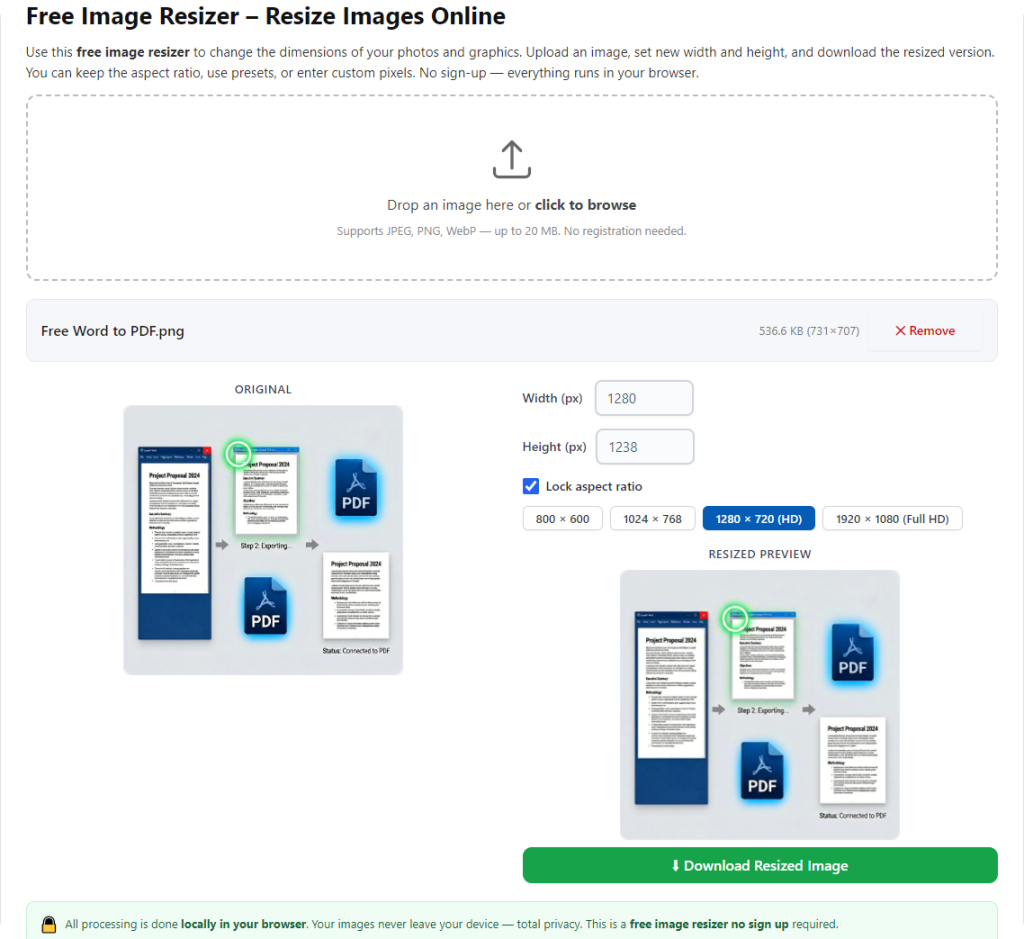
First and most important is custom pixel value input fields. Dedicated width and height boxes let you type in your exact target measurements manually. As soon as you enter the numbers, the crop frame on screen automatically resizes to match those pixels exactly. This eliminates all guesswork and ensures your image starts at the correct size before you adjust framing. This single feature is the foundation of any credible tool to crop image to exact pixels.
Second is aspect ratio lock and unlock functionality. Most design projects require images to keep a fixed shape while resizing. When you turn on the aspect ratio lock, changing one pixel value will automatically adjust the other to maintain proportionality. If you need a non-standard rectangular crop with independent width and height, simply unlock the ratio for full freedom. This dual-mode system adapts to every type of cropping task you will encounter.
Third is live real-time pixel readouts. As you move the fixed-size crop frame over your image, the interface continuously displays the current pixel dimensions. This lets you reposition your subject perfectly while confirming the total size never shifts. This is incredibly useful when you need both exact pixel sizing and careful artistic framing for portraits, logos and product shots.
Fourth is lossless image quality preservation. A top-tier cropping tool will never compress, blur or alter color quality during processing. It works directly with the original image data, so high-resolution photos, graphic designs and screenshots remain sharp and clear after cropping. Cheap tools often sacrifice quality for speed, leaving you with fuzzy files that look unprofessional on screens and in print.
Fifth is universal format support. The best tool to crop image to exact pixels works with all mainstream image types, including JPG, PNG, WebP and common graphic formats. You can upload your original file directly without converting it first, crop to exact pixels, and export in the same format for seamless workflow.
Sixth is a streamlined, ad-free interface. Every button and menu serves the cropping process. There are no distracting filters, templates or unnecessary editing tools cluttering the screen. A clean layout means you can locate pixel input fields and crop controls in seconds, speeding up your daily workflow significantly.
Seventh is cross-device and cross-browser compatibility. Reliable pixel cropping tools run smoothly on desktop computers, laptops and mobile devices across all modern browsers. You do not need to download heavy software, so you can complete exact pixel cropping anytime, anywhere.
Common Use Cases for Exact Pixel Image Cropping
The ability to use the best tool to crop image to exact pixels applies to a wide range of personal, freelance, business and enterprise tasks. Exact pixel sizing is a non-negotiable standard across nearly all digital industries, and understanding these use cases will help you apply the tool to your own daily work.
Website Design and Frontend Development
Web designers and developers rely on strict pixel measurements for every on-page visual. Hero banners, navigation icons, sidebar graphics, post thumbnails and call-to-action buttons all follow predefined pixel limits set by page templates and responsive frameworks. If even one image falls outside the required size range, it breaks the page layout, creates horizontal scrolling or disrupts the mobile viewing experience. Using the best tool to crop image to exact pixels guarantees every visual element fits its container perfectly, keeping websites clean, fast and fully functional on all devices.
Digital Marketing and Online Advertising
Nearly every ad network, social media ad platform and email marketing service enforces strict pixel rules for creative assets. Banners, promotional graphics and ad thumbnails are rejected immediately if they do not match the listed dimensions. Instead of reworking files multiple times due to sizing errors, marketers use exact pixel cropping to get compliant images on the first try. Uniform pixel sizing also creates a cohesive brand look across all marketing channels.
E-Commerce Product Image Standardization
Online stores and marketplaces require consistent image sizes for all product listings. Uniform pixel dimensions make catalog pages look neat, organized and trustworthy for shoppers. Store owners and content teams use the best tool to crop image to exact pixels to batch-process hundreds of product photos, ensuring every thumbnail and main product shot shares identical width and height. This standardization improves the overall shopping experience and strengthens brand professionalism.
Mobile App and Software UI Design
App icons, menu graphics, pop-up visuals and in-app illustrations must follow fixed pixel guidelines to maintain a unified user interface. Design teams use pixel-perfect cropping to standardize all interface assets, so every element displays consistently across different screen resolutions and device models. The best tool to crop image to exact pixels simplifies bulk editing for large sets of UI images and keeps design systems aligned.
Digital Publishing and Document Creation
E-books, online newsletters, digital brochures and presentation slides use rigid layout grids. Images inserted into these documents must fit exact pixel sizes to avoid text wrapping issues, overlapping content or uneven page spacing. Writers, publishers and office workers use precise pixel cropping to integrate visuals smoothly into templates, ensuring every page maintains a clean, structured look.
Tutorials, Screenshots and Technical Guides
Screenshots are a core part of software tutorials, help documents and online courses. To keep guides easy to follow and visually uniform, creators crop screenshots to set pixel dimensions. Exact pixel sizing prevents oversized screenshots from crowding text and ensures all guide images share a consistent style.
Step-by-Step Guide: How to Use the Best Tool to Crop Image to Exact Pixels
This universal workflow works for every professional tool built to crop image to exact pixels. The process is intuitive, requires no advanced technical knowledge, and delivers consistent pixel-perfect results with every use. Follow these steps for reliable cropping every time.
Step 1: Prepare and Upload Your Source Image
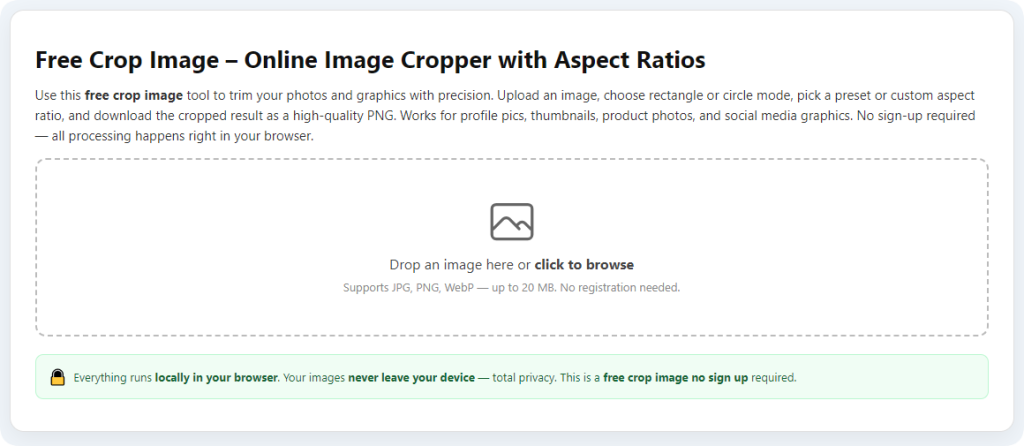
Start with a high-resolution original image. Never use heavily compressed screenshots or small thumbnails as source files, because you cannot create larger, sharper pixels from a low-quality base. Open your chosen pixel cropping tool, then upload your image either by clicking the upload button or dragging and dropping the file into the designated area. Wait for the full image to load and double-check the preview to confirm no corruption or distortion appears before moving forward.
Step 2: Locate Pixel Input and Aspect Ratio Controls
On the main interface, find the clearly labeled width and height input fields. These are the core controls that separate the best tool to crop image to exact pixels from regular editors. Next to these fields, you will see a small lock icon for aspect ratio control. Decide whether you need proportional sizing or independent dimensions for your project. Toggle the lock on for proportional crops, or turn it off for fully custom width and height values.
Step 3: Enter Your Target Pixel Dimensions
Type your required pixel numbers into the width and height fields. For example, if you need a 500 × 500 square icon, enter those values into the corresponding boxes. The crop frame on your image will instantly resize to match your exact specifications. Take a quick moment to verify the numbers you entered are correct; swapping width and height is one of the most common small mistakes during this step.
Step 4: Reposition the Crop Frame for Ideal Framing
Now that the frame is locked to your exact pixel size, click and drag it across the image to frame your subject perfectly. Keep an eye on the live pixel readout while moving the frame to confirm the total dimensions do not shift. For portraits and people photos, center the face and leave a small buffer around hair and shoulders. For logos and text graphics, ensure all key design elements sit fully inside the frame. This step lets you combine precise pixel sizing with artistic composition.
Step 5: Preview and Fine-Tune the Crop
Use the tool’s preview function to view how the final cropped image will look. Check two key points: first, confirm the pixel dimensions still match your target numbers; second, make sure no important details, text or facial features are cut off at the edges. If the framing feels off, reposition the frame slightly and preview again until you are fully satisfied.
Step 6: Apply Crop and Export the Final File
Once framing and dimensions are confirmed, click the apply or crop button to finalize the edit. Select your preferred output format — stick to lossless formats for professional work — and download the finished image. The exported file will be locked to your exact pixel size, with all original image quality fully preserved. You can now use this file for websites, ads, stores or documents without any sizing concerns.
Common Mistakes to Avoid When Cropping to Exact Pixels
Even when using the best tool to crop image to exact pixels, simple user errors can ruin your results or create extra work. Learn these frequent mistakes and easy fixes to keep your workflow smooth and error-free.
The first mistake is mixing up width and height values. Many users accidentally enter vertical pixel numbers into the width field and horizontal numbers into the height field. This creates rotated or stretched images that do not fit your project. Always double-check labels before confirming your crop.
The second mistake is misusing the aspect ratio lock. If the lock is enabled and you enter two different pixel values, the tool will automatically adjust one number to restore proportionality, overriding your custom size. Unlock the ratio first if you need non-proportional exact pixel crops.
Third, using a source image smaller than your target size. No cropping tool can add extra pixels to an image. If your original file has fewer pixels than your required size, the final result will look blurry and stretched. Always start with a source image larger than or equal to your target pixel dimensions.
Fourth, ignoring output format quality settings. Some formats reduce image detail during export. For professional designs and high-resolution displays, choose lossless export options to keep your pixel-perfect images sharp long-term.
Fifth, repositioning the frame without checking live pixel readouts. A small number of basic tools will shift dimensions slightly when dragging the frame. Develop a habit of glancing at the live pixel counter after every move to keep sizes locked in place.
Professional Tips to Optimize Your Pixel Cropping Workflow
Use these expert tips to get the most out of the best tool to crop image to exact pixels, speed up repetitive tasks and raise the overall quality of your cropped images.
First, create a reference list of your most-used pixel sizes. If you regularly make web banners, ad graphics or store product images, write down your standard dimensions. This saves time retyping numbers and reduces input errors over repeated tasks.
Second, keep the aspect ratio locked for logos, portraits and icons. These assets almost always require fixed proportions to avoid distortion. Only unlock the ratio for custom rectangular layouts.
Third, add a small safety margin around key content. Even with exact pixel cropping, some platforms apply minor scaling on upload. Place faces, text and main graphics slightly inward from the crop edges to prevent accidental cutoff.
Fourth, batch process similar images together. When working on a large set of product photos or thumbnails, use the same pixel settings for every file to create a fully uniform visual set.
Fifth, test the final image in its intended environment. After cropping to exact pixels, insert or upload the file to your website, template or platform to confirm it fits perfectly. A quick real-world check catches rare layout issues early.
Final Thoughts
In today’s digital ecosystem, where every platform, template and layout runs on strict pixel rules, exact image cropping is no longer an optional skill — it is a basic requirement for anyone working with visual content. Freehand cropping and rigid presets can no longer meet the demands of modern web design, marketing, e-commerce and publishing. The best tool to crop image to exact pixels fills this critical gap by combining numerical precision, ease of use and consistent quality in one streamlined solution.
Whether you are a full-time designer, a small business owner, a content creator or a hobbyist working on personal projects, this specialized tool removes the guesswork and frustration from image sizing. You will no longer waste time reworking rejected files, fixing broken layouts or struggling with overcomplicated editing software. With dedicated pixel input, live size tracking, aspect ratio control and lossless quality, every crop you create will match your specifications down to the very last pixel.
Take time to learn the core functions of a reliable pixel cropping tool and build a simple, repeatable workflow. Once this process becomes routine, your entire image editing pipeline will become faster, cleaner and more professional. Investing a small amount of time to master the best tool to crop image to exact pixels will pay off every single day, delivering perfectly sized images for all your digital projects for years to come.
After learning the operation method, click the link below to enter the tool page for immediate use.