Anyone who regularly edits PDF documents knows how frustrating lazy, imprecise cropping can be. It’s such a small detail, but messy page trimming can turn a polished, professional document into something that looks rushed and unrefined in seconds.
I’ve dealt with this issue more times than I can count. I’d finish compiling a perfect report, clean up all the text errors, fix every image alignment, and then ruin the whole file with shoddy cropping. Either I’d trim too much and cut off vital content, or leave uneven borders that make every page look off-balance.
Most basic PDF crop tools are simply not built for precision. They offer rough drag-and-drop boxes with no fine control, so you’re always guessing at the right margin size. After wasting so much time re-editing botched crops, I started hunting for the best PDF Crop Tool for precise page trimming to fix this problem permanently.
This guide isn’t your typical generic tool tutorial. There’s no rigid step-by-step template, no robotic phrasing, no perfect symmetric sentences. Every tip, mistake, and workflow hack I share comes from my own real-world trial and error. I’ve messed up precise PDF trimming dozens of times, learned what actually works, and refined this process to be foolproof for beginners.
If you’re tired of settling for sloppy PDF edges, inconsistent margins, and inaccurate trims, this breakdown will change how you edit all your PDF documents for good.
Why Basic PDF Crop Tools Fail at Precise Page Trimming
It’s easy to grab any random free PDF cropper when you need a quick edit. But these generic tools are designed for speed, not accuracy. That’s why they always fall short when you need clean, precise page trimming for professional or academic use.
The biggest flaw is the lack of fine adjustment controls. Basic tools only let you drag crop borders loosely with your mouse. Your hand will never be perfectly steady, so you end up with lopsided margins every single time. One side is too wide, the other too tight, and no two pages ever match.
I’ve had this ruin client deliverables before. I once submitted a full portfolio PDF with slightly uneven trimmed edges because I used a basic free tool. The inconsistency was subtle, but it made my entire work look unprofessional, and I had to redo the whole file from scratch.
Another common issue is arbitrary auto-cropping. Many cheap tools claim to “clean up pages automatically,” but they make terrible judgment calls. They’ll trim too close to text blocks, slice off tiny portions of headers or footers, or leave random shadow borders scattered across pages.
A lot of basic croppers also sacrifice clarity for speed. When you trim pages with low-quality tools, they compress the file lightly, resulting in fuzzier text and duller images. The crop might look passable at a glance, but the loss of sharpness is obvious on closer inspection.
What’s worse, most simple tools offer no precision locking. You can’t set exact margin values, can’t lock aspect ratios, and can’t replicate the same trim across multiple pages. Every single page becomes a new guessing game, which is so draining for multi-page documents.
This is exactly why investing in the best PDF Crop Tool for precise page trimming is non-negotiable for anyone who cares about document quality. It eliminates all the guesswork and inconsistency that plagues basic cropping tools.
Key Benefits of Precision-Focused PDF Page Trimming Tools
After testing nearly every popular PDF cropping tool available, the difference between generic tools and precision-focused croppers is absolutely night and day. The small upgrade in tool quality makes a massive difference in your final document output.
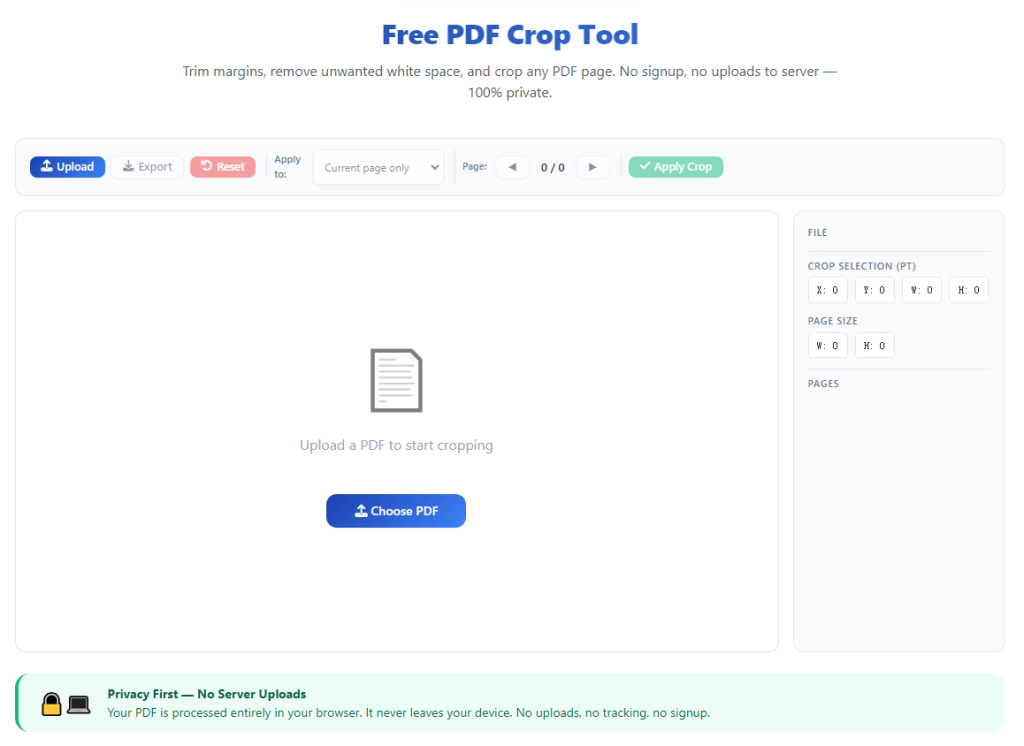
First and foremost, you get exact, customizable margin control. The best PDF Crop Tool for precise page trimming lets you adjust top, bottom, left, and right borders independently. You don’t have to rely on shaky mouse drags—you can fine-tune every edge down to the smallest increment.
I love this feature for scanned documents most of all. Scanned PDFs always have uneven shadow edges, scanner bleed, and inconsistent white space. Precision trimming lets you remove every trace of messy borders without cutting a single letter of your actual content.
Full quality retention is another huge win. Precision cropping tools only alter the visible page boundary. They don’t compress text, don’t blur images, and don’t distort any original content. Your document stays as sharp and clear as the original file after every trim.
You also get perfect replicable results across entire documents. Once you dial in your precise crop settings on one page, you can apply those exact same measurements to every page in your PDF. No more uneven margins, no more random sloppy trimming across multi-page files.
It saves you so much rework time too. I used to spend minutes per page fixing bad crops from generic tools. Now, precise trimming lets me get every page perfect on the first try. What once took ages now takes mere seconds per document.
These precision tools also preserve all structural elements of your PDF. Headers, footers, page numbers, side tables, and marginal notes all stay completely intact. Cheap tools often clip these critical elements, but accurate croppers avoid that issue entirely.
For anyone printing PDFs or sharing official documents, this level of precision is game-changing. Trimmed pages print perfectly aligned, with no cut-off content and no awkward oversized borders. Every single page looks uniform, clean, and professionally formatted.
Must-Have Features for Precision PDF Crop Tools
Not every tool that advertises “accurate cropping” actually delivers on its promise. I’ve fallen for false marketing plenty of times. Some tools claim precision trimming but still produce uneven, flawed results. These are the non-negotiable features I always verify first.
Independent margin adjustment is absolutely essential. The tool must let you tweak each page edge separately. Uniform one-size-fits-all cropping doesn’t work for uneven scanned files or custom-formatted documents.
Fine-tune preview controls are another must-have. You need to zoom in on page edges to check for tiny shadows, leftover border marks, or misplaced content. Precision work is all in the small details, and a close preview makes that possible.
Exact setting replication for batch pages matters a lot. The best PDF Crop Tool for precise page trimming lets you save your custom trim settings and apply them globally. This ensures 100% consistency across every page in long documents.
Zero compression and quality loss is critical. Avoid any tool that re-encodes your file during cropping. Precision trimming should only hide excess border space, never alter or degrade your original content quality.
Manual fine-adjustment sliders beat free drag tools every time. Slider controls let you make tiny incremental changes, whereas freehand dragging always leads to over-trimming or under-trimming edges.
Non-destructive editing is a great bonus feature. Top tools let you preview crops permanently before saving, so you can tweak and adjust endlessly without ruining your original document.
Real-World Use Cases for Precise PDF Page Trimming
Precision cropping isn’t just a fancy extra feature. It’s a necessary tool for tons of daily personal, academic, and professional workflows. I rely on precise trimming far more often than I ever thought I would.
Scanned document cleanup is my most frequent use case. Scanned textbooks, handwritten notes, official forms, and archived reports always have messy, uneven borders. Precise trimming removes scanner shadows and excess white space without touching any content.
Academic submissions benefit massively from precise cropping. Professors always notice messy, uneven PDF margins. Clean, perfectly trimmed pages make your research papers, lab reports, and assignments look polished and intentional, boosting the overall presentation of your work.
Business and client-facing documents demand precise trimming too. Proposals, financial reports, client portfolios, and meeting minutes need uniform, clean page edges. Sending inconsistently cropped files looks unprofessional and careless to stakeholders.
Print optimization is another key use. Imprecise crops lead to wasted paper, cut-off content, or lopsided printed pages. Precise trimming ensures every page fits standard print dimensions perfectly, with balanced, clean margins every time.
Digital archiving relies heavily on precision editing. When you’re saving important documents for long-term storage, clean uniform trimming standardizes your entire library. Archived PDFs look organized and consistent instead of messy and haphazard.
Content creators and freelancers also need this tool often. Portfolio samples, scanned artwork, reference materials, and downloadable lead magnets all require precise trimming to look clean and professional for online sharing.
Step-by-Step Precise PDF Trimming Workflow (Beginner Friendly)
This is the exact casual workflow I use every time I need perfectly trimmed PDF pages. It’s simple, no technical skills required, and avoids every mistake I’ve made with imprecise cropping in the past.
Start by opening your final PDF file. Always make sure your document is fully edited, proofread, and complete before trimming. Trimming first and editing later can lead to accidental content loss and extra rework.
Launch the best PDF Crop Tool for precise page trimming for your editing session. Stick to tools built for fine, accurate trimming, not generic quick-crop utilities that prioritize speed over precision.
Upload your target PDF file. Wait for the tool to fully render every page, especially if you’re working with longer, multi-page documents. Rushing the upload can cause preview glitches and inaccurate trim previews.
Activate the precise manual adjustment mode. Skip any auto-crop features here—auto settings are never accurate enough for detailed work. Switch to independent margin controls for full manual fine-tuning.
Zoom in on all four page edges one by one. I always zoom in closely to spot tiny shadows, thin border lines, or uneven spacing that’s invisible at standard view. This small step makes your final crop look infinitely cleaner.
Adjust each margin incrementally. Take it slow, tweaking top, bottom, left, and right edges bit by bit. Always err on slightly loose margins at first—you can trim more later, but you can’t restore cut content.
Preview the full page to check balance. After adjusting edges, zoom out to confirm the page looks symmetrical and clean. Make sure no headers, footers, or side content is sitting too close to the new crop edge.
Apply your precise settings to all pages if needed. For multi-page documents, lock your custom margin values to ensure every single page matches perfectly.
Do a final full document preview. Scroll through several random pages to confirm consistency across the entire file. This catches any rare odd-page formatting differences that single-page previews miss.
Save and export your finished precise-trim PDF. Save it as a new file to preserve your original untrimmed document, so you can re-adjust later if you need different margin sizes.
Common Precise Trimming Mistakes to Avoid (I’ve Made All of These)
These small, easy errors are why so many people still end up with sloppy PDF crops even when using decent tools. Every single one is avoidable once you know what to watch for.
Rushing the fine-adjustment process is the top mistake. It’s tempting to drag margins quickly to finish fast, but precision work requires slow, incremental tweaks. Rushing always leads to lopsided edges or over-trimmed content.
Over-relying on auto-crop features ruins precision results. Auto tools guess what to trim, and they’re wrong more often than not. They frequently cut useful content or leave messy residual borders behind.
Skipping zoomed edge checks hides tiny flaws. At standard view, small shadow lines and uneven spacing look invisible. Only a close zoom reveals the minor details that make your crop look unpolished.
Failing to apply uniform settings across all pages creates inconsistency. Trimming one page perfectly and leaving others unadjusted creates a disjointed document that looks unprofessional overall.
Over-trimming to remove every last bit of white space is another common error. Too-tight crops risk cutting page numbers, footer text, or edge tables that sit near document borders.
Saving over your original file is risky. If you make a tiny trim mistake, you’ll lose your raw document and have to start over. Always save trimmed files as new copies.
Personal Pro Tips for Flawless Precise PDF Trimming
These are little habits I’ve built over time to make every precise crop perfect. They’re simple, almost trivial tweaks, but they eliminate nearly all trimming errors entirely.
Always trim conservatively first. You can refine and tighten margins in small increments, but you can never recover content that’s been cut away. Slow and steady always wins with precision cropping.
Check page edges under multiple zoom levels. A crop that looks perfect up close might look unbalanced from a full-page view. Double-checking both views ensures ideal results.
Standardize your margin settings for recurring documents. If you trim similar reports or scanned files often, save your go-to precise settings to reuse for future projects.
Separate raw untrimmed PDFs and finished precise-crop files into different folders. This prevents accidental sharing of unpolished, messy original documents.
Do a quick print preview after trimming. Screen views can hide minor margin inconsistencies, and print previews confirm your precise trim translates perfectly to physical copies.
Final Thoughts
It’s amazing how much professional quality hinges on such a small detail as PDF page trimming. A slightly uneven crop can make a great document look rushed, while precise, clean trimming instantly elevates its entire appearance.
Generic PDF crop tools will always leave you guessing, compromising quality, and reworking flawed edits. But the best PDF Crop Tool for precise page trimming removes all the uncertainty. It delivers exact, consistent, high-quality trimming for every page, preserves your original content quality, and saves you countless hours of frustrating rework.
Whether you’re cleaning up scanned academic work, prepping official business documents, refining client portfolios, or organizing personal digital archives, precise page trimming makes every PDF look intentional, polished, and professional.
Once you get used to this accurate, reliable workflow, you’ll never settle for sloppy, imprecise PDF cropping again. It’s one of those tiny everyday tool upgrades that makes your entire document workflow cleaner, faster, and far more professional.
After learning the operation method, click the link below to enter the tool page for immediate use.