Let me be real with you—there’s nothing more annoying than resizing a photo and watching it turn from crisp, clear, and professional to blurry, pixelated, and useless. I’ve been there: I took a perfect family photo, resized it to post on social media, and it looked like it was taken with a old flip phone. I tried another resizer for a client’s product photo, and the edges got fuzzy, the colors washed out, and I had to start over from scratch. Sound familiar?
For years, I thought resizing images without losing quality was impossible—like trying to make a pizza smaller without losing the cheese. But then I found the best image resizer without losing picture quality, and it changed everything. No more blurriness, no more pixelation, no more wasting time redoing photos. Just crisp, clear images that look exactly like the original—whether I’m making them smaller or slightly larger.
In this guide, I’m not going to hit you with fancy tech jargon or confusing steps. I’m just a regular person who’s wasted way too much time on bad image resizers, sharing what actually works. Whether you’re a content creator, small business owner, student, or just someone who wants to resize photos without ruining them, this guide is for you. We’ll cover why most resizers ruin quality (it’s all about the algorithm!), how to pick the best image resizer without losing picture quality, step-by-step instructions to resize your images perfectly, real-life scenarios, common mistakes to avoid, and pro tips to keep your photos sharp every time. By the end, you’ll never have to deal with blurry resized images again.
Why Most Image Resizers Lose Picture Quality (And How the Best Ones Don’t)
Before we dive into the best image resizer without losing picture quality, let’s figure out why most resizers ruin your photos. It’s not magic—it’s science, and it all comes down to how the tool “resamples” your image[1][5].
Digital images are made of tiny dots called pixels. When you resize an image, the resizer has to either remove pixels (making it smaller, called downscaling) or create new pixels (making it larger, called upscaling)[1][2]. Cheap, low-quality resizers use a simple algorithm called “nearest-neighbor interpolation”—it just copies the closest pixel, which leads to jagged edges and pixelation, especially when upscaling[5].
The best image resizer without losing picture quality uses smarter algorithms like bicubic or Lanczos interpolation[3][5]. These algorithms look at the pixels around the area being resized, calculate the best color and detail for the new pixels, and blend them smoothly—keeping edges sharp, colors true, and details intact[1][5]. For upscaling, some even use AI to add genuine detail instead of just blurring pixels bigger[3].
Here’s the other thing: most people make mistakes that make quality loss worse—like not locking the aspect ratio, upscaling too much, or using the wrong file format[2][6]. The best image resizer without losing picture quality helps you avoid these mistakes, but it’s still good to know what’s happening behind the scenes.
Pro tip: I used to think that “free” resizers were all bad, but that’s not true. The best image resizer without losing picture quality can be free—you just need to know what to look for. You don’t have to pay for expensive software like Photoshop to get crisp resized images[7].
How to Pick the Best Image Resizer Without Losing Picture Quality
Not all image resizers are created equal. To find the best image resizer without losing picture quality, you need to look for specific features—don’t just pick the first one that pops up. Here’s what to look for (learn from my mistakes!)[3][4][5][6]:
1. Uses high-quality resampling algorithms: Look for tools that mention bicubic, Lanczos, or AI-enhanced interpolation. These are the algorithms that keep images sharp[3][5]. Avoid tools that use nearest-neighbor—they’re fast but ruin quality[5].
2. Preserves detail and color: The best image resizer without losing picture quality won’t wash out colors or blur fine details (like text, edges, or small patterns)[4][6]. Check reviews or test with a detailed photo (like a flower or a product with text) to make sure.
3. Lets you lock the aspect ratio: This is non-negotiable. If you don’t lock the aspect ratio, your image will stretch or squash—circles become ovals, people look distorted, and it ruins the whole photo[2][6]. The best resizers have a chain icon to lock it automatically.
4. Has a preview feature: You need to see the resized image before downloading to check for blurriness or detail loss. No preview = risk of downloading a bad image[4][6].
5. Supports multiple file formats: It should work with JPG, PNG, WebP, and other popular formats. Some even handle HEIC (iPhone photos) without extra steps[4].
6. Offers flexible resizing options: You should be able to set custom dimensions (width and height), resize by percentage, or use presets for social media (Instagram, Facebook, YouTube)[4][6]. Presets save time and ensure you get the right size for each platform.
7. Fast and easy to use: No complicated setup, no software to download (browser-based is best), and resizes in seconds—even for large images[4].
8. Batch resizing (nice to have): If you often resize multiple images (like product photos or social media posts), look for a tool that lets you upload and resize all at once—it’s a lifesaver[4][7].
Step-by-Step: How to Use the Best Image Resizer Without Losing Picture Quality
Now, let’s get to the good stuff—exactly how to use the best image resizer without losing picture quality. These steps are simple, even if you’re not tech-savvy. I’ll use a real example: let’s say I have a 3000x2000 pixel photo (a product shot with fine details) that I need to resize to 1080x720 pixels for my website. I want it to stay sharp, no blurriness, no detail loss.
Step 1: Prep Your Image (2 Minutes Max)
Prepping your image is quick, but it’s the key to keeping quality intact. You don’t need fancy software—just a few quick checks[2][6]:
• Start with the highest-quality original: If your original image is blurry, resizing it will only make it worse. Always use the sharpest, highest-resolution version you have[2][6].
• Know your target dimensions: Decide how big you want your resized image to be. For websites, 1080px width is usually perfect (loads fast and looks sharp). For social media, common sizes are 1080x1080 (Instagram posts) and 1080x1920 (Instagram stories)[4][6]. For print, use inches or centimeters with 300 DPI[6].
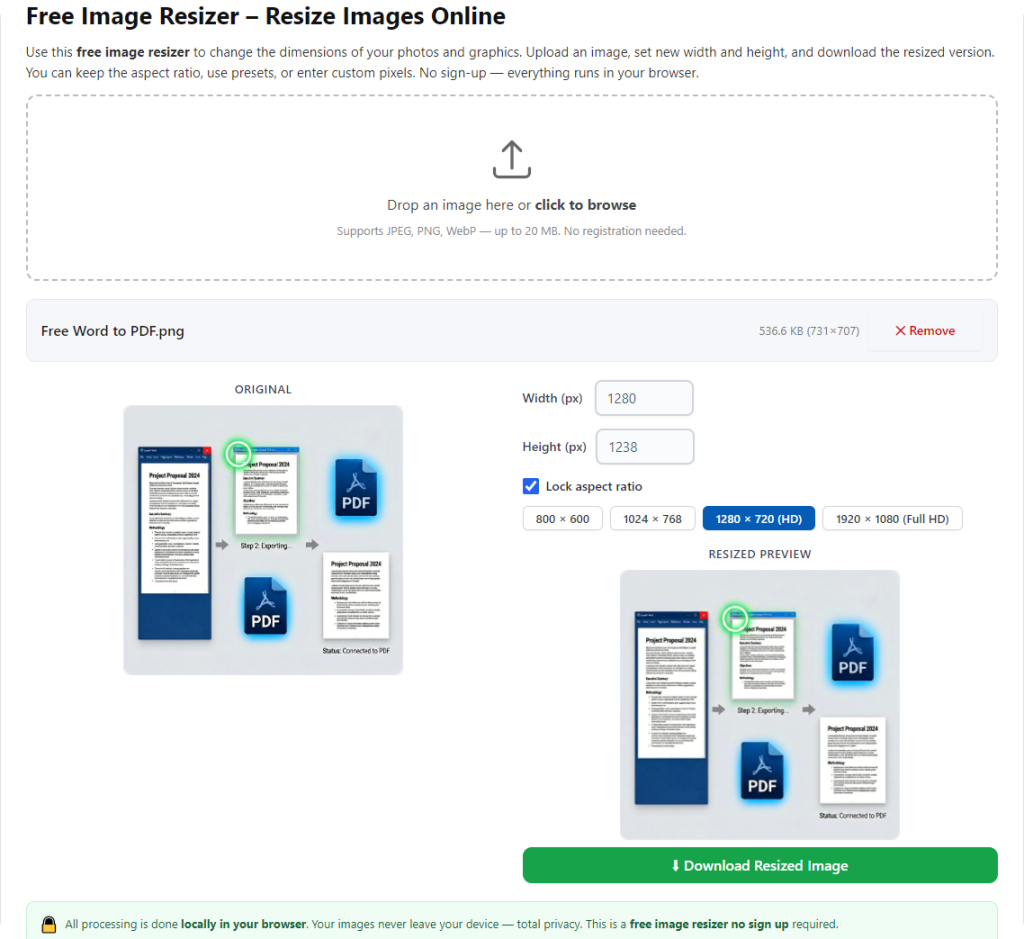
• Lock the aspect ratio (critical!): This stops your image from stretching. Most tools have a chain icon—click it to lock. If you enter a width, the height will auto-fill, and vice versa[2][6].
• Save a backup of the original: Always keep a copy of the original image. If you don’t like the resized version, you can start over without losing your original[6].
Example: My product photo is 3000x2000 pixels (aspect ratio 3:2). I want to resize it to 1080x720 (also 3:2), so locking the aspect ratio means I just enter 1080 in the width field, and the height auto-fills to 720—no stretching, no squashing[6].
Step 2: Open the Best Image Resizer Without Losing Picture Quality
Open your web browser (Chrome, Safari, Edge—any works) and go to the tool you picked. You’ll see a clean, simple interface with a clear upload zone that says something like “Upload Image” or “Resize Without Losing Quality”[4].
Pro tip: Bookmark the tool so you can access it quickly next time. No more searching for “image resizer” and sifting through tools that ruin your photos[4].
Step 3: Upload Your Image
This part is super easy—no logins, no email, just upload your image. Here’s how[4]:
• Drag and drop (computer): Click and hold your image file, drag it into the upload zone, and let go. This takes 2 seconds—perfect for busy days.
• Select manually (phone or computer): If drag and drop doesn’t work (e.g., on a phone), click the “Select File” button, navigate to your photo folder, and choose your image.
What to expect: The tool will process your image for a few seconds (10-20 seconds, max) and show you a preview of the original image, along with its current dimensions (width and height)[4].
Pro tip: If your image is larger than 50MB, check if the tool supports large files. Most good ones do, but if not, you can compress it slightly first (use a free image compressor that doesn’t lose quality) to reduce the size[4][6].
Step 4: Set Your Resizing Options (The Key to No Quality Loss)
This is where you make sure your image stays sharp. The best image resizer without losing picture quality will give you options to preserve detail—here’s what to do[3][5][6]:
1. Lock the aspect ratio: Click the chain icon next to the width and height fields. This ensures your image doesn’t stretch or squash[2][6].
2. Enter your target dimensions: Type in your desired width or height. Since the aspect ratio is locked, the other dimension will auto-fill. For my product photo, I type 1080 in the width field, and the height auto-fills to 720[6].
3. Choose the right resampling algorithm (if available): If the tool lets you pick, choose “Bicubic” or “Lanczos” for the best quality. Avoid “Nearest Neighbor”—it’s fast but pixelates[5]. Some tools use AI for upscaling, which is great if you need to make a small image larger[3].
4. Adjust quality settings (for JPGs): If you’re resizing a JPG, most tools let you adjust the quality (usually a slider from 0-100). Set it to 80-85%—this keeps the image sharp while keeping the file size small[6].
5. Use presets (if needed): If you’re resizing for social media, use the tool’s presets (e.g., “Instagram Post,” “YouTube Thumbnail”). The tool will auto-set the correct dimensions and quality settings, saving you time[4][6].
Pro tip: Don’t upscale too much! If your original image is 500x500 pixels and you try to resize it to 1080x1080, even the best image resizer without losing picture quality can’t make it perfectly sharp. Upscaling more than 2x will lead to some blur—stick to downscaling (making images smaller) for the best results[6].
Step 5: Preview & Resize Your Image
Don’t skip this step—it’s how you make sure your image is sharp and has no quality loss[4][6]:
1. Click the “Preview” button to see what your resized image will look like. Zoom in to check fine details (like text or edges) to make sure they’re sharp.
2. If something’s off (e.g., blurriness, stretched edges), adjust the dimensions or algorithm and preview again. It only takes a few seconds to fix.
3. Once you’re happy with the preview, click the “Resize” button (it might say “Resize Image” or “Start Resizing”). The tool will process your image in 10-30 seconds[4].
Example: I previewed my product photo and zoomed in to check the text on the product—it was sharp, no blurriness. I clicked “Resize,” and the tool processed it in 15 seconds.
Step 6: Download & Verify Your Resized Image
You’re almost done—this final step ensures your image is perfect[4][6]:
1. After the tool finishes resizing, click the “Download” button. Save the resized image to a folder where you can find it easily (e.g., “Resized Images” or “Website Photos”).
2. Open the downloaded image and double-check it. Zoom in to check details, make sure colors are true, and there’s no blurriness or pixelation.
3. Rename the image to something clear (e.g., “Product Photo – Resized.pdf”) so you don’t mix it up with the original[4].
That’s it! You just resized your image using the best image resizer without losing picture quality. It looks exactly like the original—sharp, clear, and professional.
Real-Life Scenarios: Using the Best Image Resizer Without Losing Picture Quality
Let’s put these steps into action with real scenarios you’ll actually encounter. This will show you how easy it is to use the best image resizer without losing picture quality in everyday life.
Scenario 1: Content Creator Resizing for Instagram
You’re a content creator, and you have a 4000x3000 pixel photo of a landscape (with fine details like leaves and sky) that you want to post to Instagram as a square (1080x1080 pixels). You don’t want to lose any detail or make it blurry. Here’s how:
1. Prep your photo: Save a backup, know your target (1080x1080), and lock the aspect ratio.
2. Upload the landscape photo to the best image resizer without losing picture quality.
3. Lock the aspect ratio, enter 1080 in the width field (height auto-fills to 1080), and choose “Lanczos” algorithm for sharpness[5].
4. Use the crop tool to focus on the best part of the landscape (since 4000x3000 is 4:3, you’ll need to crop to 1:1)[2][6].
5. Preview, zoom in to check leaves and sky details, then click “Resize.”
6. Download and post to Instagram. Your photo is sharp, vibrant, and has no quality loss—perfect for your feed[4][8].
Scenario 2: Small Business Owner Resizing Product Photos (Batch)
You own a small online store, and you have 20 product photos (all 3500x3500 pixels) that you need to resize to 800x800 pixels for your website. You need them to be sharp (so customers can see details) and consistent. Here’s how:
1. Prep your photos: Save backups, know your target (800x800), and make sure all are JPG/PNG.
2. Open the best image resizer without losing picture quality that supports batch resizing[4][7].
3. Upload all 20 product photos at once (use the “Batch Upload” button)[4].
4. Lock the aspect ratio, enter 800 in the width field, choose “Bicubic” algorithm, and set JPG quality to 85%[5][6].
5. Click “Resize All” and wait for the tool to process all photos (30-60 seconds).
6. Preview a few to check sharpness, then download all (some tools let you download as a zip file)[4].
7. Upload the resized photos to your website. All are sharp, consistent, and load fast—perfect for customers[4][6].
Scenario 3: Student Resizing a Project Image
You’re a student, and you have a 2500x1800 pixel image of a diagram (with small text and lines) for a school project. Your teacher requires it to be 1200x900 pixels (4:3 aspect ratio) and sharp enough to read the text. Here’s how:
1. Prep your image: Check the aspect ratio (2500x1800 is ~4:3), lock it, and save a backup.
2. Upload the diagram to the best image resizer without losing picture quality.
3. Lock the aspect ratio, enter 1200 in the width field (height auto-fills to 900), and choose “Lanczos” algorithm[5].
4. Preview and zoom in to check the text—make sure it’s readable.
5. Click “Resize” and download the image.
6. Insert the resized image into your project. The text is sharp, the lines are clear, and there’s no quality loss—perfect for your assignment[6].
Scenario 4: Resizing a Photo for Print
You have a family photo (3000x2000 pixels) that you want to print as a 4x6 inch photo. You need to resize it to 1200x1800 pixels (300 DPI) for high-quality print, with no quality loss. Here’s how:
1. Prep your photo: Know your target (1200x1800 pixels, 300 DPI), lock the aspect ratio (4x6 = 2:3), and save a backup[6].
2. Upload the photo to the best image resizer without losing picture quality.
3. Switch units to “inches,” set width to 4 and height to 6 (300 DPI), lock the aspect ratio[6].
4. Choose “Bicubic” algorithm for sharpness, preview to make sure the photo is correctly sized.
5. Click “Resize” and download the image.
6. Send it to the print shop. Your printed photo is sharp and high-quality—no blurriness, no detail loss[6].
Common Mistakes to Avoid When Using the Best Image Resizer Without Losing Picture Quality
I’ve made every single one of these mistakes—learn from me so you don’t waste time or ruin your images[2][5][6]:
1. Not locking the aspect ratio: This is the #1 mistake. If you don’t lock it, your image will stretch or squash, making it look unprofessional. Always click the chain icon[2][6].
2. Upscaling too much: Resizing a small image to be larger than its original size (more than 2x) will lead to blurriness, even with the best image resizer without losing picture quality. Stick to downscaling for best results[6].
3. Using the wrong algorithm: Avoid “Nearest Neighbor” algorithm—it’s fast but pixelates. Use “Bicubic” or “Lanczos” for sharp, clear results[5].
4. Ignoring the preview: Don’t download the resized image blindly—preview it first! Zoom in to check details. It takes 10 seconds and saves you from redoing it[4][6].
5. Forgetting to save the original image: If you don’t like the resized version, you’ll need the original to try again. Always save a backup[6].
6. Using a low-quality original image: You can’t fix a blurry original by resizing it. Start with the sharpest original possible[2][6].
7. Setting JPG quality too low: If you set JPG quality below 70%, your image will look grainy. Stick to 80-85% for the best balance of quality and file size[6].
Pro Tips to Master the Best Image Resizer Without Losing Picture Quality
Now that you know how to use the best image resizer without losing picture quality, these pro tips will make the process even smoother and ensure perfect results every time[3][4][5][6]:
1. Use standard dimensions for social media: Save time by memorizing common sizes (1080x1080 for Instagram posts, 1080x1920 for stories) or use the tool’s presets[4][6].
2. Compress images after resizing (if needed): If your resized image is still too big for email or web, use a free image compressor that doesn’t lose quality to reduce the file size[6].
3. Test with a small image first: If you’re resizing an important image (like a client photo or project image), test the tool with a small, non-important image first to make sure it works[4].
4. Use PNG for images with text or transparency: JPGs can blur text and lose quality with transparency. Use PNG for diagrams, logos, or images with text to keep them sharp[6].
5. Clear your browser cache if the tool is slow: Sometimes, browser cache slows down the tool. Clear it, and uploads/resizing will be faster[4].
6. Use AI upscaling for small images: If you need to upscale a small image (e.g., a old photo), use a tool with AI upscaling—it adds genuine detail instead of just blurring pixels bigger[3].
7. Check images at 100% zoom: When previewing, zoom to 100% to see the actual quality of the resized image. Zooming in more can make it look blurry even if it’s not[2].
Frequently Asked Questions (FAQ) – Best Image Resizer Without Losing Picture Quality
Q: Is there really a best image resizer without losing picture quality that’s free? A: Yes! Many free tools use high-quality algorithms (Bicubic, Lanczos) to keep images sharp. You don’t have to pay for expensive software—just pick the right free tool[3][4].
Q: Will my resized image look exactly like the original? A: If you use the best image resizer without losing picture quality and follow the steps, it will look almost identical—sharp, clear, and with all details intact. The only exception is if you upscale too much[3][5][6].
Q: Can I resize multiple images at once with the best image resizer without losing picture quality? A: Yes—many top tools support batch resizing. You can upload multiple images, set your dimensions once, and download them all at once[4][7].
Q: Can I use it on my phone? A: Yes! Most best image resizers without losing picture quality are browser-based and work on phones, tablets, and computers. No app download needed[4].
Q: What’s the maximum file size I can resize? A: Most good tools handle images up to 50MB or more. If your image is larger, compress it first with a free image compressor that doesn’t lose quality[4][6].
Q: What if the resized image is still blurry? A: Check if you upscaled too much or used the wrong algorithm. Try downscaling instead, or switch to “Lanczos” or “Bicubic” algorithm. Also, make sure your original image is sharp[5][6].
Q: Do these tools work with all image formats? A: Most work with JPG, PNG, WebP, and other popular formats. Check the tool’s features to confirm it supports your file type[4].
Final Thoughts – The Best Image Resizer Without Losing Picture Quality Saves You Time & Frustration
Resizing images without losing quality doesn’t have to be hard. The best image resizer without losing picture quality takes the guesswork out of the process, keeps your photos sharp, and saves you from redoing work. It’s not about using fancy software—it’s about using the right tool and following simple steps.
The key takeaway? Stop wasting time on resizers that ruin your images. With the best image resizer without losing picture quality, you can resize any image in minutes—whether it’s for social media, work, school, or personal use—and get professional, crisp results every time.
I’ve been using this method for years, and it’s saved me countless hours of frustration. I used to dread resizing images because I knew they’d turn blurry, but now I look forward to it—it’s fast, easy, and the results are perfect. Once you find the best image resizer without losing picture quality, you’ll wonder how you ever resized images without it.
So next time you need to resize an image, don’t stress. Grab the best image resizer without losing picture quality, follow the steps in this guide, and get the job done fast. Your images will be sharp, clear, and exactly how you want them—no quality loss, no hassle. Start resizing now!
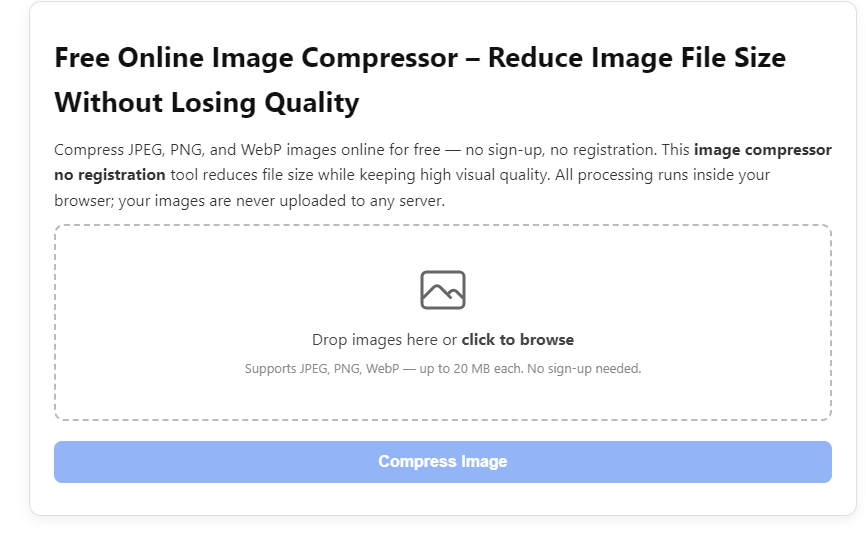
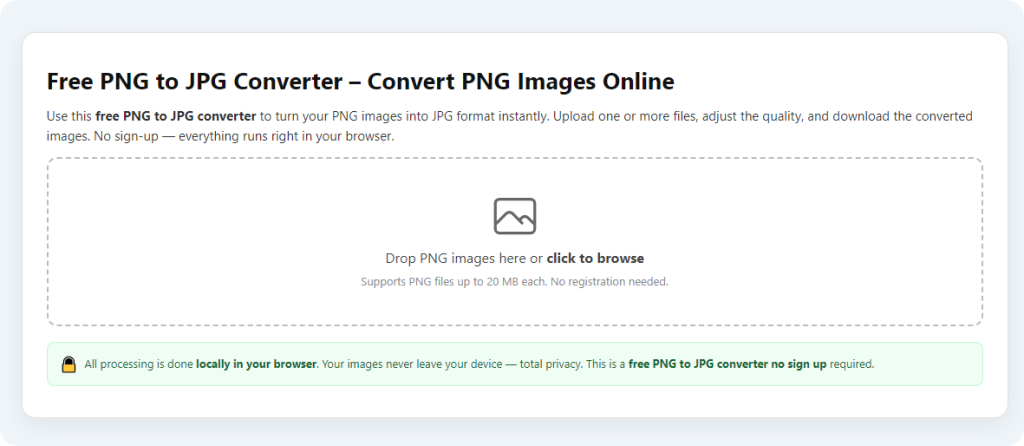
After learning the operation method, click the link below to enter the tool page for immediate use.