EPUB is the dominant format for digital books, novels, textbooks, and illustrated publications. Its flexible streaming layout adapts to every screen size for comfortable reading.
Still, countless users need PDF copies for physical printing, formal document sharing, archiving, or offline viewing on fixed-layout devices.
Most basic conversion tools ruin your original file quality during this shift. Custom fonts turn into generic system text, embedded photos stretch or vanish entirely, and multi-column layouts break apart without warning.
A professional-grade best EPUB to PDF converter preserve fonts and images eliminates all these formatting failures. It executes lossless conversion that locks in your original typography, illustration placement, page structure, and graphic resolution.
This in-depth user guide covers common formatting errors from cheap converters, core advantages of high-fidelity conversion software, non-negotiable tool features, real-world use cases, and a full step-by-step workflow to generate perfect matching PDF outputs every time.
Common Formatting Failures With Basic EPUB to PDF Converters
Free generic conversion tools cut corners on layout processing, creating consistent visual defects that ruin your finished PDF files.
Font substitution and missing character errors
Basic tools ignore embedded custom fonts stored inside your EPUB file. They replace unique serif, script, or academic technical fonts with default system typefaces.
Special symbols, foreign language characters, and mathematical notations often turn into blank boxes or garbled text when font embedding support is missing from low-quality converters.
Image distortion, blurriness, or total loss
Many entry-level converters aggressively compress all embedded graphics to shrink file size fast. High-resolution book illustrations, charts, diagrams, and cover art become pixelated and unreadable.
Worse tools shift image alignment randomly, push graphics off page margins, or delete smaller inline photos completely during the conversion process.
Broken multi-page layout structure
EPUB files built for textbooks, graphic novels, and magazines use fixed columns, side notes, and layered graphic arrangements. Cheap converters flatten this structure into unorganized single blocks of text.
Page breaks, chapter dividers, caption-image pairings, and header/footer branding all separate incorrectly, forcing you to manually rebuild the layout after conversion finishes.
Irreversible compression of source content
Once conversion completes on low-end tools, you cannot restore original font files or high-res image data. If you spot formatting mistakes, you must reupload your original EPUB and restart the entire process from scratch.
This repeated rework wastes hours, especially when handling long textbooks, multi-chapter novels, or illustrated reference guides.
Core Benefits of the Best EPUB to PDF Converter Preserve Fonts and Images
Switching to a dedicated best EPUB to PDF converter preserve fonts and images transforms your file conversion workflow and delivers publication-ready PDF results for every project type.
Full embedded font retention and native text rendering
Top-tier conversion software scans every font package stored within your source EPUB file and embeds each typeface directly into the finished PDF.
No generic font substitutions occur, and all special characters, foreign script letters, and technical notation display exactly as the original designer intended without distortion.
Unaltered image resolution and fixed graphic positioning
This specialized converter locks the original pixel resolution of every embedded illustration, chart, cover photo, and inline graphic. It maintains precise X/Y positioning on each page without stretching, cropping, or shifting visual elements.
Color profiles from the EPUB file carry over to the PDF output, so artwork tones, shading, and contrast remain consistent for both screen viewing and physical printing.
Preserved complex page and chapter layout logic
Whether your source EPUB uses single-column novel formatting, two-column textbook text, magazine-style sidebars, or graphic novel panel arrangements, the tool replicates the full structure in PDF form.
Chapter breaks, page number markers, caption-text pairings, and marginal notes stay aligned, removing the need for manual layout correction post-conversion.
Optimized for both digital viewing and hardcopy printing
PDFs generated from this high-fidelity converter balance sharp text rendering for screen reading and print-safe DPI settings for physical copies. Font embedding eliminates missing text errors when sending files to commercial print shops.
All graphic assets retain enough resolution to produce crisp, clear printed pages without blurring or washed-out color tones.
Batch conversion support for multiple EPUB files
You can upload dozens of ebook files in a single session. The tool processes each document individually while applying the same font and image preservation rules to every output PDF, maintaining uniform quality across an entire library of books.
Zero permanent data compression of source assets
Unlike cheap converters that permanently shrink graphics and strip font files, this tool copies all original embedded assets into the PDF container without destructive compression. If you need to adjust page size or margins later, your font and image quality stays intact.
Must-Have Features of a Reliable Best EPUB to PDF Converter Preserve Fonts and Images
Not all conversion tools offer equal layout preservation performance. The true best EPUB to PDF converter preserve fonts and images includes these ebook-focused, high-fidelity core features.
Full font embedding engine with custom typeface detection
The tool must automatically scan all internal font packages inside your EPUB, rather than relying on system fonts installed on your device. Look for a dedicated toggle labeled “Embed All Source Fonts” within advanced conversion settings.
It should support variable fonts, multi-language script sets, and technical symbol fonts common in academic textbooks and engineering reference ebooks.
High-resolution image retention controls
Adjustable graphic quality sliders let you lock original DPI values from your source EPUB, rather than forcing automatic compression. The tool must disable auto-cropping and auto-stretching functions by default to protect illustration placement.
Separate preview windows let you zoom into charts, cover art, and inline photos before finalizing the PDF export, so you catch alignment issues early.
Fixed layout replication mode for complex publications
A dedicated fixed-layout preset targets graphic novels, textbooks, magazines, and children’s picture books. This mode disables automatic text reflow that breaks column and graphic alignment seen in standard streaming conversion modes.
Standard novel mode remains available for text-only fiction ebooks that do not rely on rigid multi-element page arrangements.
Custom page size and margin configuration
Match output PDF dimensions to your printing requirements, with preset options for A4, letter, legal, and custom paperback trim sizes. Adjustable margin sliders let you expand or shrink white space without shifting embedded fonts and images out of frame.
All font scaling adjusts proportionally alongside margin changes to avoid cramped text or cut-off illustrations on page edges.
Batch upload and bulk conversion queue
Drag-and-drop folder upload support lets you process entire ebook libraries at once. Each file retains its unique font and graphic assets independently, with separate output PDF files generated for every source EPUB.
Progress tracking shows conversion status for each document in the queue, and you can pause or remove individual files without restarting the full batch.
Pre-conversion layout preview panel
Before exporting the final PDF, a live preview displays every page of your ebook with accurate font rendering and image placement. You can jump between chapters to spot misaligned graphics or font rendering glitches and tweak settings before committing to the full conversion.
Lossless export file logic
All embedded fonts, image files, metadata, and chapter navigation markers copy directly into the finished PDF container. No source assets get deleted or compressed during processing, leaving you with fully editable, high-quality output files.
Real-World Use Cases for a High-Fidelity EPUB to PDF Converter
A versatile best EPUB to PDF converter preserve fonts and images serves students, self-published authors, graphic designers, educators, and book archivists across countless daily workflows.
Academic textbook and study guide conversion
College and university textbooks frequently use specialized technical fonts, mathematical formulas, anatomical diagrams, and multi-column instructional layouts. Low-quality converters break all these critical visual learning elements.
This high-fidelity tool generates print-ready PDFs that retain every chart, notation, and custom font for in-class handouts, offline study, and assignment submission.
Self-published author ebook archiving and printing
Independent authors design EPUB manuscripts with unique brand fonts, custom cover artwork, interior illustrations, and formatted chapter dividers. Converting to PDF without losing these assets creates professional files for print-on-demand services and digital archive storage.
Readers also request PDF copies of illustrated fiction for offline reading, making consistent font and graphic preservation essential for maintaining your original creative vision.
Graphic novel, comic book, and children’s book formatting
Picture-heavy publications rely entirely on precise image placement paired with stylized script fonts. Generic converters shift panels, stretch artwork, and replace hand-drawn text fonts with generic system typefaces.
The layout-locking conversion mode preserves every panel border, speech bubble font, and full-page illustration without distortion or misalignment.
Magazine and digital publication PDF export
Digital magazines, travel guides, and lifestyle journals use layered sidebars, photo galleries, decorative heading fonts, and captioned imagery. Lossless conversion lets publishers generate matching PDF versions for website downloads and print distribution.
Library and personal ebook archiving
Readers building permanent offline document archives need PDFs that match their original purchased EPUB files exactly. Font and image preservation ensures decades-old digital books retain their original design quality without visual degradation.
Classroom handout and curriculum material creation
Teachers convert educational EPUB resources into printable PDF packets for students. Preserved diagrams, foreign language fonts, and instructional graphics eliminate the need to retype or reinsert visual teaching materials manually after conversion.
Step-by-Step Complete Guide: Use Best EPUB to PDF Converter Preserve Fonts and Images
Follow this structured, beginner-friendly workflow to generate perfectly formatted PDF files that retain all original fonts, images, and page layout from your source EPUB ebook.
Step 1: Organize and inspect your source EPUB files
Locate all ebook files you plan to convert on your local storage device. Create a dedicated folder to separate source EPUBs from finished PDF outputs to avoid file confusion later.
Open one sample file in your default EPUB reader to note key design elements: custom heading fonts, high-resolution illustrations, multi-column layouts, or technical symbol sets you need to preserve during conversion.
Step 2: Launch the high-fidelity EPUB to PDF conversion tool
Open your selected best EPUB to PDF converter preserve fonts and images software or web application. Navigate to the main conversion dashboard designed specifically for ebook file processing.
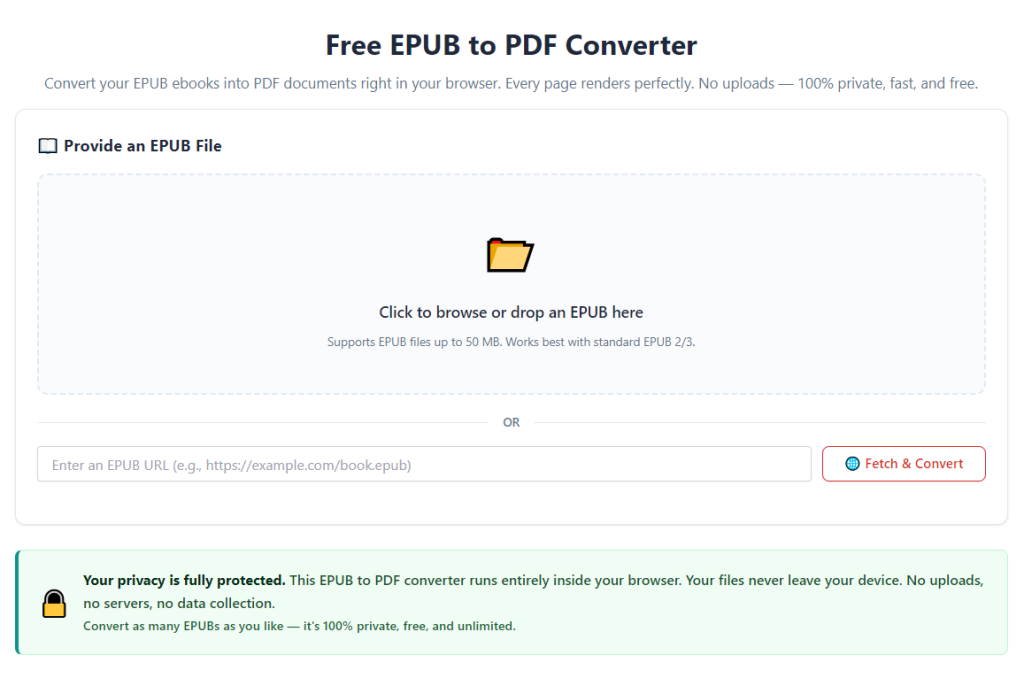
Locate the primary upload zone marked for EPUB file input; avoid generic all-format conversion tabs that lack font and image preservation controls.
Step 3: Upload single or batch EPUB source files
Drag and drop individual EPUB files directly into the upload panel, or use the file browser button to select entire folders of ebooks for bulk batch conversion.
Review the upload list to confirm no corrupted or incomplete ebook files have been added to the queue, as damaged source files can disrupt font embedding and graphic extraction.
Step 4: Activate core font and image preservation settings
Open the advanced conversion options panel, and enable these critical high-fidelity toggles first:
- Embed all source embedded fonts (primary setting to prevent font substitution)
- Retain original image resolution / Disable automatic graphic compression
- Lock original image position and disable auto-cropping / stretching
- Enable fixed layout replication (for textbooks, graphic novels, magazines)
Adjust secondary settings only after confirming these four core preservation controls are active. Avoid default “fast conversion” presets, as these automatically compress graphics and skip full font embedding to speed processing.
Step 5: Customize page size, margins, and output resolution
Select your target page dimension preset (A4, letter, paperback trim size, or custom measurements). Adjust margin sliders to match your printing or viewing needs.
Set output graphic DPI to match your source EPUB’s native image resolution (300 DPI is standard for print-quality PDFs). Leave text rendering quality set to maximum sharpness for clear font display.
Step 6: Preview page layout and asset rendering
Launch the live pre-conversion preview window. Navigate through multiple chapters to verify three key elements:
- All custom fonts render correctly with no substitution or garbled characters
- Every illustration, chart, and cover graphic stays in its original page position with no blurring
- Columns, captions, and chapter dividers match the original EPUB layout exactly
If you spot misaligned images or font errors, return to the advanced settings panel and double-check that font embedding and fixed layout modes remain enabled.
Step 7: Start the EPUB to PDF conversion process
Once preview inspection confirms perfect layout retention, close the preview panel and click the convert/export button to begin processing your uploaded ebook files.
For large batch queues, allow extra processing time; full font embedding and high-res image copying require more processing power than fast low-fidelity conversion modes.
Step 8: Locate and open finished PDF output files
When conversion completes, click the open output folder button to access your newly generated PDF documents. Open each file in your default PDF viewer for a final full-document quality check.
Zoom into illustrations and text blocks to confirm font sharpness and uncompressed graphic clarity. Scroll through full chapters to ensure no page breaks or image alignment errors appeared post-conversion.
Step 9: Save or distribute your preserved-layout PDF files
Store finished PDFs in your dedicated archive folder for long-term storage, or share the files for printing, classroom distribution, author portfolio use, or offline digital reading.
If you require multiple page size variations of the same ebook, retain the original source EPUB to re-run conversion with adjusted margin/page settings without losing font and image source assets.
Common Mistakes to Avoid When Using EPUB to PDF Conversion Tools
Even with access to the best EPUB to PDF converter preserve fonts and images, these frequent user errors will introduce formatting defects into your finished PDF documents.
Using fast/basic conversion presets instead of high-fidelity modes
Quick conversion profiles automatically disable font embedding and compress all embedded graphics to reduce processing time. Always manually activate the full preservation advanced settings before exporting.
Skipping the pre-conversion layout preview
Many users launch conversion immediately after uploading files without checking the preview panel. Small font rendering glitches or misaligned images only become visible after full export, requiring complete reprocessing of the entire ebook file.
Mixing streaming layout and fixed layout modes for graphic-heavy books
Leaving standard streaming reflow mode enabled for graphic novels, textbooks, or magazines breaks column and image positioning. Switch to fixed layout replication for any EPUB with multi-element page designs.
Overlooking custom font support for multi-language or technical content
Foreign language scripts, mathematical notation fonts, and decorative heading typefaces will substitute to generic text if the “embed all source fonts” toggle remains disabled in settings.
Uploading corrupted or incomplete EPUB source files
Damaged ebook archives with missing internal font folders or broken image links cannot produce perfect PDFs, even with premium conversion software. Always test source files in an EPUB reader before uploading to the converter queue.
Running batch conversions without uniform preservation settings
If you adjust font/image controls mid-batch, files processed before the setting change will suffer compression or font substitution defects. Finalize all advanced options before starting bulk queue processing.
Pro Expert Tips to Maximize Font and Image Preservation Results
Use these professional workflow strategies to get flawless, publication-grade PDFs every time you operate a best EPUB to PDF converter preserve fonts and images.
- Create a saved preset with all font embedding and high-res image locks enabled to avoid reconfiguring advanced settings for every conversion session.
- Process graphic-heavy ebooks individually rather than in large batches to monitor preview quality without slowing down the full queue.
- Back up original source EPUB files separately; if you need revised PDF dimensions later, you can re-convert without losing original font and graphic assets.
- For print projects, set image DPI to 300 and avoid reducing resolution sliders—lower DPI values introduce blurry printed illustrations.
- After conversion, run a quick page flip through the full PDF to catch edge-case errors like off-page marginal images or special symbol font failures.
- When converting self-authored manuscripts, use the preview tool to compare PDF layout side-by-side with your original EPUB editing file for perfect design matching.
- Avoid third-party compression tools on finished PDFs, as external compression software will strip embedded fonts and degrade stored image quality post-conversion.
Final Thoughts
EPUB to PDF conversion should not require sacrificing your ebook’s original creative and instructional design. Generic low-end converters routinely strip custom fonts, distort illustrations, and break carefully structured page layouts, creating hours of tedious manual correction work after export.
A dedicated best EPUB to PDF converter preserve fonts and images eliminates every one of these common formatting pain points. Its built-in font embedding engine, lossless graphic retention, and fixed layout replication replicate your source ebook’s exact visual style inside every generated PDF file.
This tool serves every user group: students working with technical textbooks, independent authors preserving illustrated manuscripts, educators building printable curriculum packets, and archivists building permanent high-quality digital libraries.
By following the complete step-by-step conversion workflow and avoiding the outlined common formatting mistakes, you can consistently produce print-ready, shareable PDF documents that retain every font, illustration, and layout detail from your original EPUB source file with zero visual degradation.
After learning the operation method, click the link below to enter the tool page for immediate use.