Creating sharp, lightweight visual assets is non-negotiable for modern web and interface design. UI icons, decorative web graphics, navigation symbols, and landing page illustrations all rely on vector files to maintain quality across every screen resolution.
Most new and freelance designers run into two major roadblocks when building web visuals. Raster PNG and JPG files pixelate when scaled up, while professional desktop vector software carries steep learning curves and expensive licensing fees.
Many browser-based drawing tools lack specialized functions built exclusively for interface icon creation. Generic online editors miss critical web optimization features that keep SVG file sizes small for fast page loading speeds.
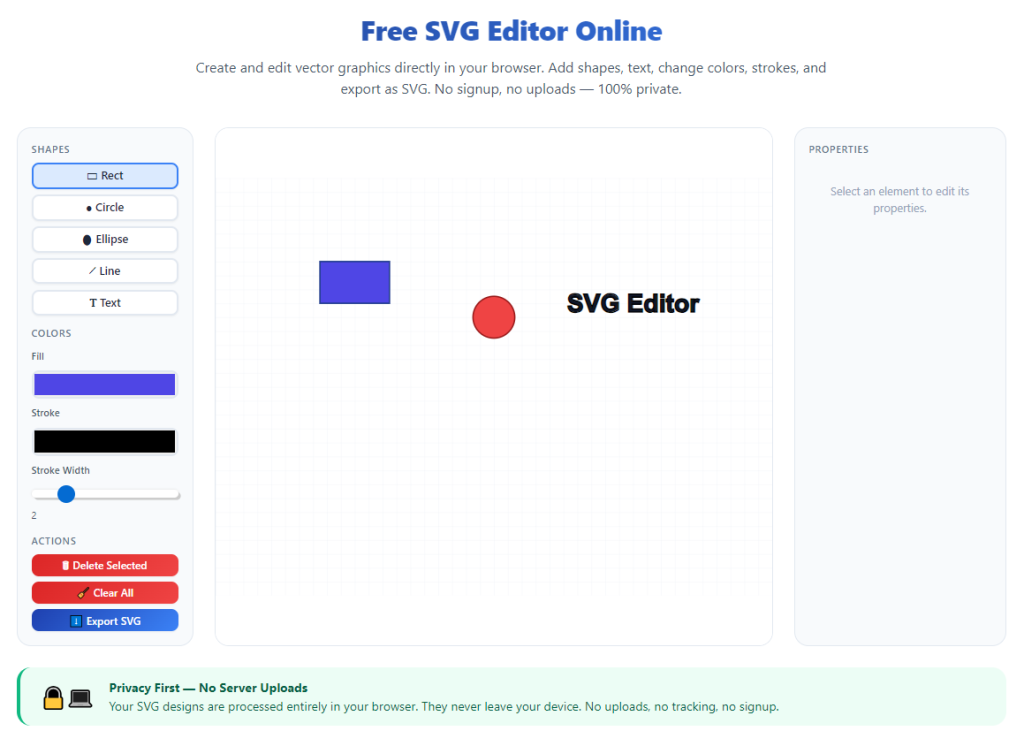
A high-quality best SVG editor online for UI icons and web graphics solves every one of these common design pain points. It combines cloud accessibility, dedicated icon design tools, and built-in web export settings in a single browser workspace.
This in-depth tutorial breaks down the limits of outdated design workflows, core advantages of specialized online SVG tools, must-have editor features, common design use cases, and a complete step-by-step workflow to build polished UI icons and optimized web graphics from scratch.
Why Traditional Design Workflows Fail for Web SVG Creation
Working with desktop vector software or basic free drawing websites creates consistent bottlenecks that slow down web interface projects and hurt final site performance.
Overly complex desktop software learning curves
Full-featured offline vector programs come with hundreds of advanced panels, brush sets, and menu options meant for print media. Most of these tools are unnecessary for simple UI icon and web graphic work.
New designers waste hours navigating irrelevant menus just to draw a basic navigation icon. The bloated interface adds unnecessary friction to fast-paced web design sprints.
Raster image quality degradation at variable screen sizes
PNG, GIF, and JPG graphics lose sharpness when scaled for mobile displays, high-DPI monitors, or large hero banner layouts. Blurry interface icons damage brand professionalism and hurt user experience metrics.
Static bitmap files cannot adapt cleanly to responsive website layouts, forcing designers to generate multiple asset sizes manually for every page component.
Generic online drawing tools lack web-focused optimization
Basic browser drawing platforms are built for general illustration, not web UI asset production. They skip critical features like code cleanup, path simplification, and CSS color matching built for web development.
Files exported from these generic editors carry bloated, redundant SVG markup that increases page load times and harms search engine and core web vital scores.
Restricted cross-device file access
Desktop design software locks project files to a single local machine. Designers cannot tweak UI icons or adjust web graphics quickly when switching between laptops, tablets, or shared team workstations.
Sending raw project files between collaborators creates version control confusion and extra file transfer steps for every small visual edit request.
Manual SVG code cleanup takes valuable design hours
Raw vector exports often include hidden layers, unused shape paths, redundant group tags, and embedded metadata. Manually stripping this extra markup line by line adds massive extra editing time to every project.
Without automated optimization tools, designers sacrifice either page speed or valuable work hours to shrink SVG file sizes for live web deployment.
Core Benefits of the Best SVG Editor Online for UI Icons and Web Graphics
Integrating a dedicated best SVG editor online for UI icons and web graphics into your regular design workflow streamlines asset creation, improves visual quality, and aligns perfectly with modern web development standards.
Fully cloud-based access with zero software installation
Everything runs directly inside your standard web browser. There are no large program downloads, system compatibility checks, or local storage space requirements to worry about before starting a design.
You can open, edit, and export UI icons and web graphics instantly on any internet-connected device without carrying design project files back and forth.
Infinite scalable vector output with zero pixelation
Every shape, line, icon stroke, and decorative graphic element generates pure vector code. Your finished assets stay crisp and sharp on tiny mobile navigation bars, desktop headers, and oversized landing page banners alike.
There is no need to render multiple resolution variants for responsive web layouts; one single optimized SVG file works across all device screen dimensions automatically.
Built-in web optimization to minimize file weight
Top-tier online SVG editors include one-click markup simplification tools. The platform removes hidden layers, redundant path points, unused color definitions, and unnecessary metadata to cut file size drastically.
Lightweight SVG assets improve page loading speeds, boost core web vital scores, and create smoother browsing experiences for site visitors across all internet connection speeds.
Dedicated UI icon design toolkits tailored for interface work
Unlike general illustration platforms, this specialized editor preloads shape templates, uniform stroke presets, grid alignment tools, and pixel-perfect snapping built exclusively for UI icon creation.
Standardized icon sizing grids ensure consistent visual weight across navigation buttons, feature markers, status indicators, and sidebar interface symbols throughout your website.
Seamless color matching for brand web palettes
Upload your official brand color hex codes directly into the editor’s color panel. Every UI icon and web graphic you create adheres strictly to your defined brand palette without manual color value lookup.
Built-in opacity and gradient controls replicate modern web design trends for hover states, overlay graphics, and subtle decorative page elements with precise numerical value inputs.
Collaborative design support for web teams
Share live editing links with fellow designers, developers, or project stakeholders. Multiple team members can review, tweak, and comment on UI icon drafts without sending heavy project files back and forth.
Real-time lightweight previews let developers test SVG icon placement within mockup layouts before final asset export and website integration.
Unlimited draft iterations with no local file clutter
Save all your UI icon and web graphic drafts directly within the browser tool’s cloud storage. You can revisit past versions, duplicate icon templates, and adjust graphic elements without filling device hard drives with raw design files.
Duplicating existing finished icons to create new themed variants takes only one click, drastically speeding up bulk interface asset production for large multi-page websites.
Must-Have Features of a Premium Best SVG Editor Online for UI Icons and Web Graphics
Not all browser-based vector tools deliver equal value for web interface design. When selecting a reliable best SVG editor online for UI icons and web graphics, prioritize these web-focused, icon-building core functions.
Pixel-perfect grid and snap alignment system
A locked pixel grid matching standard web UI icon dimensions eliminates blurry half-pixel edges. Automatic snap-to-shape and snap-to-line functions guarantee clean, balanced icon geometry every time you draw.
Custom grid size presets for common icon dimensions simplify consistent asset creation for navigation bars, buttons, footer symbols, and in-page feature indicators.
Advanced path editing and shape modification tools
Full control over anchor points, curve handles, stroke thickness, and corner rounding lets you fine-tune every icon contour. Convert basic rectangles, circles, and lines into fully customized unique UI symbols in minutes.
Combine, subtract, intersect, and exclude overlapping shapes to build complex multi-part icons without switching between separate editing windows or external software.
Automated SVG markup cleaning and compression
One-tap optimization scans your entire graphic file and strips redundant code elements. The tool preserves all visual details while eliminating bloated markup that slows website load speeds.
Export options include compressed minified SVG code ready for direct insertion into website HTML, CSS, or component files without extra developer cleanup work.
Pre-built UI icon template library
Access hundreds of starter icon shapes covering navigation, ecommerce, user profile, media control, and technical interface categories. Customize template strokes, colors, and proportions instead of drawing every icon completely from blank canvases.
Templates follow modern minimalist web design aesthetics, reducing the amount of manual styling adjustments required before final asset export.
Layer management tailored for web graphic organization
Label, hide, lock, and group icon elements into logical layers. Separate base shapes, accent lines, background graphics, and hover state variants to simplify targeted edits without disrupting full icon geometry.
Layer visibility toggles make it easy to compare alternate icon versions and remove decorative graphic elements that add unnecessary file weight.
Multi-format export functionality for web deployment
Beyond standard SVG vector exports, the editor supports transparent PNG raster fallback files for older browser compatibility. Adjustable resolution settings let you generate matching bitmap icon variants in seconds.
Copy raw optimized SVG code directly to your clipboard to paste straight into web development files, skipping separate file download and upload steps entirely.
Custom stroke, fill, and web effect presets
Save your frequently used stroke weights, rounded corner radii, gradient styles, and shadow effects as reusable presets. Maintain uniform visual styling across every UI icon and web graphic on your entire website project.
Opacity control sliders use standard web percentage values, matching the transparency syntax developers use within CSS styling sheets for seamless cross-format consistency.
Common Real-World Use Cases for Online SVG UI Icon and Graphic Editors
A versatile best SVG editor online for UI icons and web graphics adapts to every stage of website design, from small personal portfolio pages to large enterprise multi-section web platforms.
Website navigation bar icon creation
Design minimal home, menu, search, cart, account, and close icons for header and mobile hamburger navigation layouts. Uniform grid sizing ensures balanced visual flow across desktop and mobile navigation components.
Optimized lightweight SVG output keeps header load times fast, even when pages load dozens of separate navigation icons simultaneously.
Ecommerce product page UI symbols
Build cart badges, filter tags, rating stars, shipping markers, payment method icons, and size selection indicators for online store product layouts. Brand color integration matches storefront visual identity perfectly.
Minified SVG markup prevents slowdowns on product listing pages that display dozens of individual interface symbols per screen view.
Landing page decorative web graphics
Create subtle divider lines, section accent shapes, call-to-action button ornaments, hero banner illustrations, and feature section decorative elements. Scalable vector graphics maintain crisp quality across wide full-width page layouts.
Adjust graphic opacity and color gradients to match landing page color schemes without exporting entirely separate asset files for each page variant.
Mobile responsive app web interface icons
Design compact status icons, tab navigation symbols, toggle switches, and form input indicators for mobile-first web applications. Small grid presets guarantee clean geometry on narrow smartphone screen widths.
Single SVG files adapt automatically to variable mobile viewport sizes without pixel distortion or blurry icon edges on high-DPI mobile displays.
Blog and content site feature graphics
Craft category markers, reading progress indicators, share button icons, quote block accents, and author profile decorative elements for editorial blog layouts. Fast bulk editing speeds up content asset production for regular blog posting schedules.
Lightweight vector graphics avoid heavy image file bloat that creates slow scroll performance on text-heavy long-form blog articles.
Brand refresh and website redesign asset updates
Redraw outdated legacy raster icons and replace them with optimized scalable SVG versions during full site redesign projects. Duplicate existing finished icon templates to build matching updated visual sets quickly.
Cloud storage retains all past icon drafts from older site versions, letting designers revert or remix old graphic elements for new page layouts without recreating shapes from scratch.
Freelance client quick design mockup assets
Produce custom UI icon sets for client website mockups during initial project consultations. Instant browser access means you can draft revised graphic concepts during virtual client calls without local software setup delays.
Share live editor preview links so clients can view icon drafts instantly and submit feedback without waiting for large design file email attachments.
Step-by-Step Full Tutorial: Use the Best SVG Editor Online for UI Icons and Web Graphics
Follow this streamlined, web-design focused workflow to draw, refine, optimize, and export professional vector assets using a top-tier best SVG editor online for UI icons and web graphics.
Step 1: Define your asset dimensions and design goals
Start by outlining the purpose of your graphic asset. Confirm whether you are building a compact UI icon for navigation, a large decorative web graphic, or a multi-part feature illustration for page sections.
Note down your standardized canvas size, matching the universal pixel grid dimensions used across your website design system. Jot down your brand hex color codes to reference within the editor’s color panel later.
Step 2: Open the cloud SVG editor in your browser
Launch the online SVG editor within any standard desktop or mobile web browser. The platform loads instantly with no installation, login delays, or mandatory account setup prompts blocking your workflow.
Navigate to the new canvas creation panel and input your pre-planned grid size. Activate the pixel snap grid toggle to lock shape geometry to clean whole-pixel positioning for crisp icon edges.
Step 3: Import brand color palette or input hex values
Locate the color panel on the editor’s sidebar. Manually type your brand primary, secondary, accent, and neutral hex color codes into the custom color slots to save a permanent project palette.
Disable default generic preset colors to ensure every shape fill and stroke strictly adheres to your defined web brand styling rules for consistent visuals site-wide.
Step 4: Build base shapes for your UI icon or web graphic
Select basic shape tools including rectangles, circles, rounded squares, straight lines, and custom freehand path tools. Drag elements onto your pre-sized grid canvas to lay out the foundational structure of your vector asset.
Use shape combine, subtract, and intersect functions to carve cutouts, hollow sections, and layered geometry typical of polished minimalist web UI icons. Adjust corner rounding sliders to match your site’s design language.
Step 5: Refine anchor points and curve paths for clean geometry
Activate the path editing tool to select individual anchor points along your drawn shapes. Drag curve handles to smooth uneven lines and tweak proportions until your icon or graphic looks visually balanced on the grid.
Delete redundant excess anchor points wherever possible; fewer path vertices result in smaller, faster-loading SVG code after final optimization.
Step 6: Organize elements into labeled editing layers
Open the layer management panel and group related shape elements into clearly named layers. Separate base icon outlines, accent decorative lines, background graphic shapes, and alternate hover state variants into distinct locked or unlocked layers.
Hide unused temporary draft layers to reduce visual clutter on your canvas and prevent accidental edits to finished core icon geometry during fine-tuning stages.
Step 7: Apply brand colors, strokes, and subtle web effects
Select individual shape groups and assign saved brand palette fills and stroke weights. Match stroke thickness values to your design system’s standardized UI icon line width rules for uniform visual weight.
Add soft low-opacity gradients or subtle inner shadow effects only where required for page depth; overusing heavy effects will unnecessarily inflate your final SVG file size.
Step 8: Preview asset at multiple responsive scaling sizes
Use the editor’s live zoom and scale preview tool to test how your icon or graphic renders at tiny mobile sizes and large desktop banner dimensions. Check for broken thin lines or distorted geometry at extreme scaling levels.
Adjust overly delicate thin strokes that disappear on small mobile viewports, ensuring your vector asset remains readable across all standard responsive breakpoints for web layouts.
Step 9: Run one-click SVG markup optimization and compression
Locate the dedicated web optimization button within the export sidebar. Click to launch automated code cleaning; the tool removes hidden layers, unused color tags, redundant group elements, and excess metadata automatically.
Review the before-and-after file size display to confirm significant compression without any visible loss to your icon or graphic’s visual details on the canvas preview window.
Step 10: Export optimized assets for web deployment
Choose your required export format based on your development workflow. Select minified SVG vector files for primary website use, or transparent PNG fallback files for legacy older browser support.
You can either download the finished compressed SVG file directly to your device clipboard, or copy the fully cleaned raw SVG markup to paste instantly into HTML, CSS, or web component code files.
Step 11: Save cloud draft copies for future edits
Save your full layered editable project draft to the editor’s built-in cloud storage under a clear identifiable file name. Tag drafts by website page or icon category to locate reusable templates quickly for future design work.
Duplicate saved finished icon templates to rapidly create new matching themed assets for additional website sections without redrawing base geometry from blank canvases repeatedly.
Common Costly Mistakes to Avoid When Using Online SVG Editors for Web UI Design
Even when working with a feature-rich best SVG editor online for UI icons and web graphics, these frequent design and export errors can hurt website performance and visual consistency.
Ignoring the pixel snap grid for UI icon geometry
Drawing shapes without activating pixel snap creates half-pixel edge offsets. These tiny misalignments produce blurry, fuzzy icon outlines that look unpolished on high-DPI desktop and mobile device screens.
All navigation and interface icons should lock fully to whole pixel grid positions to maintain crisp, sharp vector rendering across responsive web layouts.
Overloading graphics with unnecessary decorative effects
Heavy multi-layer gradients, complex drop shadows, intricate patterned fills, and dozens of small overlapping shapes drastically increase SVG file weight. Bloated markup slows page load speeds and harms core web vital metrics.
Reserve subtle decorative effects only for large hero banner web graphics; keep compact UI navigation icons flat with minimal single-color fills and uniform thin strokes.
Skipping the built-in SVG optimization step before export
Exporting raw uncompressed vector drafts carries hundreds of lines of redundant hidden code. Developers are forced to spend extra hours manually stripping markup before integrating assets into live website files.
Always run the one-click optimization scan as the final editing step before downloading or copying SVG code for web deployment.
Mixing inconsistent stroke weights across site icon sets
Randomly adjusting line thickness between related navigation and feature icons creates disjointed, unbalanced visual styling across your website’s interface. Visitors perceive mismatched icon weights as unprofessional brand design.
Save standardized stroke presets in the editor’s color/style panel and reuse identical line widths for all UI icons within the same website design system.
Creating oversized canvas dimensions for small UI icons
Designing tiny navigation symbols on extremely large blank canvases adds empty transparent space to SVG code. Extra blank canvas padding inflates file size with no meaningful visual benefit to page layouts.
Set canvas dimensions to match the exact intended display size of each icon during new project creation to eliminate empty whitespace in final exported vector files.
Forgetting to test scaled previews on small mobile viewports
A graphic that looks crisp on a desktop editor canvas may thin out and become unrecognizable when shrunk down for mobile navigation bars. Tiny delicate lines vanish entirely on narrow smartphone screen widths.
Always zoom the preview panel down to mobile scale during the review phase to adjust stroke thickness and simplify overly intricate icon details where needed.
Expert Pro Tips to Maximize Output From the Best SVG Editor Online for UI Icons and Web Graphics
Use these professional web design strategies to streamline your asset creation workflow and produce higher-performance, visually consistent vector graphics every time you open the tool.
- Bookmark the editor browser tab for instant one-click access, eliminating search and load delays before starting UI icon drafting sessions.
- Build a master reusable template file containing your full brand color palette, standard grid sizes, and saved stroke presets for all future website graphic projects.
- Bulk design entire sets of related UI icons in one single canvas session, using copy-paste shape duplication to maintain identical geometry proportions across the full icon pack.
- Separate decorative large-format web graphics and compact navigation UI icons into distinct cloud draft folders to keep your design library neatly organized by asset type.
- After exporting SVG assets, cross-check file size totals to identify overly heavy graphics; simplify complex overlapping shapes and extra effects to cut weight further when needed.
- Share saved template drafts with other web designers on your team to enforce uniform icon sizing, color rules, and styling standards across all site visual assets.
- Avoid embedding external font files directly inside SVG graphics; convert all text-based icons to permanent vector shapes to eliminate missing font rendering errors on live websites.
- Schedule quarterly archive reviews of your cloud-saved icon drafts, deleting unused outdated graphic templates to reduce clutter and speed up editor load times during new design work.
Final Thoughts
Scalable vector graphics form the visual backbone of every modern fast-loading website. Clean, lightweight UI icons and balanced decorative web graphics improve user experience, reinforce brand identity, and support positive search engine performance metrics.
Traditional offline design software and generic basic online drawing tools create unnecessary workflow friction, bloated file output, and inconsistent visual results for interface-focused web design work.
A fully specialized best SVG editor online for UI icons and web graphics eliminates every one of these pain points. It delivers browser-based cloud access, pixel-perfect icon drawing controls, automated SVG code compression, brand color management, and team collaboration functionality all within a single streamlined workspace.
Whether you are a freelance solo designer building small portfolio sites, an in-house creative producing enterprise web asset packs, or a beginner learning interface graphic creation, this online vector tool adapts to every project scale and skill level seamlessly.
By following the complete step-by-step design workflow, avoiding common export and geometry mistakes, and applying the expert optimization tips laid out in this guide, you can consistently craft crisp, fast-loading, brand-aligned UI icons and web graphics that elevate every website you design.
After learning the operation method, click the link below to enter the tool page for immediate use.