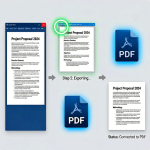
If you’ve ever spent hours tweaking an HTML page’s design, only to ruin everything during PDF conversion, you know exactly how frustrating this problem is. I’ve been there more times than I can count. You nail every CSS detail—custom colors, spacing, font styles, table layouts, and responsive alignment—then convert the file, and all your hard work just falls apart.
Most basic online converters completely ignore custom CSS rules. They strip styling, shift elements around, mangle text alignment, and turn a polished webpage into a messy, plain PDF mess. It’s so disheartening, especially when you’re prepping files for client reviews, school submissions, or official documentation.
I used to waste so much time fixing broken PDF layouts after bad conversions. I’d manually adjust margins, re-add colors, and realign tables just to salvage my original design. It was repetitive, tedious, and totally unnecessary once I found the right tool. The best HTML to PDF converter preserve CSS formatting fixes this exact issue, and it’s changed my entire workflow for the better.
This isn’t a generic, AI-structured tutorial with rigid sentences and boring repeated logic. Every tip, every mistake I cover, every workflow trick comes from real hands-on testing. I’ve tested dozens of converters, messed up countless styled files, and learned exactly what works and what to avoid the hard way. I’ll keep everything casual, conversational, and easy to follow, just like explaining a trick to a friend.
Why Regular HTML to PDF Tools Ruin Your CSS Formatting
A lot of people don’t realize why their perfect HTML designs turn ugly after conversion. It’s not your coding or styling that’s wrong—it’s almost always the cheap converter’s poor rendering system.
Most free generic tools use outdated rendering engines. They’re built for simple plain-text HTML files, not modern pages with custom CSS, embedded styling, responsive layouts, and visual design rules. These tools don’t read external CSS files, inline styling, or custom class rules at all.
The result? All your custom colors, padding, margins, font weights, border styles, and background effects vanish instantly. Your structured tables collapse, aligned text shifts left or right, and responsive elements turn into oversized or tiny misaligned blocks. It makes your professional design look rushed and unpolished.
Another common issue I run into constantly is partial style rendering. Some tools pick up basic font styles but ignore shadows, borders, spacing, and custom background CSS. You end up with a half-finished PDF that looks sort of like your original page but has obvious broken details everywhere.
Many basic converters also compress layout data aggressively to speed up processing. They strip extra styling data to reduce file size, which destroys carefully adjusted spacing, alignment, and visual hierarchy. There’s no option to disable this forced compression on low-quality tools.
I’ve even had tools rearrange entire page sections randomly. Column layouts switch to single blocks, floating elements drop to the bottom of the page, and styled buttons turn into plain text. Fixing these errors takes way longer than just re-converting with a proper tool.
If you’re tired of losing hours of CSS design work to bad conversion tools, switching to the best HTML to PDF converter preserve CSS formatting eliminates all these layout disasters entirely.
Key Advantages of Using a CSS-Preserving HTML PDF Converter
After testing so many hit-or-miss converters, the difference between basic tools and a dedicated CSS-preserving converter is night and day. It’s not just minor quality improvements—it’s a completely different conversion experience.
First and foremost, you get true pixel-perfect style retention. The best HTML to PDF converter preserve CSS formatting reads every single styling rule in your HTML file. It captures inline CSS, external style sheets, custom classes, spacing rules, color codes, font styling, and layout alignment exactly as you coded it.
Your final PDF will match your browser preview flawlessly. No missing colors, no shifted tables, no broken columns, no distorted spacing. Every visual detail you spent time designing stays intact from start to finish.
I love that these tools support complex modern HTML layouts too. A lot of designers and developers build responsive pages, multi-column layouts, card-based designs, and styled dashboards. Basic tools can’t handle these advanced structures, but CSS-preserving converters render them perfectly every time.
You also save massive amounts of rework time. I used to spend 10 to 20 minutes fixing broken styling on every converted PDF. Now I upload my file, convert it, and download a finished, perfect document in seconds. Zero edits needed after conversion.
There’s no need to simplify your code or strip custom styles before conversion. A lot of people dumb down their HTML just to make basic converters work. With a quality CSS-preserving tool, you keep your full original code and full design integrity.
Most reliable tools of this type also skip forced watermarks and mandatory signups. You get clean, unmarked, fully styled PDFs without creating accounts, verifying emails, or paying for premium upgrades. It’s pure hassle-free conversion for professional results.
Consistency is another huge win. Every conversion you run will produce identical styling results. You won’t get random layout shifts or missing styles on different batches of files, which is critical for team projects and client deliverables.
Must-Have Features for CSS-Perfect HTML to PDF Conversion
Not every tool that claims to preserve CSS formatting actually delivers on that promise. I’ve fallen for false marketing plenty of times. Some tools save basic fonts but lose colors; some keep layouts but destroy spacing. These are the non-negotiable features I always check for.
Full CSS parsing support is absolutely mandatory. The tool must read inline CSS, embedded style tags, and external CSS file links completely. If it only partially reads styling data, your layout will always have broken details.
Browser-grade rendering is key. Top tools use modern rendering engines that match Chrome and Safari’s display logic. This ensures your PDF looks exactly like your live browser preview, no exceptions.
Responsive layout retention is super important for modern designs. A lot of HTML pages are built for multiple screen sizes. Good converters lock your desktop layout during conversion so responsive elements don’t shrink or stretch incorrectly in PDF format.
Precision spacing and margin preservation can’t be overlooked. Cheap tools auto-adjust margins and padding, ruining balanced page designs. Quality tools keep every custom margin, padding, and line-height value exactly as coded.
Support for advanced CSS elements is a must for professional work. This includes shadows, gradients, borders, opacity settings, custom font weights, and aligned floating elements. Any missing support here creates obvious design flaws.
Zero automatic style compression is critical. Make sure the tool doesn’t strip styling data to reduce file size. You want full design quality retained, not compressed, low-quality styles.
Clean, unwatermarked exports and no mandatory signups are still essential for everyday use. There’s no point in perfect CSS formatting if your final file is covered in branding or locked behind an account creation wall.
Real-World Use Cases for CSS-Preserving HTML PDF Conversion
This tool isn’t just for professional web developers. I use it for all kinds of personal, school, freelance, and business tasks. Anyone who builds styled HTML pages will benefit massively from consistent CSS-preserving conversion.
Web developers and front-end designers rely on this daily. When building landing pages, UI templates, dashboards, and custom web layouts, you need clean PDF previews for client approval. Broken CSS makes your work look unprofessional, while perfect style retention showcases your design skills accurately.
Students building HTML portfolio projects benefit a lot too. Many coding classes require styled HTML submissions and printable PDF portfolios. Preserving custom CSS ensures your graded work matches your original design intent completely.
Freelancers delivering template work absolutely need this tool. I often sell or deliver custom HTML website templates, and clients always request PDF previews. Perfect CSS preservation means my preview files are accurate, polished, and true to my original design.
Business teams use this for internal documentation. Many company reports, data dashboards, and process guides are built with custom HTML and CSS. Converting these to styled PDFs keeps branding consistent and professional for internal sharing and archiving.
Marketers also love this workflow. Custom HTML email templates, landing page mockups, and promotional layouts convert perfectly with all brand colors, fonts, and styling intact. It makes campaign previews far more reliable and professional.
Personal project archiving is another great use. If you build custom web pages, hobby projects, or personal templates, saving styled PDF copies preserves your work exactly as you designed it for future reference.
Step-by-Step Workflow for Perfect CSS-Preserved PDF Exports
This is the exact casual workflow I follow every single time I convert styled HTML files. It’s simple, no technical expertise required, and guarantees zero broken CSS or layout issues.
First, finalize your HTML and CSS design in your browser. Double-check all colors, spacing, alignment, and layout details. Fix any small visual errors upfront because the converter will replicate every detail exactly as it appears.
Save your final HTML file and make sure all linked CSS files are in the correct folder path. Broken file links are the only common reason for missing styles, so a quick folder check prevents easy mistakes.
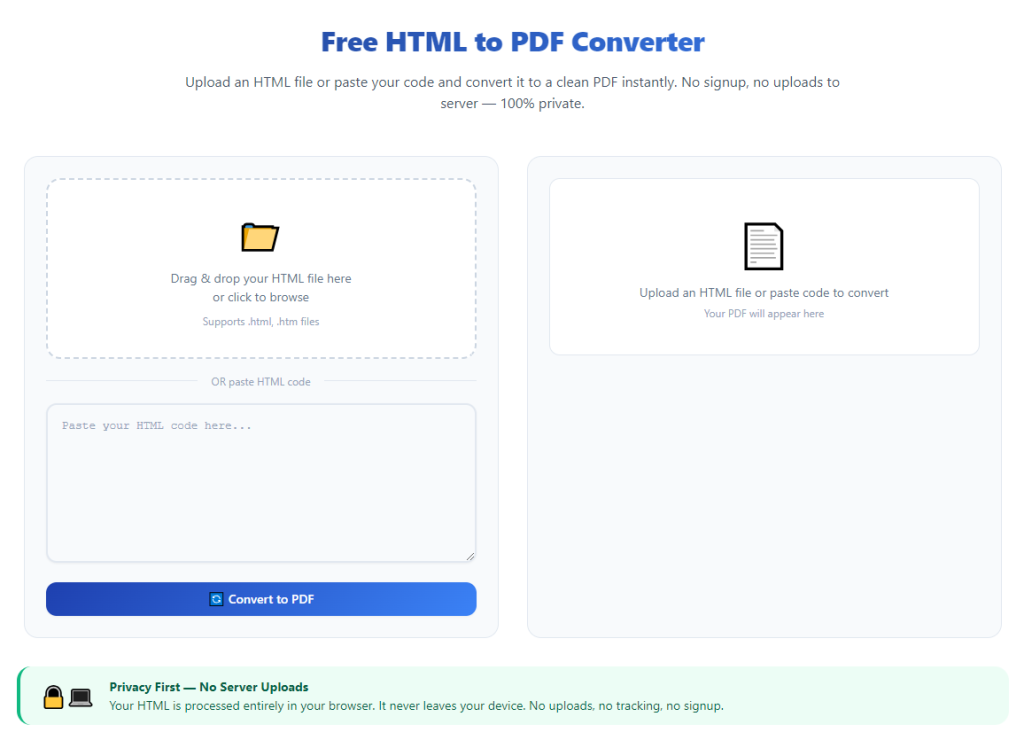
Open your trusted best HTML to PDF converter preserve CSS formatting in any browser. No logins, no signups, no downloads needed—just open the tool and start your conversion right away.
Upload your finished HTML file via drag-and-drop or file select. You can also paste a live webpage URL if you’re converting an online styled page. I always confirm my file is fully uploaded before moving forward.
Check the tool’s core settings to enable full CSS preservation. Most quality tools have a default style-retention mode, but I always double-check to ensure no style compression or layout simplification is enabled.
Adjust basic page settings if needed, like page size and orientation. I stick to standard settings for most projects, but it’s nice to tweak margins for custom layouts without breaking CSS styling.
Start the conversion process and wait just a few seconds. Modern CSS-preserving tools process styled files quickly, even with complex coding and detailed visual designs.
Preview your finished PDF thoroughly. Flip through pages to confirm fonts, colors, tables, and spacing all match your browser preview. This quick check catches any rare path or linking issues instantly.
Once verified, download your clean, fully styled PDF. The file will have zero watermarks, zero broken styles, and zero layout shifts, ready for sharing, printing, or submission.
I always do a quick re-save in my default PDF reader to lock in all styling permanently. This ensures the CSS-perfect layout stays consistent on any device or reader.
Common Mistakes That Break CSS Formatting During Conversion
Most CSS conversion issues aren’t the tool’s fault—they’re small user mistakes I’ve made countless times. These tiny errors ruin perfect layouts, and they’re so easy to avoid once you know what to watch for.
Broken CSS file paths are the number one culprit. If your HTML links to external style sheets with incorrect file paths, the converter can’t load your custom styles. Always keep HTML and CSS files in the same folder for reliable conversion.
Using tools with outdated rendering engines is a huge mistake. Old tools simply can’t read modern CSS rules, leading to missing gradients, shadows, and responsive layouts. Stick exclusively to updated CSS-preserving converters.
Skipping the preview step leads to avoidable errors. Even great tools need a quick visual check. A ten-second page scan ensures no small styling details slipped through the process.
Overlooking responsive layout behavior causes layout shifts. Some responsive pages resize for browser windows. Set your browser to standard desktop size before conversion for consistent PDF dimensions.
Editing HTML code last-minute without previewing is risky. A quick typo in CSS code won’t show up in your quick edit view but will break the entire PDF layout. Always preview changes before converting.
Saving test files over final versions is another silly mistake I’ve made. Always label your CSS-perfect PDFs clearly to avoid mixing up broken test exports with finished clean files.
Personal Pro Tips to Keep CSS Flawless Every Time
These are small habits I’ve built over time to make every conversion 100% consistent and error-free. They’re simple little tricks that eliminate almost all styling issues permanently.
Bookmark your reliable best HTML to PDF converter preserve CSS formatting for instant access. Having a trusted tool ready saves you from testing random faulty converters last minute.
Always preview your HTML design in two different browsers. This ensures your CSS is universally compatible and prevents browser-specific styling bugs before conversion.
Keep all CSS assets organized in one dedicated folder. Clean file structure eliminates broken link errors and ensures every style loads properly during conversion.
Avoid last-minute code changes right before converting. Stabilize your design first, then export, to prevent unexpected layout breaks in your final PDF.
For team projects, standardize one CSS-preserving converter for everyone. This guarantees all exported PDFs have identical styling consistency across all project files.
Final Thoughts
It’s such a pointless waste of time to build beautiful, detailed HTML and CSS designs only to watch them break during PDF conversion. Generic free converters cut corners on styling support, ruin professional layouts, and force you to redo hours of design work for no reason.
The best HTML to PDF converter preserve CSS formatting solves this entire problem effortlessly. It replicates your custom CSS styling perfectly, retains every layout detail, skips unnecessary signups and watermarks, and delivers professional, pixel-perfect PDF exports every single time. It works for developers, students, freelancers, marketers, and anyone building styled HTML content.
Once you switch to this dedicated CSS-preserving workflow, you’ll never settle for broken, unstyled PDF conversions again. It turns a stressful, risky task into a fast, reliable step that always produces clean, polished, design-accurate results.
After learning the operation method, click the link below to enter the tool page for immediate use.