If you work with PDFs on a regular basis, I’m sure you’ve run into that super frustrating scenario. You finish going through a document, adding highlights and quick notes for revision purposes. Then when it’s time to send the file out, you realize all those messy marks are still stuck on every page. It’s such a small issue, but it’s surprisingly annoying to deal with.
I used to handle this the hard way for years. I’d sit there clicking every single comment and highlight one by one to delete them manually. Some days, I had stacks of reviewed PDFs ready to share, and this tiny cleanup task would eat up so much of my spare time. It felt like such a pointless chore. That’s why I started relying on the best PDF annotation remover remove all comments free to handle all my PDF cleanup work these days.
Most online guides for PDF tools feel stiff and robotic, like they’re just copying generic feature lists. I’m writing this guide purely from real, daily usage. I’ve messed up PDF cleanup countless times, tested dozens of faulty free tools, and learned all the little tricks no generic tutorial covers. I’ll walk you through why manual deletion is just not worth your time, what actually makes a free annotation remover good, real-life ways I use this tool, a simple no-fuss workflow, and all the tiny mistakes that ruin your clean PDFs.
Why Manually Removing PDF Comments Is Never Worth It
I totally get why most people stick to manual deletion. It seems easier at first glance. No new tools to figure out, no uploading files, just quick clicks right in your default reader. But trust me, this method falls apart fast once you have more than one or two annotated files to fix.
For one thing, it’s unbelievably tedious. Every sticky note, colored highlight, small strikethrough, or hand-drawn edit needs its own separate delete click. I’ve had long research papers and business contracts covered in reviewer feedback before, and cleaning them up manually took me 20 to 30 minutes per file. That’s time I could’ve spent on actual important work, not mindless clicking.
Worse, you can never fully clean a PDF manually. Most standard readers only show you the obvious, visible annotations. There are hidden layered marks, embedded stamp data, faint sketch lines, and buried comment code that stays hidden in the file. You’ll swear your PDF is perfectly clean, but send it to someone else, and they’ll see every single leftover mark clear as day. I’ve had this happen to me multiple times, and it’s so embarrassing.
Batch cleanup is basically impossible with manual work. If your team shares a folder full of annotated drafts for reviews, you can’t fix them all at once. You have to open, edit, save, and close each file individually. It slows down entire team workflows for no good reason at all.
Human error is another big issue I’ve run into plenty of times. It’s way too easy to accidentally select actual text or table content instead of an annotation. I’ve messed up formatted documents this way, and fixing those random mistakes takes even more extra time. It turns a quick cleanup into a full-on hassle.
If you’ve ever dealt with these annoying, repetitive problems, switching to the best PDF annotation remover remove all comments free will instantly cut out all these unnecessary workflow headaches.
Key Benefits of the Best PDF Annotation Remover Remove All Comments Free
I’ve tried so many free PDF tools over the years, and honestly, most of them are pretty terrible. They either plaster huge watermarks all over your files, lock basic features behind paywalls, or only clean up half your annotations. The top-tier best PDF annotation remover remove all comments free tools are nothing like those low-quality options—they’re genuinely useful with zero sneaky restrictions.
My favorite part is the one-click full cleanup. You don’t have to hunt down every single mark on your pages. The tool scans your entire PDF in just a few seconds and picks up every type of annotation you could have. Sticky notes, colored highlights, underlines, freehand sketches, custom stamps, text boxes—everything gets removed in one go. No marks get left behind, visible or hidden.
Permanent deletion is another game-changer that basic readers don’t offer at all. Normal PDF viewers only hide annotations on your screen temporarily. The comment data still lives inside the file. These dedicated removers actually strip that underlying code completely. Once your PDF is cleaned, those marks are gone forever—no other device or app can bring them back.
I also love that these tools are truly 100% free for core use. So many “free” platforms trick you into upgrading once you need to batch clean files or remove full annotations. The reliable versions require no subscriptions, no one-time payments, and no upgrades. You can clean as many single or bulk PDFs as you want, whenever you want.
Batch processing has saved me hours and hours of work. After team review cycles, I usually end up with a dozen or more annotated PDFs. Uploading all of them at once, letting the tool process everything simultaneously, and downloading a single zipped folder of clean files cuts my workload down drastically. What used to take an hour now takes mere seconds.
There’s zero software installation needed too. All trustworthy free PDF annotation removers run right in your web browser. They work on every device—Windows laptops, Mac desktops, Android and iOS phones. I clean PDFs on my home computer and even on the go with my phone, no hassle whatsoever.
A huge relief for me is that these tools never ruin your original formatting. They only target annotation layers, so all your original text, images, tables, and layout stay exactly the same. I’ve never had distorted graphics, broken paragraphs, or missing content after using a quality free remover.
At the end of the day, it just makes your work look way more professional. Sending a clean, mark-free PDF to clients, teachers, or teammates eliminates all messy internal draft notes. Your finished documents look polished, intentional, and ready for official sharing.
Must-Have Features for a Top Free PDF Annotation Remover
After testing countless hit-or-miss free PDF comment cleaners, I’ve figured out exactly which features matter and which ones are just useless filler. A ton of random online tools only delete basic text notes and ignore every other type of markup entirely. If you’re looking for the best PDF annotation remover remove all comments free, these are the key features you absolutely need.
Full-spectrum annotation detection is non-negotiable. Skip any tool that only handles sticky notes. A good remover catches color highlights, strikethrough edits, freehand drawings, custom stamp overlays, text boxes, and hidden layered marks. This ensures your document gets fully cleaned, no exceptions.
Batch upload support is essential for anyone who works with multiple documents. Single-file tools work fine for quick one-off edits, but they’re way too slow for project-based bulk cleanup. Always pick a tool that lets you upload and process multiple PDFs at the same time.
Permanent deletion is another must-have, and it’s where most new users slip up. Hiding annotations is not the same as deleting them. Hidden marks will reappear on other devices, which totally defeats the purpose of cleaning your PDF for sharing. Only full code-level deletion delivers permanent results.
Avoid tools that add watermarks at all costs. It’s so frustrating to spend time cleaning up a perfect document only to have a giant brand logo ruin the entire file. Top free removers deliver completely unwatermarked, clean exports every single time.
Solid file size support is super underrated. Long reports, multi-page contracts, and image-heavy PDFs can be pretty large. Cheap tools crash or refuse to upload big files, forcing you to split documents unnecessarily. Reliable platforms handle large PDFs smoothly with zero errors.
Fast downloads make a huge difference for tight deadlines. Slow server speeds and delayed exports can hold up your entire workflow. The best tools offer instant single-file downloads and quick ZIP exports for bulk batches.
Basic privacy protection is something I always check for now. Trusted free tools automatically delete your uploaded files after processing. This keeps your personal, school, or business documents private and prevents sensitive files from lingering on online servers.
Lastly, a simple, low-ad interface makes daily use stress-free. Cluttered tools full of pop-ups and redirects turn a 10-second task into a confusing mess. Stick to minimal, clean platforms built just for PDF annotation removal.
Real-World Use Cases for Free PDF Annotation Removal
This tool isn’t just for random occasional PDF cleanup. It fits into so many everyday workflows for regular people, no matter if you’re a student, remote employee, freelancer, or team member. I use it constantly for all kinds of common scenarios.
For client work, annotated contracts and proposals are standard during drafting. My team adds internal negotiation notes and revision marks while finalizing deals. Before sending the official version to clients, I always wipe all annotations to remove private internal feedback. It keeps our documents crisp, clear, and professional for external sharing.
Students and teachers benefit massively too. Professors mark up papers with grading notes, and students add self-editing highlights to drafts. Clearing all annotations lets everyone share clean final submissions, graded work samples, and polished research documents with no messy draft clutter.
Freelance creators rely on this tool all the time. Writers and designers add internal review marks to draft files while refining work. When delivering finished projects to clients, removing every annotation ensures clients only see the final polished work, not our internal trial edits and notes.
Corporate teams share tons of annotated reports and briefs for cross-department reviews. Once review cycles wrap up, a quick bulk cleanup standardizes all files. It keeps internal comments private and makes company-wide distributed documents look uniform and official.
Job seekers rarely think about this, but it’s super useful. If you’ve annotated your resume or portfolio PDFs while editing, leftover marks look unprofessional to hiring managers. A fast annotation wipe ensures your application files are clean and distraction-free.
It’s also perfect for organizing old files. I have hundreds of archived PDFs in my cloud storage with outdated annotations. Cleaning those marks reduces file size, cuts down storage bloat, and keeps my digital library neat and tidy long-term.
Step-by-Step Guide: Use the Best PDF Annotation Remover Remove All Comments Free
This is the simple, no-fuss workflow I use every time I clean annotated PDFs. It’s totally beginner-friendly, needs no technical skills, and works perfectly for single files and big bulk batches alike.
First, gather up every PDF you need to clean. I toss all my annotated drafts into one desktop folder first. It makes bulk uploading way faster and ensures I never accidentally leave a file uncleaned. Don’t bother deleting any marks manually—the tool will handle everything.
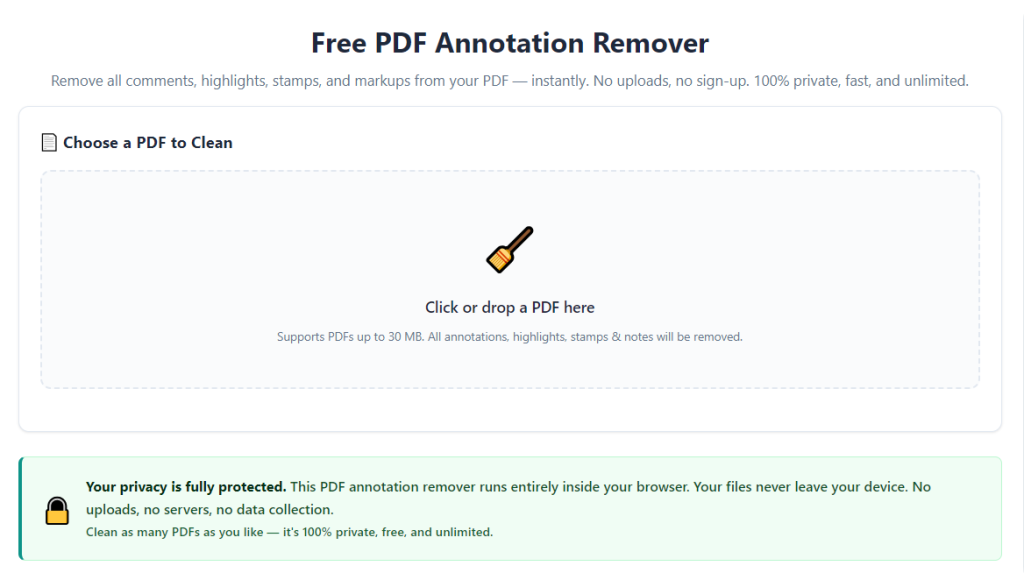
Open your go-to free PDF annotation remover in any web browser. You don’t need to sign up, log in, or install anything. The main page always has a clear upload box for PDF files, so you can jump right in.
Upload your files by dragging and dropping or clicking the select files button. For bulk work, select every file in your folder at once. I always glance over the upload list quickly to make sure nothing’s missing or duplicated before moving on.
Find the core cleanup tool and select the option to remove all PDF annotations and comments. Double-check that you’ve turned on permanent deletion, not the temporary hide preview. Make sure the scan includes highlights, notes, stamps, and drawings to cover every markup type.
Start the processing scan. The tool will automatically scan every layer of your PDFs and erase all embedded annotation data. Even longer, image-heavy files finish processing in just a few seconds. A simple progress indicator shows you when each file is done.
Please don’t skip the preview step. This is where so many people go wrong. Downloading immediately can leave stray marks undetected. I flip through a few random pages to confirm everything’s clean. If I spot any leftover marks, I just reprocess the file quickly.
Once verified, download your cleaned files. Save single PDFs directly to your device, or download bulk batches as a ZIP folder to keep everything organized and easy to find later.
I always do a quick re-save in my default PDF reader after downloading. It’s a tiny extra step, but it locks in the permanent changes completely. No hidden annotation data will reload if you open the file on another device later on.
After that, your PDFs are fully cleaned up and ready for sharing, submitting, or archiving.
Common Mistakes That Ruin Your PDF Cleanup Results
Over years of helping friends and coworkers fix messy PDF cleanup jobs, I’ve noticed almost every flawed result comes down to the same few simple mistakes. These errors are super easy to avoid once you know what to look for.
The biggest mistake is using temporary hide mode instead of permanent deletion. Hiding annotations only changes your screen’s view. The comment data stays embedded in the file, and anyone else opening the PDF will see all your original marks. Always choose full permanent removal.
Uploading password-locked PDFs is another frequent issue. Secured files block tools from accessing hidden annotation layers. Unlock your PDF first before uploading, or use a tool that supports password-protected file processing.
Skipping the preview check causes avoidable errors every now and then. Layered stamps or overlapping freehand drawings can occasionally evade the first scan. A quick page check takes seconds and saves you from sending out imperfect files.
Using low-quality free tools for large documents leads to incomplete cleanup. Basic tools have strict size limits and often fail to process long PDFs fully. Stick to reliable, robust free removers for all your bigger document tasks.
It’s important to know the difference between editable PDFs and scanned PDFs. Scanned files are basically photos of paper, so annotation tools can’t erase handwritten marks on them. You’ll need to convert scanned files to editable text first for proper cleanup.
Finally, so many people mix up original and cleaned files. I’ve seen coworkers send out unedited annotated drafts by accident. Keeping cleaned files in a separate folder completely eliminates this silly mistake.
Quick Pro Tips for Better PDF Annotation Cleanup
These are small, practical tips I’ve picked up from years of daily use. They make my PDF cleanup workflow faster, smoother, and way more reliable overall.
Bookmark your trusted free annotation remover right away. Having instant access means you never have to scramble for a safe tool last minute when deadlines are tight.
Make a dedicated folder just for cleaned PDFs. Separating finished, mark-free files from raw annotated drafts stops mix-ups and keeps your document library organized.
Do a quick bulk annotation cleanup during your regular file tidying. Wiping old comments from archived PDFs shrinks file sizes and cuts down on unnecessary cloud storage clutter.
If you’re on a team, stick to one standard tool for everyone. It keeps all shared documents consistent and ensures uniform cleanup quality across every project file.
I always pair annotation removal with quick PDF compression. Cleaned, compressed PDFs load faster for recipients and take up far less storage space long-term.
Final Thoughts
The best PDF annotation remover remove all comments free fixes this everyday hassle completely. It delivers fast, permanent annotation removal with no fees, no watermarks, and no complicated setup. It works perfectly for students, freelancers, corporate teams, and anyone who regularly shares or stores PDF documents.
Once you make this simple cleanup step part of your regular workflow, you’ll never waste time on tedious manual deletion again. Your PDFs will always look clean, professional, and ready for any official use, with zero hidden or visible annotation clutter holding your work back.
Leftover PDF annotations are such a small but persistent workflow annoyance. Manual cleanup is slow, inconsistent, and full of avoidable errors, and basic PDF readers just can’t fully solve the problem on their own.
After learning the operation method, click the link below to enter the tool page for immediate use.