If you regularly share PDF files for work, school, client projects, or personal use, I guarantee you’ve overlooked one huge privacy risk. Most people spend time cleaning visible text, deleting private notes, and redacting obvious sensitive details before sending a file out.
But almost nobody checks the hidden metadata buried inside every single PDF document. It’s invisible on the surface, completely hidden from normal viewers, and it leaks way more personal and professional data than you’d ever expect.
I learned this the hard way a while back. I sent a cleaned-up client proposal PDF, thinking I’d removed every private detail. Turns out the hidden metadata still displayed my full name, device info, original file creation details, and internal draft labels I’d used months prior.
That small oversight made me look extremely unprofessional, and it opened up unnecessary privacy exposure for both me and my client. After that awkward mistake, I stopped ignoring metadata entirely and started using the best PDF Metadata Editor to strip hidden sensitive data from every single file I share online.
This guide isn’t your usual polished, robotic tutorial. I’m writing this purely from real personal experience, past mistakes, lazy security habits, and all the frustrating gaps I’ve found in basic PDF tools. I’ll break down exactly what hidden metadata does, why it’s dangerous, and how to strip it cleanly every time.
What Is Hidden PDF Metadata, and Why It’s a Serious Risk
Let’s keep it simple. PDF metadata is all the behind-the-scenes data your device automatically embeds every time you create, edit, save, or scan a PDF file. You can’t see it when you open and read the document normally, but anyone with a basic viewer tool can pull it up instantly.
Most users have no idea how much sensitive information gets stored here. Basic metadata includes your full author name, device name, original save location, edit history, draft versions, and custom tags you added during internal work.
For scanned PDFs and business documents, it gets even riskier. Hidden metadata can store scan device identifiers, internal project codes, timestamps of every edit, and even residual text fragments you thought you deleted entirely.
The worst part? This data doesn’t disappear when you delete visible content or rename the file. Renaming a PDF only changes the surface title, it does absolutely nothing to clean the hidden backend metadata embedded deep inside the file structure.
I used to think closing and resaving a file would wipe old data too. That’s another common myth I fell for. Standard save functions preserve almost all metadata by default, leaving your private information intact and exposed.
This becomes a massive problem for professional sharing, job applications, client deliverables, and public document posting. Even if your visible content is clean and safe, hidden metadata can leak personal identifiers, internal workflow details, and confidential project data.
That’s why relying on the best PDF Metadata Editor to strip hidden sensitive data is no longer an optional extra step. It’s a necessary privacy routine for anyone who shares PDFs digitally on a regular basis.
Why Basic PDF Tools Fail to Remove Hidden Sensitive Metadata
You might be wondering why you can’t just use your default PDF reader or basic free editors to clean metadata. I’ve tested all those default tools extensively, and they all have the same critical flaws.
Default PDF software only edits what you can see on the page. It’s designed for reading, printing, and simple text edits. It was never built to access, scan, or delete the hidden backend metadata layers within a PDF file.
Some basic tools claim to “clean” or “optimize” your files, but they only compress image quality or reduce file size. They leave every sensitive metadata field completely untouched. You end up with a smaller file that’s still full of exposed hidden data.
I’ve also tried generic PDF cleaners that advertise privacy features. Most of them only remove surface-level tags. They skip deeper hidden data like edit logs, original device metadata, and residual draft information that’s embedded in advanced file layers.
Another frustrating issue with cheap tools is inconsistent cleaning. Sometimes they delete half the metadata and leave the rest behind. You think your file is safe to share, but leftover fragments still expose private details to anyone who checks.
Worst of all, many basic editors add their own metadata after processing. They stamp tool labels, processing timestamps, or generic branding data onto your file, creating new hidden entries even after you tried cleaning everything out.
Only a dedicated, specialized solution works reliably here. The best PDF Metadata Editor to strip hidden sensitive data targets every single hidden field, removes residual data completely, and leaves zero leftover privacy vulnerabilities in your documents.
Real Benefits of Using a Dedicated PDF Metadata Editor
After struggling with incomplete metadata cleaning for years, switching to a proper metadata editor completely changed my document security workflow. The benefits are simple but incredibly impactful for both personal and professional privacy.
First and most importantly, it delivers full-depth sensitive data removal. It doesn’t just erase basic fields like author name or title. It wipes edit history, device metadata, hidden timestamps, residual draft data, and embedded backend tags all at once.
I love that it never damages your visible PDF content. A lot of aggressive privacy tools ruin formatting, mess up images, or break text alignment during cleaning. Top-tier metadata editors only target hidden data layers, leaving your actual document layout 100% untouched.
It also standardizes your files for professional sharing. Clean metadata removes internal draft labels, messy backend tags, and personal device traces, making your PDFs look polished, neutral, and fully professional for clients or public distribution.
Another huge benefit is consistent batch cleaning. If you have multiple PDFs to prepare for sharing, you can strip metadata from all of them at once. This saves so much repetitive manual work compared to cleaning files one by one.
It eliminates accidental data leakage entirely. I’ve heard countless stories of professionals leaking internal project details or personal credentials simply because they forgot about hidden metadata. This tool removes that risk completely.
It also improves overall file cleanliness for archiving. Clean metadata results in lighter, more streamlined PDF files with no junk hidden data bogging down the file structure. Your archived documents stay clean and organized long-term.
Key Features to Look for in the Best PDF Metadata Editor
Not every metadata editor on the market delivers thorough, safe results. I’ve tested plenty of tools that overpromise and underdeliver. These are the critical features that separate professional-grade editors from useless basic alternatives.
Full-spectrum metadata removal is non-negotiable. The tool must clear author names, creation dates, modification logs, device metadata, hidden tags, and residual draft data. Partial cleaning is essentially useless for real privacy protection.
Zero visible content alteration is mandatory. Good metadata editors work exclusively on backend data layers. Your text, images, tables, formatting, and layout should remain completely identical before and after processing.
Bulk processing support saves massive amounts of time. If you handle multiple documents regularly, batch stripping lets you secure entire folders of PDFs in one single workflow.
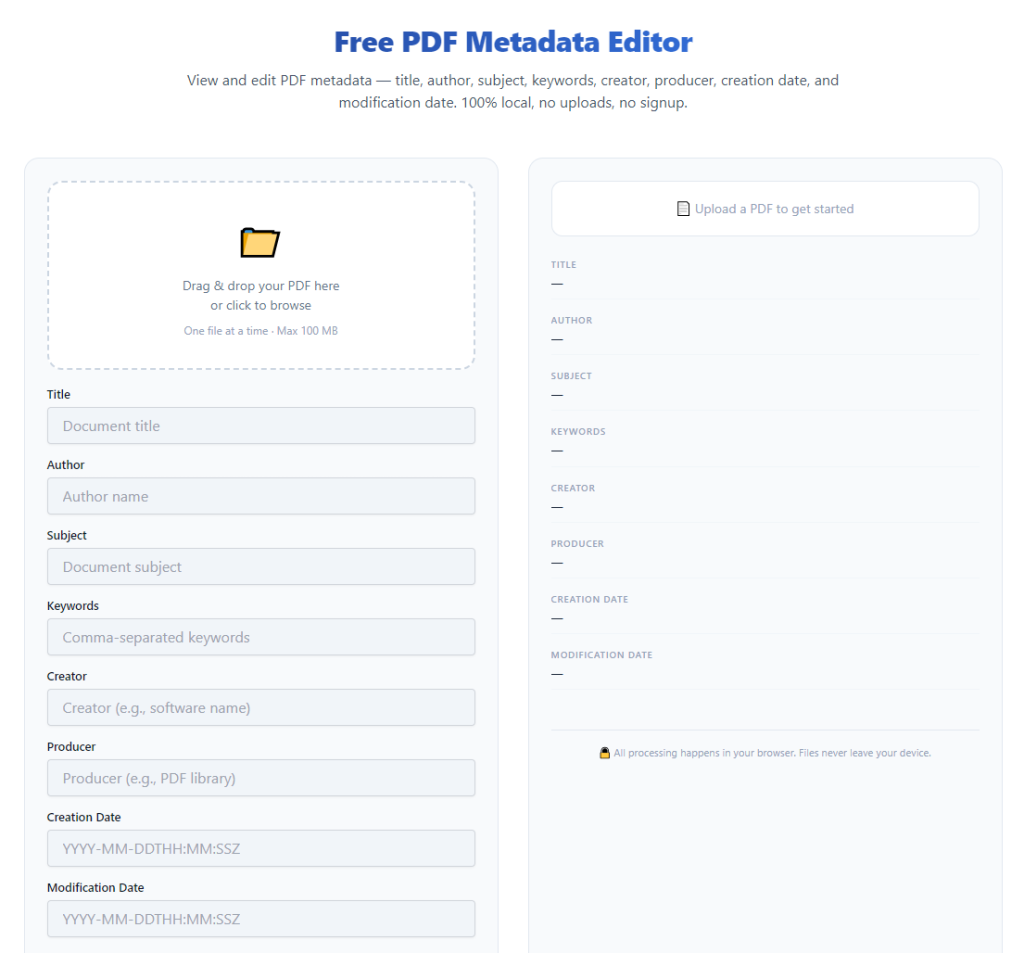
Preview and scan verification features are super helpful. Top tools let you view existing metadata before cleaning, so you can see exactly what sensitive data was hidden in your file in the first place.
No post-processing metadata injection is essential. Avoid tools that stamp their own branding, timestamps, or tool signatures into your file after cleaning. That just adds new hidden data to your document.
Fast, lightweight processing is another great quality. Reliable editors clean metadata instantly without lagging, crashing, or slowing down your device, even on larger multi-page PDF files.
Common Real-World Use Cases for Metadata Stripping
You might think metadata cleaning is only for cybersecurity experts or corporate teams. In reality, it’s useful for almost anyone who shares PDFs online, and I use it constantly in everyday scenarios.
Client and freelance deliverables are my most common use case. Whenever I send proposals, reports, or finished project PDFs, I always strip hidden sensitive data first. It removes personal device info and internal draft notes that look unprofessional if exposed.
Job applications and resume PDFs benefit hugely too. Your resume or portfolio might contain old hidden metadata with past file labels, device names, or personal edit history that serves no purpose in a professional application.
Business and corporate document sharing is another big one. Company reports, meeting documents, and policy files often contain internal metadata that shouldn’t be shared externally. Cleaning these files protects internal operational privacy.
Public posting and website publishing requires clean metadata as well. If you upload PDFs to blogs, portfolios, or public resource pages, hidden personal data can expose your private information to strangers online.
Academic submissions are often overlooked too. School papers, research reports, and thesis files store creator metadata by default. Stripping it ensures your submissions stay neutral and focused purely on your academic content.
Personal file sharing also deserves attention. Even simple PDFs like scanned forms, personal records, and informational documents can carry hidden device data that’s better removed before sending to third parties.
Step-by-Step Workflow: Strip Hidden PDF Sensitive Data Perfectly
This is the exact simple routine I follow every single time I need to clean PDF metadata. It’s beginner-friendly, super fast, and eliminates every privacy leak I’ve encountered in the past.
First, gather all your finished PDF files. Make sure your content is fully edited, proofread, and finalized. Always adjust visible content first before cleaning metadata, because re-editing after cleaning will add new metadata entries.
Open your trusted best PDF Metadata Editor to strip hidden sensitive data. Stick to dedicated metadata cleaning tools instead of generic PDF editors, as they’re built specifically for deep backend data removal.
Upload your single file or bulk PDF folder. Most quality editors support quick drag-and-drop uploads for fast processing. Double-check you’ve selected the correct final files and not outdated drafts.
Run a metadata preview scan if the tool supports it. I always do this step to see exactly what hidden data is stored in my file. It’s eye-opening to see how much private info gets embedded automatically.
Enable full sensitive data stripping mode. Make sure the tool is set to clear all hidden metadata fields, not just basic title and author tags. Full-depth cleaning ensures no residual sensitive data remains behind.
Start the cleaning process. It only takes a few seconds, even for longer multi-page PDFs or bulk file batches. The tool will safely erase all backend hidden data without touching your visible content.
Verify the results with a post-clean metadata check. I always confirm the hidden fields are blank after processing. This final check gives me full confidence the file is safe to share publicly or professionally.
Export and save your cleaned PDF. Save the new sanitized file separately instead of overwriting your original. This preserves your raw file for internal use while keeping the cleaned version ready for external sharing.
Common Metadata Cleaning Mistakes to Avoid (I’ve Made All of These)
These are the most frequent errors that leave hidden sensitive data intact, even after you think you’ve cleaned your files. Every single one is a mistake I’ve personally made and learned from.
Assuming file renaming cleans metadata is the biggest myth. Renaming only changes the visible filename. All hidden sensitive backend data stays completely untouched. I used to rely on this shortcut all the time, and it’s totally ineffective.
Using generic PDF editors for metadata cleaning fails every time. Basic tools don’t access deep hidden data layers, so sensitive edit history and device info remain embedded in your file.
Cleaning metadata before final edits creates new leaks. If you strip data then re-edit your PDF, your device will automatically generate brand new metadata entries all over again.
Skipping the post-clean verification check is risky. Occasional tool glitches can leave small residual data fragments. A quick confirmation check ensures your file is fully sanitized.
Overlooking batch file inconsistencies is another easy mistake. When cleaning multiple PDFs at once, one or two files might process incompletely. Spot-checking a few random files prevents partial cleaning issues.
Personal Pro Tips for Perfect PDF Metadata Security
These are small daily habits I’ve built to keep all my shared PDFs completely safe from metadata leaks. They’re simple little steps, but they make my workflow far more secure overall.
Always treat every PDF as if it contains hidden sensitive data. It’s better to clean every file habitually than to risk one accidental privacy leak from an overlooked document.
Bookmark your reliable metadata editor for instant access. Having a go-to tool means you never resort to risky generic editors or lazy manual shortcuts last minute.
Create two file versions for every project: raw internal files and sanitized share-ready files. This simple system eliminates mix-ups and accidental sharing of metadata-heavy internal documents.
Make metadata cleaning your final step before export. Let it be the last thing you do after editing, proofreading, and formatting, so no new hidden data gets added afterward.
Regularly test your tool’s cleaning accuracy. Every once in a while, scan a cleaned PDF to confirm no hidden data slips through. This ensures your tool remains reliable long-term.
Final Thoughts
Most people overlook PDF metadata entirely, but it’s one of the most common silent privacy leaks in everyday digital file sharing. You can spend hours perfecting your document’s visible content, only to compromise privacy and professionalism through invisible hidden data.
Generic PDF tools simply cannot protect you from this risk. They ignore deep-layer sensitive metadata and leave your private information exposed to anyone who knows how to check basic document properties.
Using the best PDF Metadata Editor to strip hidden sensitive data turns an insecure file into a fully sanitized, safe, professional document in seconds. It protects your personal identity, your client privacy, and your business confidentiality with zero effort and zero content damage.
Once you build this tiny security habit into your regular workflow, you’ll never worry about hidden metadata leaks again. It’s one of the simplest, most effective ways to upgrade your overall digital privacy and professional document standards.
After learning the operation method, click the link below to enter the tool page for immediate use.