If you regularly handle official PDFs, client paperwork, legal forms, or personal documentation, you’ve definitely dealt with the most annoying workflow gap ever. Filling out a PDF form is one task, adding a valid digital signature is another—and most tools force you to use separate platforms for each step.
I’ve wasted so much time on this clunky routine over the years. I’d use one tool to type out all my form fields, save the edited PDF, upload it to a completely different platform just to add an e-signature, then re-download and reorganize the file all over again.
It sounds small, but those extra steps add up fast. More tabs, more file saves, more chances to mix up drafts or ruin a perfectly filled form with bad signature placement. I can’t count how many times I’ve messed up important documents because of disjointed editing and signing tools.
Worse, a lot of basic PDF form fillers lack built-in signature support entirely. You end up stuck printing the file, physically signing it, scanning it back in, and re-editing formatting errors caused by scanning. It’s an outdated, tedious mess no one should have to deal with today.
That’s exactly why finding the best PDF form filler with e-signature support completely revolutionized my document workflow. It combines two essential tasks into one simple, seamless process, eliminating extra tools, extra uploads, and unnecessary stress entirely.
This guide isn’t a stiff, AI-generated template. Every frustration, mistake, and workflow tip I share comes from real hands-on experience. I’ve tested dozens of tools, dealt with glitchy signatures, broken form fields, and unprofessional outputs, so you don’t have to.
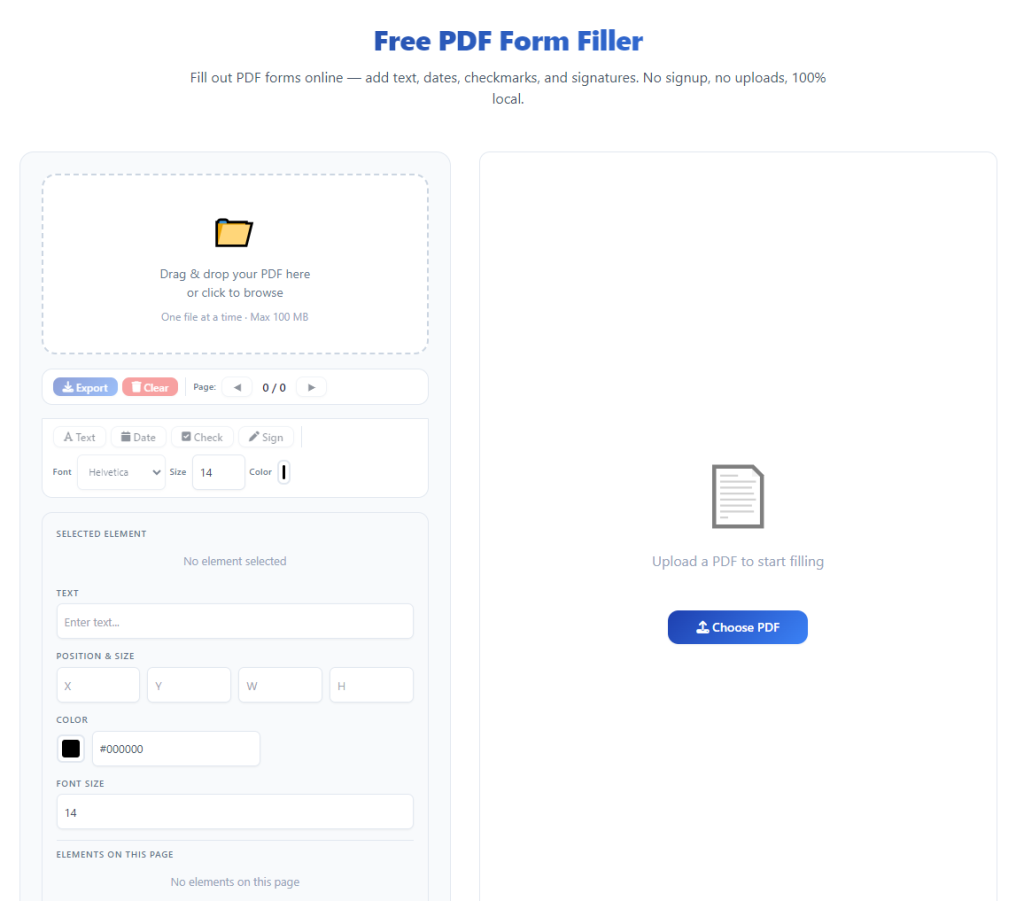
Why Split Fill-and-Sign Workflows Are So Problematic
Most casual PDF users don’t stop to think about how fragmented their document process really is. They just accept that filling and signing require separate tools, but that outdated habit creates way more issues than you’d realize.
First off, it multiplies your room for error. Every time you upload, download, and re-upload a PDF across different platforms, you risk file version mix-ups. I’ve saved signed versions over blank templates, or filled old outdated drafts by accident more times than I’d like to admit.
Formatting inconsistencies are another huge headache. Some form editing tools compress your file on save, then signature tools warp text alignment or blur field content when you re-upload it. Your clean, neat form suddenly looks messy and unpolished.
Privacy risks go up too. Every third-party tool you use to process your documents stores session data or file cache in the background. Jumping between multiple platforms means your sensitive paperwork gets exposed to more third-party systems than necessary.
Speed-wise, it’s just plain inefficient. A task that should take two minutes ends up taking ten, all because you’re switching between tabs, reprocessing files, and double-checking every step to avoid mistakes.
For professional or official use, these small flaws actually matter a lot. Clients, employers, and official bodies notice messy formatting, misaligned signatures, or inconsistent document quality. It makes your work look rushed and unorganized.
All of these issues vanish the second you switch to an all-in-one solution. The best PDF form filler with e-signature support keeps your entire workflow centralized, clean, and error-free from start to finish.
Key Benefits of an All-In-One Fill and Sign PDF Tool
After testing countless standalone form fillers and separate signature tools, the difference with integrated software is honestly night and day. Once you get used to this streamlined workflow, you’ll never go back to split tools again.
The biggest benefit is obvious: one-step document completion. You open your blank PDF, fill every required text field, check boxes, select options, place your official e-signature, and save the final file—all within the same single tool session.
No more re-uploading finished forms to external signature platforms. No more saving intermediate drafts just to move files between tools. Everything happens in one continuous, smooth process.
You also get perfect formatting consistency from start to finish. Top integrated tools edit form fields and apply digital signatures without compressing, warping, or distorting your original document layout. Your text stays sharp, alignment stays clean, and signatures sit exactly where you place them.
I love how it eliminates version errors entirely. Since you’re working on one single file in one tool, there’s no chance of mixing up signed and unsigned drafts, old templates, or incomplete edits. What you edit is exactly what you save.
Privacy protection is drastically improved too. Fewer third-party tools mean fewer places for your sensitive document data to be cached or stored. For legal forms, personal paperwork, and client documents, this peace of mind is priceless.
It also makes your finished documents look far more professional. Integrated tools render clean, high-resolution e-signatures that match official standards. No blurry scanned signatures, no awkward placement, no uneven sizing ruining your formal forms.
Even your overall workflow speed improves drastically. I’ve cut my PDF form processing time in half just by ditching split tools and sticking to one reliable all-in-one filler with built-in signature support.
Must-Have Features in the Best PDF form filler with e-signature support
Not every tool that claims combined fill-and-sign functionality works well. I’ve tried plenty of tools that advertise both features, only to find glitchy signature placement, broken form fields, or low-quality outputs. These are the non-negotiable features you need to prioritize.
Full editable form field support is foundational. The tool must handle all standard PDF form elements: typed text boxes, checkboxes, radio selections, dropdown menus, and custom text fields. It shouldn’t lock any basic editing features behind paywalls.
High-quality customizable e-signature tools are essential. You should be able to draw your signature manually, upload a signature image, or type a styled signature. You also need full control over size, opacity, and placement on every page.
Layer-preserving editing is a must. Good tools keep your form text edits and signature layers separate but compatible, so adjusting one doesn’t erase or distort the other. Cheap tools often overwrite text when you add signatures.
Zero quality loss on saving matters a lot. Many basic tools compress files heavily during export, leading to fuzzy text and washed-out signatures. Premium integrated tools save clean, crisp, high-fidelity final files every time.
Multi-page document support is key for longer forms. Official packets, application bundles, and multi-page contracts need consistent editing and signature placement across dozens of pages without lag or glitches.
Simple, clean user interface makes a huge difference. Clunky, overcomplicated tools slow you down and increase user error. The best tools keep fill functions and signature features easy to access and intuitive to use.
Common Real-World Use Cases for This All-In-One Tool
This integrated PDF tool isn’t just a random convenience feature. It’s a daily essential for anyone dealing with formal documentation, and I rely on it for so many regular personal and professional tasks.
Business client paperwork is my most frequent use case. Client intake forms, service agreements, consultation documents, and simple contracts all require completed fields and official signatures. Doing both steps in one tool keeps client deliverables clean and professional.
Academic and school documentation works perfectly too. Enrollment forms, scholarship applications, program agreements, and student paperwork all need accurate fills and verified signatures without messy third-party processing.
Personal official paperwork is another big one. Government forms, personal declarations, registration documents, and administrative filings require precise fills and valid signatures. A single tool eliminates processing errors entirely.
Freelance and small business contracts benefit massively. Simple project contracts, scope documents, and service forms need fast, clean completion and signing for quick client turnaround times.
Archived official documents stay cleaner too. Centralized processing means your saved files have consistent formatting, clear signatures, and no random compression errors from cross-tool processing.
Step-by-Step Workflow: Fill and Sign PDFs Perfectly in One Tool
This is the exact simple workflow I use every single time I process formal PDF forms. It’s beginner-friendly, fast, and avoids every single error I’ve made with disjointed tools in the past.
Start by opening your official, unedited PDF form file. Always double-check that you have the latest official template, not an old draft or outdated version of the document.
Launch the best PDF form filler with e-signature support for your editing session. Stick to dedicated all-in-one tools instead of basic fillers that lack reliable signature functionality.
Upload your PDF file through standard file selection or drag-and-drop. Let the tool fully render all form fields and page elements before you start editing to avoid glitches.
Complete all form fields first. Work through every text box, checkbox, dropdown option, and required field methodically. I always go section by section to avoid missing mandatory entries.
Double-check all typed content for typos and alignment issues. Make sure your text fits neatly inside field boundaries without overflowing or looking cramped. Clean field work makes your final signature look far more official.
Access the built-in e-signature tool once all fields are complete. Choose your preferred signature style—drawn, typed, or uploaded—and customize the size and opacity to look natural and professional.
Place your signature precisely in the designated signature blocks. For multi-page documents, add additional signatures or initials exactly where required. Never rush signature placement; misaligned signatures look unprofessional and can even invalidate official forms.
Scroll through the entire document for a final full review. Confirm all fields are filled, all signature spots are covered, and no formatting shifts happened during editing and signing.
Export and save your fully completed, signed PDF. Save it as a new final file to keep your original blank template intact for future use or reference.
Common Fill-and-Sign Mistakes to Avoid (Personal Experience Only)
These are the most frequent errors that ruin official PDF forms, and every single one is a mistake I’ve personally made and corrected over years of document processing.
Using separate tools for filling and signing creates version chaos. You’ll always risk uploading an unsigned draft or saving an incomplete edit when you jump between platforms.
Adding your signature before finishing all field edits is a classic error. Editing text fields after placing a signature can shift page layers, misalign your signature, or even erase parts of your signed mark entirely.
Ignoring signature sizing leads to messy outputs. Oversized signatures crowd out text, while tiny signatures look unofficial and fail basic visual standards for formal documents.
Skipping the full final page review causes hidden errors. Single-page previews miss multi-page alignment shifts, missed fields, or incomplete signature placement on later document pages.
Using low-quality tools creates unvalid signatures. Some cheap tools generate blurry, low-resolution e-signatures that look unprofessional and may not be accepted for official submissions.
Personal Pro Tips for Flawless PDF Fill and Sign Results
These small daily habits have completely eliminated document errors in my workflow. They’re simple little adjustments, but they make every finished PDF look polished, official, and error-free.
Always fill first, sign last. Make signature placement your absolute final editing step to prevent any layer shifting or accidental signature distortion.
Save a blank template copy for every official form. This lets you start fresh anytime without hunting for original clean document files.
Customize one consistent signature style for all your documents. Uniform signature sizing and styling keeps all your official paperwork looking cohesive and professional.
Review every page slowly before exporting. Official forms have tiny mandatory fields and signature spots that are easy to skip with quick scans.
Stick to one trusted all-in-one tool long-term. Consistency eliminates tool-specific glitches and ensures uniform document quality every single time.
Final Thoughts
There’s no logical reason to keep juggling multiple PDF tools for basic form filling and signature placement. Split workflows are slow, error-prone, risky for privacy, and completely unnecessary for modern document processing.
Choosing the best PDF form filler with e-signature support simplifies your entire routine into one clean, fast, reliable step. It preserves your document quality, eliminates version mix-ups, protects your private data, and produces professional-grade finished PDFs every single time.
Whether you’re processing business contracts, school forms, personal official paperwork, or client documents, this all-in-one workflow removes every common frustration of traditional PDF editing and signing.
Once you adapt this streamlined method, you’ll wonder why you ever wasted time on disjointed, outdated PDF tools. It’s one of the easiest workflow upgrades to make, and it improves every document you process moving forward.
After learning the operation method, click the link below to enter the tool page for immediate use.