PDF documents dominate modern digital workflows for school, business, and personal file management. Their fixed layout structure ensures consistent formatting across every device, making them ideal for sharing, printing, and official submissions. However, most raw downloaded or compiled PDFs lack basic structural elements, especially page numbering.
Unnumbered multi-page PDFs create frustrating issues for readers and editors alike. Long reports, research papers, and booklets become difficult to navigate. Users cannot reference specific sections quickly, and printed documents often suffer from misplaced or jumbled pages. Fixing this issue requires a simple, reliable editing solution.
Many PDF editors on the market are overly complex, bloated with unnecessary features, or locked behind premium paywalls. Basic page numbering should be a fast, free task for every user, yet most tools overcomplicate the process. This is why finding the best tool to add page numbers to PDF easily transforms your daily document workflow entirely.
This in-depth tutorial breaks down everything you need to know about easy PDF page numbering. We will cover tool advantages, key features, common user mistakes, and a step-by-step workflow to help you perfectly number PDF pages with zero hassle.
Why You Need the Best Tool to Add Page Numbers to PDF Easily
Casual users often underestimate the importance of streamlined PDF page numbering tools. Generic PDF editors force users to navigate clunky menus, adjust confusing settings, or install heavy software for a simple task.
A dedicated best tool to add page numbers to PDF easily is built for one core purpose: fast, accurate, and customizable page numbering. Unlike multi-functional editors that slow down your device, this specialized tool simplifies the entire process into a few clicks.
For students, properly numbered PDFs meet academic formatting standards for essays, dissertations, and research submissions. Most educational institutions require consistent page labeling for all formal long-form documents.
For professionals, numbered business reports, contracts, and meeting documents improve team collaboration. Colleagues can reference exact pages during discussions, presentations, and file reviews without confusion.
For personal use, numbered archived PDFs, digital booklets, and scanned records stay organized long-term. You can quickly locate specific content without scrolling through entire document sets.
In short, using the best tool to add page numbers to PDF easily saves time, eliminates formatting stress, and delivers consistently professional results for every use case.
Limitations of Basic PDF Page Numbering Tools
Not all PDF page numbering tools deliver easy, reliable results. Many standard options carry significant drawbacks that hinder your editing experience and ruin document quality.
Built-in system PDF viewers rarely support custom page numbering. They only allow basic viewing and printing, with no options to add, adjust, or customize page markers manually.
Complex desktop PDF software requires a steep learning curve. Beginners struggle to locate page number settings among dozens of advanced editing features, turning a 10-second task into a lengthy process.
Many free third-party tools offer limited customization. They lock font adjustments, placement options, and bulk editing features behind premium upgrades, restricting basic usability.
Some low-quality tools distort original PDF formatting during editing. They shift text positions, blur images, or misalign layouts while adding page numbers, creating extra cleanup work.
These limitations make generic tools inefficient. Only the best tool to add page numbers to PDF easily combines simplicity, customization, and quality preservation in one lightweight solution.
Key Features of the Best Tool to Add Page Numbers to PDF Easily
A top-tier, user-friendly PDF page numbering tool includes specific features that separate it from mediocre alternatives. These functions ensure fast, clean, and fully customizable results every time you edit.
One-click simple operation
The greatest advantage is its beginner-friendly design. You do not need technical skills or editing experience to navigate the interface. Every step is intuitive, letting you add page numbers in seconds.
Full placement flexibility
Place page numbers in any corner or center position on the top or bottom of pages. This full flexibility adapts to academic guidelines, business formatting rules, and personal style preferences.
Complete style customization
Adjust page number font, size, color, and transparency. Match the number style to your existing document text for a clean, unified look that never looks out of place.
Custom starting number settings
Start page numbering from any digit instead of the default number one. This feature is perfect for split documents, chaptered booklets, and continued business reports.
Zero original format distortion
The tool overlays page numbers without altering existing content. All text, images, tables, and margins remain exactly as the original file, ensuring zero quality loss.
Fast browser-based processing
No software downloads or installations are required. The tool runs entirely online, processing single or multi-page PDFs within seconds on any device.
Clean watermark-free outputs
High-quality tools generate unmarked final files. There are no brand overlays, text watermarks, or hidden stamps to compromise your document’s professionalism.
Common Use Cases for Easy PDF Page Numbering
The versatile best tool to add page numbers to PDF easily fits countless daily scenarios where quick, clean page numbering improves document quality and usability.
Academic coursework and research
Students format long essays, lab reports, thesis papers, and research compilations. Standardized page numbering meets school formatting requirements and improves assignment readability for instructors.
Business documentation
Teams format quarterly reports, project proposals, client contracts, and training manuals. Numbered pages streamline team reviews, client presentations, and official record keeping.
Digital booklet and e-book creation
Compiled study guides, e-books, and reading booklets require structured page markers. Easy numbering turns loose PDF pages into organized, readable digital publications.
Official legal and administrative files
Legal contracts, application packets, and administrative forms rely on consistent page numbering for official records. Numbered pages prevent page loss and simplify formal filing processes.
Personal file archiving
Organize scanned documents, personal notes, and archived records. Page numbering creates clear structure for long-term storage and quick content retrieval.
Step-by-Step Guide: Use the Best Tool to Add Page Numbers to PDF Easily
Follow this simple, optimized workflow to leverage the best tool to add page numbers to PDF easily and achieve flawless results every single time.
Step 1: Prep and Review Your PDF File
Open your target PDF and review all pages. Remove blank, unnecessary pages and fix any layout errors before editing. Create a backup copy to preserve your original unedited file.
Step 2: Launch the Easy PDF Page Number Tool
Access the specialized online tool in your browser. Choose the streamlined, user-focused tool designed specifically for simple PDF page numbering to avoid complex menus.
Step 3: Upload Your PDF Document
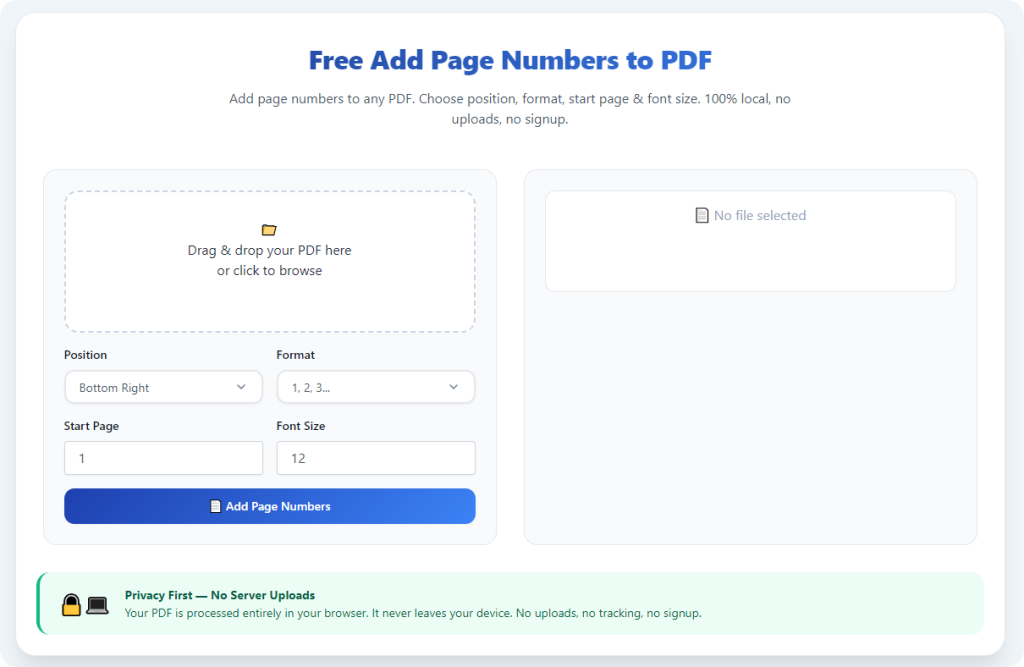
Upload your file via drag-and-drop or standard file selection. The tool supports all standard PDF sizes and multi-page documents for flexible editing.
Step 4: Customize Page Number Preferences
Set your preferred page number position, font style, size, and color. Adjust the starting page number if your document requires non-sequential starting values. Fine-tune settings to match your document’s tone and style.
Step 5: Apply Page Numbering
Click the apply button to initiate processing. The tool will instantly add consistent page numbers across every page while preserving your original PDF layout and content quality.
Step 6: Preview and Adjust
Review the live preview carefully. Confirm page numbers do not overlap text, images, or table content. Adjust placement or sizing if any section appears cramped or misaligned.
Step 7: Download Your Final PDF
Once satisfied, download the fully edited PDF. Your finished file features clean, consistent page numbers, zero watermarks, and unaltered original formatting for all professional and personal uses.
Common Page Numbering Mistakes to Avoid
Even with the best tool to add page numbers to PDF easily, small user errors can impact final document quality. Avoid these frequent mistakes for perfect results.
Poor margin placement
Placing page numbers too close to content edges causes overlap during printing. Always leave subtle margins to keep numbers separate from core text and visuals.
Inconsistent styling
Mismatched font sizes or colors create unpolished documents. Keep page number styling uniform across every page for a professional, cohesive look.
Incorrect starting page values
For segmented documents, failing to adjust the starting number breaks overall sequence. Always verify number sequencing before finalizing your file.
Skipping the preview step
Previewing catches subtle placement errors you may miss at first glance. This quick step prevents rework after downloading the final file.
Expert Tips for Perfect Easy PDF Page Numbering
Use these professional tips to maximize performance when you use the best tool to add page numbers to PDF easily, ensuring polished results every time.
- Match page number font and color to your document’s primary text for a seamless, natural appearance.
- Use bottom-center placement for formal printed booklets and academic papers to follow standard formatting norms.
- Reserve corner placement for business reports to keep page numbers unobtrusive and clean.
- Process one file at a time for precise customization, especially for formal or high-priority documents.
- Always save both the original and edited files to allow future adjustments or reformatting.
Final Thoughts
Adding page numbers to PDFs does not need to be a complicated, time-consuming task. Overly complex editors and low-quality free tools create unnecessary barriers for basic document formatting.
The best tool to add page numbers to PDF easily simplifies the entire workflow with intuitive controls, full customization, fast online processing, and unmarked high-quality outputs. It eliminates the stress of confusing settings, paid upgrades, and formatting distortion.
Whether you are formatting academic assignments, business reports, digital booklets, or personal archives, this user-centric tool delivers reliable results in seconds. It streamlines your document management process and elevates the professionalism of every PDF you create.
By using a dedicated easy PDF page numbering tool, you skip unnecessary complexity and focus on clean, organized document formatting for all your daily editing needs.
After learning the operation method, click the link below to enter the tool page for immediate use.