Color is the foundation of every successful visual design project. From brand logos and website interfaces to social media graphics and digital illustrations, precise color selection defines aesthetics, readability, and brand recognition. For professional designers, amateur creators, and UI/UX specialists, picking accurate, consistent shades is never a random choice.
Many creators rely on basic default color tools that deliver inconsistent results. These generic pickers often produce distorted color codes, lack professional formatting options, and fail to support advanced design workflows. Small color inaccuracies add up quickly, leading to disjointed branding, mismatched design assets, and unpolished final work.
This is why investing in the best color picker for designers is non-negotiable for high-quality creative output. Professional-grade color pickers are built specifically for design workflows, offering precision, versatile color formats, and palette management features that generic tools simply cannot match.
This in-depth tutorial covers the flaws of basic color tools, key professional features of the best color picker for designers, practical design use cases, and a step-by-step workflow to master color sampling and palette building for all creative projects.
Why Generic Color Pickers Fail Design Professionals
Default system color pickers and free basic sampling tools work for casual use, but they fall short of professional design standards in multiple critical ways.
Lack of pixel-perfect precision
Generic tools often average pixel colors instead of sampling single pixels. This subtle distortion creates mismatched shades that break brand and design uniformity across assets.
Limited color format support
Basic pickers only generate one or two color code types. Designers need HEX, RGB, HSL, and CMYK options for cross-platform projects, which generic tools rarely provide.
No palette organization features
Casual tools do not save color histories or custom palettes. Designers must re-sample shades repeatedly, wasting time on repetitive manual work.
Inconsistent color rendering
Default tools often display inaccurate on-screen previews. This leads to unexpected color shifts when exporting designs for web or print publishing.
No design-specific customization
Generic pickers lack adjustment tools for color grading, tinting, and shading. They cannot support advanced creative workflows for layered design projects.
Key Features of the Best Color Picker for Designers
The best color picker for designers comes packed with professional features tailored exclusively for creative and technical design work, bridging the gap between basic tools and premium design software.
Single-pixel precision sampling
Professional color pickers capture exact individual pixel colors. This eliminates color blurring or averaging, ensuring every sampled shade matches the original design asset perfectly.
Multi-format color code generation
Top tools generate all industry-standard codes, including HEX, RGB, RGBA, HSL, HSLA, and CMYK. This full format support covers web design, print media, UI design, and digital illustration needs.
Custom color palette creation
Designers can save, label, and organize custom color palettes. This feature streamlines brand kit building and ensures consistent color usage across all project stages.
Real-time color preview and adjustment
Live preview windows display exact shade tones, tints, and shadows. Users can adjust brightness, saturation, and hue to refine colors without switching to separate editing software.
Color history tracking
The tool automatically logs all recently sampled colors. Designers can revisit past shades instantly, maintaining visual consistency across long-term projects.
Color harmony tools
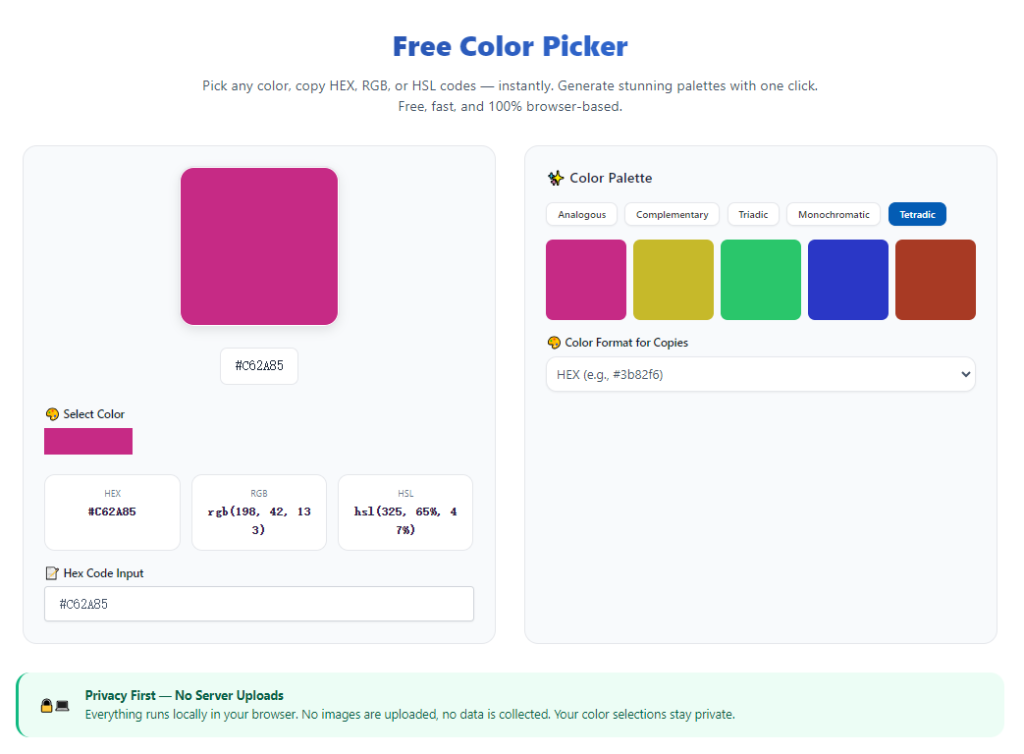
Advanced designer-focused pickers include complementary, analogous, and triadic color generators. These features help creators build balanced, visually appealing color schemes effortlessly.
Opacity and alpha channel support
For layered UI and graphic design work, alpha channel sampling ensures accurate transparency values. This is critical for overlay elements, icons, and modern web interface styling.
Core Use Cases for a Designer-Focused Color Picker
The best color picker for designers adapts to every professional design workflow, supporting diverse creative projects with reliable precision.
Brand identity and logo design
Brand colors require absolute consistency. Professional color pickers capture exact logo shades and generate standardized codes for brand guides, ensuring uniform use across all marketing materials.
UI/UX web and app design
Interface designers rely on precise HEX and RGBA codes for button colors, backgrounds, text tones, and overlays. Accurate sampling creates clean, cohesive user interfaces.
Social media graphic design
Content creators match post templates, highlight covers, and promotional graphics. Consistent color grading improves feed aesthetics and strengthens brand recognition.
Print design and packaging
CMYK color generation ensures printed materials match digital previews. This prevents costly color shifting for flyers, packaging, and physical branding assets.
Digital illustration and art
Artists sample reference colors and build custom palettes for character design, backgrounds, and detailed artwork. Precision sampling elevates overall visual harmony.
Website development and CSS styling
Web developers use accurate color codes to style websites, ensuring theme consistency across desktop and mobile displays for seamless user experiences.
Step-by-Step Guide: Use the Best Color Picker for Designers
Follow this professional workflow to maximize accuracy and efficiency with your designer-focused color picker tool.
Step 1: Prepare Your Design Assets
Open your reference image, brand file, webpage, or design mockup on your screen. Ensure the asset is displayed in high resolution to avoid blurry or distorted pixel data.
Adjust your screen brightness and color calibration to default settings for true-to-life color representation.
Step 2: Launch the Professional Color Picker Tool
Open your trusted best color picker for designers. Confirm the tool offers multi-format coding, pixel precision, and palette management features for professional use.
Step 3: Activate the Precision Eyedropper
Enable the tool’s eyedropper sampling feature. Your cursor will switch to a precision selector designed to target single pixels for maximum accuracy.
Hover over your target color area to trigger the real-time preview window.
Step 4: Sample and Verify the Color Shade
Click once to lock your selected color. Check the live preview to confirm the shade matches your intended design tone.
Review the automatically generated HEX, RGB, or CMYK codes based on your project’s output needs.
Step 5: Refine and Adjust the Color
Use the tool’s built-in adjustment sliders to tweak hue, saturation, brightness, or opacity. Fine-tune the shade to fit your palette and design requirements perfectly.
Test color harmony features to generate matching complementary shades for your project.
Step 6: Save Palettes and Copy Codes
Save the finalized color to your custom palette or color history library. Label key brand shades for easy future reference.
Copy the required color code format and apply it directly to your design or development project.
Common Color Picking Mistakes Designers Should Avoid
Even with premium tools, these frequent errors can compromise design color accuracy and consistency.
Sampling low-resolution assets
Compressed or blurry images contain inconsistent pixel data. Always sample high-resolution files to avoid distorted color codes.
Ignoring color format differences
Using RGB codes for print projects or CMYK for web design causes major color shifting. Always match the code format to your final output medium.
Skipping palette organization
Failing to save custom palettes leads to inconsistent color reuse. Organized color libraries ensure uniform branding across all assets.
Overlooking screen calibration
Uncalibrated screens display inaccurate tones. Always reset display settings before professional color sampling work.
Expert Design Tips for Perfect Color Selection
Use these professional tips to leverage the best color picker for designers and elevate your design quality.
- Always use the best color picker for designers for brand projects to maintain strict color consistency across all visual assets.
- Build master brand palettes and save them in your tool library to avoid repetitive color sampling work.
- Leverage color harmony features to create balanced, eye-catching schemes for UI layouts and marketing graphics.
- Double-check color codes across different formats to match web, print, and digital project requirements.
- Use alpha channel sampling for transparent UI elements to ensure seamless overlay blending in modern designs.
- Regularly clear and organize your color history to keep project palettes clean and easy to navigate.
Final Thoughts
Color accuracy is the backbone of professional design work. Generic color pickers limit creative potential, create inconsistent results, and force designers to waste time fixing avoidable color errors.
The best color picker for designers solves these challenges with precision pixel sampling, full industry color format support, custom palette management, and professional color harmony tools. It transforms basic color selection into a streamlined, reliable workflow for every creative project.
Whether you are building brand identities, designing user interfaces, creating social media content, or producing digital art, a designer-focused color picker ensures every shade aligns with your creative vision and professional standards.
By following this complete guide, you can master precise color sampling, build cohesive color palettes, and deliver polished, consistent design work that stands out in competitive creative industries.
After learning the operation method, click the link below to enter the tool page for immediate use.