Most office workers, content creators and regular PC users need to pack dozens of scattered documents, images and folders into compact ZIP archives every week.
Traditional desktop compression software often forces users to add files one by one. This piecemeal operation eats up plenty of working time when handling large batches of mixed-format files.
Many paid compression programs lock bulk batch processing behind expensive subscription tiers, leaving casual users stuck with slow, limited single-file compression only.
Picking and mastering Best file zipper for bulk multiple files compression solves these daily workflow bottlenecks completely. Users merge hundreds of separate items into one tidy archive within a few clicks via standard browsers.
This in-depth practical tutorial covers common drawbacks of single-file-only compression tools, core perks of best file zipper for bulk multiple files compression, essential built-in tool functions, real industry usage cases and full step-by-step operation guidance for all user levels.
Common Downsides of Conventional Single-Only Compression Tools
Ordinary compression options without bulk support create unnecessary delays for anyone who regularly needs to organize large groups of digital files and folders.
Repetitive manual selection slows down entire file sorting progress
Without bulk upload functions, users have to drag and drop every file separately. Packing dozens of items may take ten times longer than streamlined batch compression workflows.
Premium paywall blocking core bulk compression functionality
Lots of well-known desktop zipper apps treat multi-file batch packing as advanced feature, requiring monthly payment to unlock basic bulk archive generation.
Heavy local installation takes up valuable system storage space
Full desktop compression suites occupy substantial hard drive room, which becomes a burden for laptops with limited free disk space and low hardware performance.
Random ad popups interrupt continuous file packaging tasks
Free lightweight compression tools filled with advertisements pause operations constantly, breaking focus during long bulk file organization sessions.
Inconsistent compression ratios across split single ZIP outputs
Packing files separately leads to dozens of scattered small archives, raising total storage usage instead of trimming file size efficiently as intended.
Core Advantages of Best File Zipper for Bulk Multiple Files Compression
After switching over to reliable Best file zipper for bulk multiple files compression, users cut bulk file packaging time drastically and avoid extra software costs entirely.
One-time multi-item upload for hundreds of mixed-type files
Users select entire folders or mark dozens of independent docs, pictures and spreadsheets in a single upload round, skipping repetitive one-by-one file picking entirely.
Zero mandatory software download or desktop setup
All compression runs inside regular web browsers. No installer packages, driver updates or system permission approvals are needed before starting bulk file zipping work.
Unlimited free bulk compression rounds without hidden usage caps
There exist no daily processing limits, trial expiration dates or hidden upgrade fees. Users run countless large batch compression jobs fully free every single day.
Uniform compression ratio to shrink total archive size optimally
The tool applies consistent compression rules across all imported bulk content, combining separate resources into one compact ZIP for easier storage and cross-device sharing.
Local in-browser calculation safeguards original file privacy
All file reading and compression logic processes data on users’ own devices. Source files never get permanently saved on remote third-party backend servers after compression finishes.
Cross-platform uniform performance across all mainstream devices
The same bulk-focused file zipper works steadily on Windows laptops, Mac desktops, Android and iOS mobile gadgets with identical batch processing rules.
Must-Have Core Features for Qualified Best File Zipper for Bulk Multiple Files Compression
While choosing a trustworthy platform to utilize Best file zipper for bulk multiple files compression, confirm these key functional modules come preinstalled on the compression tool.
Folder-level full upload support for nested bulk resources
Top-tier bulk zipper lets users upload complete nested folders containing layered subfiles, eliminating manual extraction and separate selection of inner content beforehand.
Mixed-format compatibility for docs, images and media files
The compression engine accepts PDF, Word, PNG, JPG, Excel and plain text in one bulk group without format filtering or forced file conversion ahead of packing.
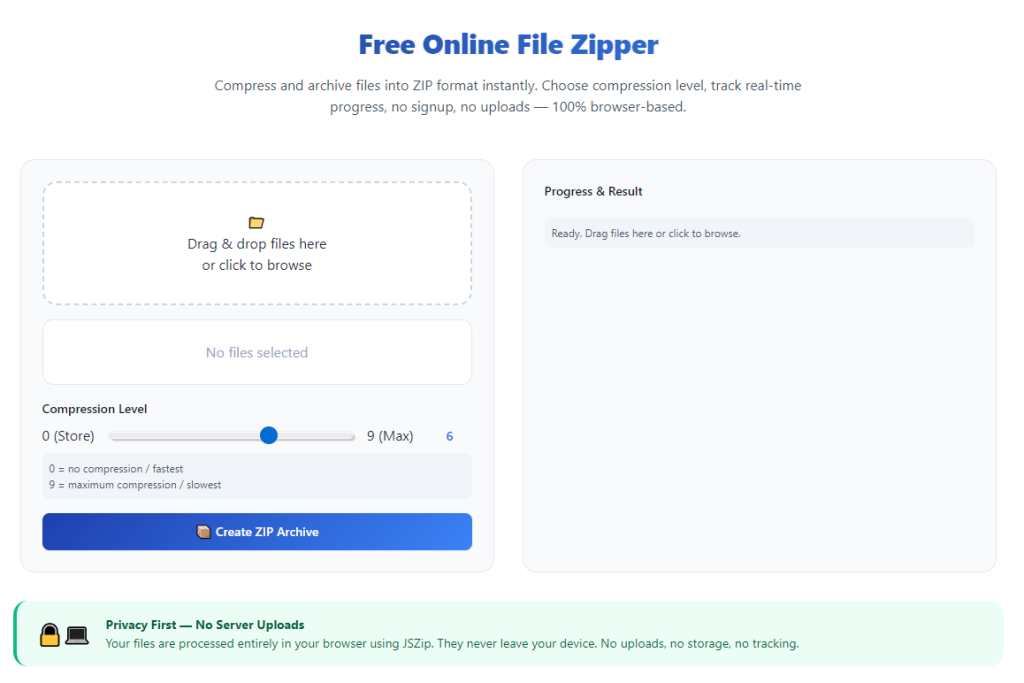
Custom compression level adjustment slider
Users switch between fast-speed low-compression and high-density compact packing according to storage needs, balancing processing speed against final archive file size flexibly.
Real-time bulk processing progress indicator bar
Visual progress tracking lets operators monitor large batch compression status, estimating remaining waiting time for oversized multi-gigabyte file groups conveniently.
Single-click full archive download after bulk compression completes
Once all imported bulk items finish packing, a dedicated download button exports the unified ZIP package directly to local device storage in one tap.
Instant workspace reset for next round of batch tasks
Quick clear function wipes all uploaded source files and finished archive data, readying the interface for another independent bulk multiple files compression session rapidly.
Diverse Real-World Application Scenarios for Bulk Multi-File Zipper
A well-built Best file zipper for bulk multiple files compression fits into daily office management, content creation, education and small enterprise data archiving workflows seamlessly.
Office admin monthly document sorting and archive packaging
Administrators gather monthly expense sheets, meeting records and department reports in bulk, compressing everything into one ZIP before cloud backup or inter-department email delivery.
Content creator batch asset packaging for client handover
Designers combine layered artwork, raw pictures and draft text documents into a single compressed archive to send complete project resources toward cooperating customers efficiently.
Teacher bulk coursework bundling for student distribution
Instructors pack lecture slides, exercise files and reading materials all at once, sharing one unified ZIP instead of dozens of separate attachments via class group channels.
Small business historical receipt and invoice archiving
Shop operators compile batches of scanned invoice images and digital billing records into compact archives for long-term local storage and offline data backup.
Personal user holiday photo and document backup consolidation
Regular users merge travel photos, scanned certificates and personal paperwork in bulk to save disk space and organize scattered private digital resources neatly.
Remote team cross-regional project file transmission
Remote employees compress entire project resource folders in bulk, cutting total file size to speed up file sending over limited-bandwidth network environments.
Complete Step-by-Step User Guide: Best File Zipper for Bulk Multiple Files Compression
Follow this beginner-friendly sequential workflow to master best file zipper for bulk multiple files compression and finish smooth batch archive creation within minutes.
Step 1: Organize all bulk source files in advance
Collect all target documents, images and folders you plan to compress, grouping related items inside unified local folders to simplify later bulk upload operations.
Delete duplicate junk files or invalid broken shortcuts first to reduce final ZIP size and accelerate overall bulk compression processing speed.
Step 2: Launch best file zipper for bulk multiple files compression via regular browser
Open your daily-used desktop or mobile web browser and navigate straight to the bulk-focused online file compression tool webpage.
Double-check no forced app download alerts, registration popups or premium upgrade banners display after full page loading wraps up.
Step 3: Start bulk multi-file or full-folder upload
Click the core upload control on the tool panel, then pick entire pre-organized folders or tick multiple scattered separate files for one-time bulk import into the zipper.
Preview the full uploaded item list on screen to confirm no missing or mistakenly added irrelevant content slips into the compression queue.
Step 4: Adjust preferred compression setting parameters
Tweak compression intensity options according to your actual demand; choose quick compression for fast processing or high compression for maximum storage space reduction.
Rename the final output ZIP archive as needed to match your file classification naming rules for easier future lookup and management.
Step 5: Trigger bulk compression execution
Tap the compress start button to let the bulk zipper automatically process all imported files and merge them into one standardized ZIP archive in the backend.
Keep track of progress bar updates and wait for full batch processing to finish; large-sized bulk sets require slightly longer waiting periods naturally.
Step 6: Download finished bulk compressed ZIP archive
Once compression completes fully, use the built-in download option to save your unified ZIP package directly into your local device’s target storage folder.
Open the downloaded archive briefly to verify all original bulk source content stays intact with no missing or corrupted inner files after compression.
Step 7: Clear workspace and bookmark tool link
Run the reset command to erase all leftover uploaded source data and temporary archive previews, clearing the platform ready for another round of bulk compression tasks.
Add the trusted bulk zipper webpage into browser bookmark list for one-click fast access during sudden urgent batch file packaging requirements later.
Common Operating Mistakes to Avoid With Best File Zipper for Bulk Multiple Files Compression
Even with feature-rich bulk compression tools available, careless user habits trigger slow processing or corrupted archive results during multi-file packing work.
Stick to outdated single-file-only compression manually
Piecemeal separate packing wastes massive work time; always utilize best file zipper for bulk multiple files compression for all regular large-group file organizing tasks.
Import oversized mixed bulk batches without pre-sorting
Excessive unfiltered junk files and corrupted broken items drag down compression speed and may cause incomplete archive generation after bulk processing runs.
Change compression parameters mid-running bulk task
Mid-process setting edits interrupt ongoing backend calculation and easily damage unfinished ZIP structure, forcing full reupload and repeated compression from scratch.
Close browser tab ahead of final ZIP file download
Unexpected page shutdown wipes fully processed bulk archive data completely, pushing users to redo all file selection and compression steps once more.
Mix incompatible corrupted file formats into one bulk queue
Damaged unreadable files inserted into bulk upload list trigger partial compression failure, leaving part of your target content unpacked inside finished archives.
Practical Expert Tips to Boost Bulk Compression Efficiency
These actionable optimization suggestions help users raise speed and stability every time they open best file zipper for bulk multiple files compression for daily file archiving jobs.
- Depend on best file zipper for bulk multiple files compression to drop costly desktop compression subscriptions and cut repetitive single-file manual packing labor.
- Group files by project type or date into independent local folders in advance to speed up targeted bulk upload and organized archive classification after compression.
- Split extremely oversized bulk file groups into two or three separate upload batches to prevent browser lag and keep consistent compression success ratios.
- Select high-density compression only for long-term backup files and fast compression for temporary shared resources to balance processing time and storage savings properly.
- Double-check uploaded file inventory before starting bulk compression to rule out stray irrelevant files and avoid bloated unnecessary final archive size.
- Test small sample bulk batches first on unfamiliar compression tools to confirm stable performance before processing your most important confidential file collections.
Final Thoughts
Bulk file compression remains an essential daily operation for office management, content production, academic learning and personal digital resource backup across all industries.
Slow single-file compression workflows and expensive paid desktop zipper software create avoidable productivity losses, while reliable Best file zipper for bulk multiple files compression delivers free, streamlined batch archiving entirely via regular web browsers.
No matter you work as administrative staff, creative designer, school educator or ordinary personal user, browser-based bulk multi-file compression drastically simplifies scattered file sorting and cross-platform resource sharing.
Following the complete step-by-step operation guide above lets you consolidate hundreds of separate files into neat compact ZIP archives quickly, cut storage overhead and standardize your long-term digital file management routines effortlessly.
After learning the operation method, click the link below to enter the tool page for immediate use.