UI designers spend most working hours refining button sizes, text gaps, card margins and component spacing to build neat, consistent digital interfaces for mobile apps and desktop websites.
Minor pixel deviations often slip past regular visual inspection. Even one or two misplaced pixels lead to disjointed layouts that look unpolished on finished product releases.
Many design teams rely on expensive professional design software plugins to measure pixel values, which brings extra subscription costs for freelance creators and small design studios.
Selecting and mastering Best screen ruler for UI design pixel check solves these layout accuracy troubles affordably, letting developers and designers complete pixel verification directly inside regular web browsers.
This detailed user guide explains common layout flaws caused by missing pixel checks, core advantages of best screen ruler for UI design pixel check, essential built-in tool functions, real design industry use cases and step-by-step operation instructions for designers of all skill levels.
Common Layout Problems Without Reliable UI Pixel Measuring Tools
Skipping precise pixel measurement with dedicated screen rulers creates recurring visual flaws that lower overall UI quality and hurt end-user browsing experience.
Inconsistent spacing between interface buttons and text blocks
Visual estimation alone cannot confirm uniform gaps. Uneven pixel spacing makes navigation menus and content sections look messy and unstructured across page layouts.
Mismatched component sizing across mobile and desktop viewports
Design drafts often shrink or expand on different screens. Without pixel check rulers, designers fail to unify element dimensions for multi-device adaptive interfaces.
Small pixel offsets leading to broken responsive layouts
Tiny unmeasured pixel errors compound during responsive coding, causing overlapping buttons, cut-off text and misplaced banners after frontend development implementation.
Extra revision cycles to fix overlooked sizing mistakes
Developers discover hidden pixel mismatches after design handoff, pushing design teams back into repeated edits and delaying overall project delivery schedules.
High cost of premium design plugin subscriptions for basic pixel reading
Most desktop design apps lock precise on-screen pixel measurement behind paid add-ons, creating unnecessary recurring expenses for independent part-time UI creators.
Core Advantages of Best Screen Ruler for UI Design Pixel Check
After adopting trusted Best screen ruler for UI design pixel check, design professionals eliminate guesswork and drastically reduce layout revision workload in daily UI production.
Instant browser access with no software installation or subscription fees
Open the measuring tool on any desktop or mobile browser and start pixel checking right away, skipping bulky design program downloads and costly monthly membership payments.
Accurate single-pixel reading for every UI component dimension
The ruler captures exact pixel width, height and spacing values down to individual pixels, eliminating visual guesswork for margins, padding and interactive element sizing.
Dual horizontal and vertical floating ruler for full-screen layout inspection
Adjustable horizontal and vertical bars move freely across the screen, allowing designers to cross-check cross-axis pixel alignment for complex grid-based UI layouts effortlessly.
Stable measurement data unaffected by browser zoom adjustments
Well-calibrated pixel rulers retain precise readings even when users tweak browser zoom percentages to zoom in on tiny design details or zoom out for full-page overview checks.
Cross-platform compatible for mobile mockup and desktop webpage design
The same pixel check ruler works smoothly on large monitor screens, tablet previews and smartphone display emulators for unified multi-screen UI dimension verification.
Quick value copy feature to paste pixel data directly into design documents
One-click copy saves measured pixel numbers to clipboard, speeding up annotation work on design specs and frontend development handoff files.
Must-Have Core Features for Qualified Best Screen Ruler for UI Design Pixel Check
While picking a dependable measuring platform to utilize Best screen ruler for UI design pixel check, confirm these design-focused core features come prebuilt into the tool interface.
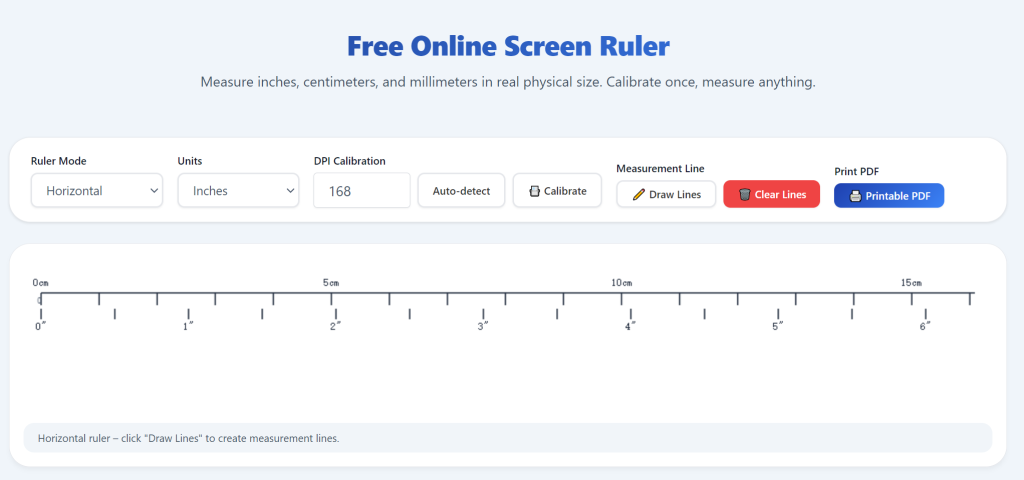
Independent horizontal and vertical draggable ruler bars
Two separate ruler strips can be dragged anywhere on-screen to measure width and height separately, ideal for inspecting box model padding and inner component gaps in UI drafts.
Real-time live pixel counter showing exact numeric measurements
As users drag ruler endpoints, an on-screen number updates instantly to display precise pixel count, removing manual calculation for all measured design elements.
Custom baseline calibration for high-DPI and retina display screens
Advanced pixel rulers support quick calibration for high pixel density panels, fixing scaled display distortions common on modern laptop and mobile retina screens.
Mark function to pin key pixel reference points on layout canvas
Designers place fixed marker dots on critical anchor positions to compare multiple component sizes against the same baseline pixel standard during layout optimization.
Toggle unit switch between pixel and inch/centimeter for mixed design workflows
Switch measurement units freely without resetting ruler positions, convenient for projects that require both digital pixel specs and physical print dimension cross-checks.
Light overlay mode that never blocks underlying UI design preview
Transparent ruler styling keeps design artwork fully visible underneath, letting users check pixel spacing without hiding critical graphic and text content on mockups.
Wide Real-World Application Scenarios for UI Pixel Check Screen Ruler
A fully optimized Best screen ruler for UI design pixel check fits every core stage of UI creation, from initial wireframe drafting to final production-ready design verification.
Wireframe grid layout pixel spacing standardization
UI designers measure grid column widths and gutter gaps to lock unified pixel values, ensuring all layout modules follow consistent spacing rules from early wireframe phases.
Mobile app button and icon size pixel validation
Creators check icon dimensions and interactive tap-area pixel sizes to comply with mainstream mobile design guidelines and avoid overly small unclickable interface controls.
Webpage card component margin and padding inspection
Designers verify inner padding and outer margin pixel values of content cards to maintain neat uniform spacing across homepage lists and article preview blocks.
Responsive breakpoint layout pixel adjustment across viewports
During adaptive design testing, developers measure component shrinkage pixel by pixel to tweak layout rules for desktop, tablet and mobile breakpoints separately.
Design-to-development spec document pixel data collection
UI engineers gather exact pixel measurements with the screen ruler to write clear sizing specs, reducing miscommunication between design teams and frontend coding staff.
Existing finished website UI refurbishment and consistency polishing
When updating legacy webpage interfaces, designers use pixel check rulers to unify mismatched old component sizes for a cleaner cohesive updated layout.
Complete Step-by-Step User Guide: Best Screen Ruler for UI Design Pixel Check
Follow this beginner-friendly sequential workflow to master best screen ruler for UI design pixel check and complete precise interface dimension verification smoothly.
Step 1: Prepare your UI mockup file on active browser window
Open your target design preview, finished mockup screenshot or live webpage inside your regular desktop browser, and hide unnecessary floating sidebar tabs blocking layout view.
Reset browser zoom back to 100% default level first to avoid initial scaling distortion that impacts raw pixel measurement accuracy.
Step 2: Launch best screen ruler for UI design pixel check tool
Open your preferred web-based pixel measuring tool through browser, confirm no mandatory signup prompts or paid feature locks appear after full page load finishes.
Locate ruler control panel options including horizontal/vertical toggle, calibration setting and unit switch buttons on the main tool interface.
Step 3: Complete quick screen calibration for accurate pixel output
If using high-DPI or retina display screens, enter screen pixel density data or use built-in reference calibration to fix automatic scaling errors of the on-screen ruler.
Skip extra calibration steps when working on standard low-DPI monitors where default ruler settings already match native screen pixel proportions.
Step 4: Drag floating rulers onto target UI design components
Pull horizontal ruler bar to measure component width and vertical bar for height readings, align ruler zero tick marks with the starting edge of your selected UI element precisely.
Slowly drag ruler endpoint until it lines up perfectly with the opposite border of buttons, text blocks or card containers for exact pixel capture.
Step 5: Record or copy measured pixel values
Check real-time numerical pixel data displayed next to ruler ends, use one-click copy function to save values into clipboard for spec sheet note taking later.
Mark fixed reference points with built-in pin tool if you need to compare multiple elements against identical baseline pixel dimensions in the same layout.
Step 6: Switch units or adjust ruler position for batch layout checks
Toggle between pixel and physical measurement units as needed, then shift ruler bars across remaining interface modules to finish full-page pixel consistency auditing.
Zoom in locally on tiny UI details like input borders and small icon edges for ultra-precise single-pixel spot checks.
Step 7: Reset workspace and bookmark tool for upcoming design tasks
Use reset option to clear all placed rulers and marker pins from screen to prepare for next independent design pixel checking session.
Bookmark the trusted pixel ruler page for instant access whenever you start new UI layout drafting or finished mockup validation work.
Common Mistakes to Avoid When Using Best Screen Ruler for UI Design Pixel Check
Simple careless operating errors lead to flawed pixel readings even with fully featured professional-grade UI measuring screen rulers available.
Rely purely on naked-eye visual judgment instead of pixel ruler verification
Visual estimation misses subtle single-pixel shifts; always utilize best screen ruler for UI design pixel check to standardize all core component dimensions.
Leave browser zoom altered before starting bulk pixel layout inspection
Modified zoom percentages stretch or shrink on-screen content and ruler scaling, producing misleading inflated or reduced fake pixel count results.
Skip calibration step when working on high-DPI retina display screens
Uncalibrated rulers return doubled or halved pixel numbers on dense pixel panels, completely ruining all subsequent UI dimension reference data.
Align ruler ticks roughly instead of precise edge matching with UI borders
Minor offset during ruler placement adds extra pixel error to measurements, resulting in inconsistent sizing guidelines passed to frontend developers.
Close browser tab before copying critical measured pixel specification data
Unexpected page closure wipes all captured dimension values, forcing designers to repeat full layout pixel checking work from the very beginning.
Practical Expert Tips to Improve UI Pixel Checking Efficiency
These actionable optimization suggestions help designers get consistent precise readings every time they open Best screen ruler for UI design pixel check during daily interface creation work.
- Depend on best screen ruler for UI design pixel check to cut expensive design plugin costs and eliminate repetitive layout revision cycles caused by unmeasured pixel mismatches.
- Complete full-page pixel inspection once right after finishing draft design to fix spacing errors before moving into formal design handoff phases.
- Save separate calibrated ruler settings for desktop, tablet and mobile preview screens to skip repeated setup across multi-device design testing.
- Group related UI components together and finish batch pixel checks in one session to keep uniform sizing standards across entire design systems.
- Use marker pin function to lock core baseline pixel references early for quick cross-comparison of newly added layout elements later on.
- Spot-check random component samples after bulk measurement to catch occasional ruler alignment mistakes before finalizing official design specifications.
Final Thoughts
Precise pixel control forms the foundation of polished, professional-grade UI design for all mobile applications and modern website layouts across every industry.
Unverified pixel gaps and mismatched component sizes damage interface uniformity, trigger extra project revisions and increase overall design cycle costs for creative teams.
A reliable Best screen ruler for UI design pixel check delivers free, browser-native pixel measurement without pricey software or restrictive subscription requirements for designers of all budgets.
From early wireframe drafting to final pre-launch design validation, standardized pixel checking streamlines UI production workflows and guarantees consistent, visually balanced finished digital interfaces.
Following the detailed step-by-step measurement guide above lets every designer lock in accurate pixel specs easily and elevate overall UI design quality for all ongoing personal and commercial projects.
After learning the operation method, click the link below to enter the tool page for immediate use.