Every photo you snap with a smartphone, mirrorless camera, or digital device stores hidden invisible data known as image metadata, also called EXIF data. This embedded information acts like a secret tag attached to every picture you save and share online.
Most casual creators and everyday social media users overlook these hidden details until privacy trouble pops up. Image metadata logs exact GPS coordinates of where you took a shot, device model, precise timestamp, camera lens settings, editing software traces, and even custom text notes you added while editing.
Sharing unprocessed original images online exposes all of this sensitive metadata to anyone who downloads your files. Bad actors can cross-reference location tags to track your home, travel routes, or private event spots. Freelance photographers risk leaking proprietary gear details and shoot locations to competitors through unremoved EXIF tags.
Many basic editing tools claim to strip metadata, but they ruin picture clarity in the process. They force heavy compression, wash out color saturation, blur fine textures, or reduce resolution to cut hidden data. That’s where a reliable best image metadata remover no image quality loss changes the entire workflow for every type of image creator.
This thorough, beginner-friendly tutorial breaks down the risks of unremoved metadata, flaws in low-grade cleaning tools, standout advantages of lossless metadata erasers, must-have core features, real-world use cases, and an ethical, simple step-by-step process to wipe hidden tags while preserving every pixel of your original image quality.
The Hidden Dangers of Unremoved Image Metadata
Before learning how to use the best image metadata remover no image quality loss, it helps to fully grasp exactly what risks come with leaving EXIF data intact on your uploaded photos. These threats affect hobbyists, professional creators, small business owners, and regular social media posters alike.
Unwanted GPS Location Exposure
The most dangerous piece of image metadata is geotag GPS data. If location services stayed active when you captured a photo, exact latitude and longitude lock to the file. Strangers, data scrapers, or online trackers can plug these coordinates into mapping tools and pinpoint your home address, vacation spots, office, or private event venues instantly.
Even seemingly harmless lifestyle photos taken inside your house or backyard carry these location markers. Posting unedited travel photos can broadcast your current whereabouts to thousands of online viewers without you realizing it.
Leaked Device and Professional Gear Information
Camera and phone metadata lists your exact device brand, model, lens type, sensor size, and firmware version. For working photographers, this gives competing creators insight into your entire shooting setup. Hobbyists may not mind this detail, but commercial creators guard their equipment choices closely to avoid copycat competitors.
Editing metadata also reveals which photo editing software you used, including version numbers and custom preset names that you built exclusively for your brand content.
Traceable Timestamps and Personal Context Clues
Every image’s metadata records the exact date, hour, minute, and second each frame was captured. Scrapers can build timelines of your daily movements, trip schedules, and routine activities by cross-referencing dozens of your uploaded photos. Some images also store draft notes, watermark drafts, or personal captions you typed mid-editing that you never intended to share publicly.
Copyright and Brand Tracking Loopholes
If you post portfolio images online without stripping metadata, third-party platforms can trace original shoot timestamps and equipment data to file false copyright claims against your work. Uncleaned metadata also lets data aggregators catalog your original photos without explicit permission, reposting your visuals across unrelated websites without credit or payment.
Low-Quality Metadata Tools Make the Problem Worse
Lots of free online metadata cleaners exist, yet nearly all operate by compressing your image file to delete hidden tags. Compression crushes resolution, softens sharp edges, dulls vibrant color grading, and creates visible pixel artifacts across high-detail areas like portraits, product shots, and landscape photography.
Why Cheap Metadata Cleaners Fail (And Need Lossless Alternatives)
To understand why the best image metadata remover no image quality loss stands apart from generic web tools, let’s break down the consistent flaws found in low-grade EXIF erasers widely available online.
Forced File Compression as a Quick Fix
Budget metadata removal tools do not separate metadata from visual pixel data. Instead, they re-render the entire image file at a lower bitrate, discarding metadata while destroying original image fidelity. After processing, product photos lose crisp texture details, and portrait shots show fuzzy skin tones and blurred background elements.
Limited Supported Image File Types
Many basic cleaners only work with standard JPG files. They reject RAW camera files, PNG transparent graphics, TIFF print-ready images, and high-resolution WebP formats that modern creators rely on daily. Professionals working with mixed file sets must use multiple disjointed tools to clean their full image library.
Hidden Upload Privacy Risks
Generic web-based metadata cleaners store your uploaded images on external servers temporarily, even after processing completes. This creates data leakage risks for sensitive client photos, private event imagery, and proprietary brand visuals you cannot afford to share with third-party tool providers.
Cumbersome Batch Processing Limits
Free entry-level tools cap uploads at one or two images per session. Creators with hundreds of portfolio shots, product catalog photos, or social media batches waste hours repeating single-file uploads, slowing down content publishing schedules drastically.
Incomplete Metadata Wiping
Cheap cleaners only erase basic GPS geotags, leaving embedded thumbnail previews, edit history logs, custom keywords, and device specs hidden within the file structure. Partial cleaning still leaves enough traceable data for scrapers to extract sensitive personal information.
Core Advantages of Best Image Metadata Remover No Image Quality Loss
Switching to a purpose-built best image metadata remover no image quality loss eliminates every downside of generic cleaners while adding creator-focused functionality that streamlines your daily image workflow. Every benefit centers around two non-negotiable user priorities: full metadata deletion and untouched original visual quality.
Zero Compression, 100% Original Pixel Fidelity
The defining feature separating this premium tool from basic alternatives is its lossless processing engine. It isolates the hidden metadata layer within each image file and deletes only that segmented data, leaving the core visual pixel structure completely untouched. Color grading, sharpness, resolution, texture detail, and dynamic range match your original capture exactly with zero visual degradation.
Complete Wipe of All Metadata Variants
This tool targets every category of embedded hidden data, not just GPS geotags. It fully erases EXIF camera data, geotag coordinates, editing software history, embedded thumbnail previews, custom keyword tags, author notes, device serial numbers, and embedded copyright drafts you do not want shared publicly. No partial leftover traceable data remains after processing finishes.
Full Compatibility With All Major Image Formats
Whether you work with smartphone JPGs, professional RAW camera files, transparent PNG graphics, print-grade TIFFs, optimized WebP social media assets, or vector-converted image files, the best image metadata remover no image quality loss supports seamless upload and lossless cleaning for every standard file type creators use. You never need to convert images to a limited format before stripping metadata.
Secure Local Processing Without Cloud Storage Risks
All metadata deletion work happens locally within your browser or desktop session instead of transferring full images to external remote servers. Your original photos never leave your personal device, eliminating third-party data storage risks for confidential client work, private personal imagery, and proprietary brand product shots. No uploaded file copies get saved or logged by the tool’s backend systems.
Unlimited Bulk Batch Image Processing
Creators can upload dozens, even hundreds of images in a single session for simultaneous metadata removal. The batch processing feature maintains lossless quality across every file in your upload set, cutting hours of repetitive single-file cleaning down to a single one-click workflow step for entire photo libraries.
Lightweight, Fast Processing Speeds
Lossless metadata separation technology operates without lag or slow rendering times, even for ultra-high-resolution 4K and 8K professional camera files. Long batch uploads finish in seconds rather than minutes, so you can clean metadata right before social media posting or client file delivery without workflow delays.
Fully Customizable Metadata Retention Options
While most users want all hidden data erased, the tool includes flexible toggle controls for creators who need to keep specific metadata segments intact. You can choose to retain copyright labels or camera lens specs for portfolio branding while wiping GPS location tags and private timestamps separately, balancing privacy and professional branding needs in one tool.
Must-Have Features to Verify When Picking a Best Image Metadata Remover No Image Quality Loss
Not all lossless metadata cleaning tools deliver equal reliability. When evaluating options for your content workflow, prioritize platforms that include every creator-centric feature outlined below to avoid hidden limitations mid-project.
- Lossless separation algorithm that never re-compresses pixel data
- Full EXIF, XMP, and IPTC metadata wiping coverage across all embedded data types
- Native support for JPG, PNG, TIFF, WebP, and RAW camera image formats
- Local device-only processing with zero server-side image storage
- Unlimited batch upload functionality with no file count caps per session
- Custom metadata retention toggles for selective tag removal
- Post-processing image comparison preview side-by-side with original file
- Export output files matching original resolution, bit depth, and color profiles
- Clean, ad-free interface without forced account sign-ups or paywalls for core features
- No hidden watermarks added to processed cleaned images
Common Real-World Use Cases for Lossless Metadata Remover Tools
A versatile best image metadata remover no image quality loss fits into nearly every personal and professional image creation routine across countless niches and content types. Below are the most frequent scenarios creators rely on this tool for daily.
Social Media Content Creators & Influencers
Content creators post lifestyle photos, travel shots, indoor flat lays, and location-based reels every single day. Stripping geotag metadata before uploading prevents followers and anonymous scrapers from tracking residential addresses or frequent travel destinations. Lossless processing keeps high-quality visual aesthetics intact so photos look crisp and professional on every social platform feed.
Professional Photographers & Freelance Shooters
Wedding, portrait, commercial, and landscape photographers deliver high-res portfolio samples and client galleries online daily. Removing device metadata and shoot location tags protects client privacy and hides proprietary gear setups from competing photography studios. Lossless metadata cleaning preserves print-ready resolution and color grading critical for client deliverables.
E-Commerce Product Listing Managers
Online store owners upload hundreds of product photos for catalog pages, marketplace listings, and social media ads. Hidden metadata may log studio shoot locations, custom editing presets, and internal product draft notes that brands prefer to keep confidential. Bulk lossless cleaning processes entire product photo folders without softening product texture details or washing out product color accuracy.
Digital Marketing & Brand Design Teams
Marketing teams create branded graphics, campaign imagery, and transparent PNG ad assets for cross-platform distribution. Embedded editing software metadata reveals internal draft iteration notes and brand asset development workflows that competitors could exploit. Lossless metadata removal cleans campaign visuals while maintaining sharp graphic lines and transparent layer integrity.
Travel Bloggers & Outdoor Content Creators
Travel photographers and outdoor adventure creators share location-heavy landscape and activity photos across blogs and video platforms. Unstripped GPS geotags broadcast remote trail locations, private vacation rentals, and secluded shooting spots to the public. Lossless metadata wiping eliminates location traces without dulling vibrant landscape color detail or landscape wide-shot resolution.
Private Individuals Sharing Family & Personal Photos
Everyday users share family event photos, birthday snapshots, and personal travel images with friends and online communities. Removing location and timestamp metadata protects household privacy, preventing strangers from mapping out residential locations and daily family routines. Lossless processing preserves sentimental photo quality without ruining cherished memory snapshots.
Academic & Research Visual Publishers
Students, researchers, and academic creators publish field study imagery, lab photography, and field survey visuals for papers and digital journals. Embedded location metadata may reveal sensitive field research sites or private institutional lab addresses. Lossless metadata cleaning complies with institutional privacy guidelines while maintaining accurate visual detail for research analysis.
Step-by-Step Full Tutorial: How to Use Best Image Metadata Remover No Image Quality Loss
Follow this simple, privacy-focused workflow to erase all hidden image metadata completely while locking in full original image quality, suitable for beginners and professional creators alike. Each step uses core functionality exclusive to a top-tier lossless metadata remover tool.
Step 1: Organize Your Image Files Before Upload
Gather all photos, graphics, or product images that require metadata cleaning into a single dedicated folder on your device. Separate personal private imagery from commercial portfolio files if you plan to use selective metadata retention toggles later. Double-check that all files are saved in their original uncompressed capture format; avoid pre-compressing photos before uploading to preserve base quality.
If you only need partial metadata removal for select files, split those images into a separate folder to process them in an isolated batch session later. This prevents mixing fully wiped files with selectively cleaned assets in your output library.
Step 2: Launch the Lossless Metadata Remover Tool
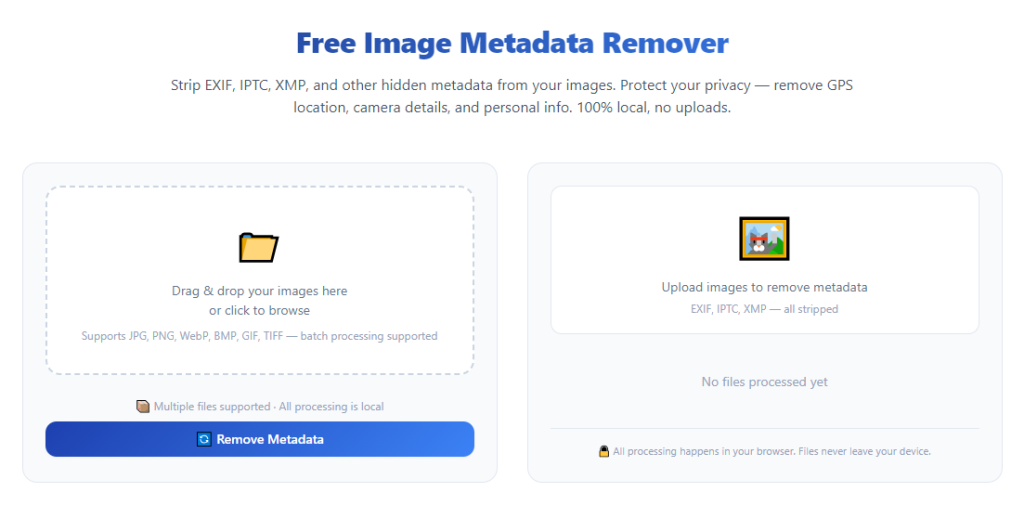
Open the best image metadata remover no image quality loss platform within your standard web browser or desktop application. No mandatory account registration, email verification, or paid subscription unlocks core metadata cleaning functionality. The main landing screen displays a prominent drag-and-drop upload panel designed for single-file or bulk folder imports.
Take ten seconds to review the sidebar control panel, which hosts metadata retention toggles, format matching export settings, and side-by-side preview comparison options for post-processing quality checks.
Step 3: Upload Images via Drag-and-Drop or File Select
Drag your pre-organized folder of images directly onto the upload zone, or click the upload button to manually select individual files through your device’s file browser. The tool accepts mixed file format batches simultaneously, so you can upload JPGs, PNGs, and RAW camera files in one single session without format conversion steps.
Monitor the upload progress bar at the bottom of the screen; large high-resolution RAW files take slightly longer to load into the local processing engine, yet no image data transfers to external cloud servers at any point during upload.
Step 4: Adjust Custom Metadata Retention Toggle Settings (Optional)
Navigate to the metadata control panel if you need to keep specific embedded data intact while erasing sensitive tags. Toggle switches let you independently retain or delete GPS geotags, camera device data, editing history logs, copyright text, and timestamp metadata.
For most privacy-focused use cases, leave all toggle switches set to full wipe mode to erase every segment of hidden image metadata entirely. Commercial photographers can activate the copyright retention toggle to keep brand ownership labels visible on portfolio samples while stripping location and device traces.
Step 5: Enable Lossless Quality Lock Export Mode
Locate the quality preservation setting and confirm lossless pixel lock is activated. This critical setting disables all automatic compression algorithms and forces the tool to separate metadata layers without altering your original image’s resolution, bit depth, color profile, and texture sharpness.
Double-check that the output format matching toggle is switched on; this ensures every cleaned image exports in the exact original file format you uploaded, avoiding unwanted format conversion that can degrade visual quality accidentally.
Step 6: Start Batch Metadata Removal Processing
Click the process all images button to launch the local lossless metadata wiping engine. The tool instantly isolates the hidden EXIF, XMP, and IPTC metadata layers from each file’s visual pixel data and permanently deletes all selected hidden tags in seconds.
A live preview panel generates a before-and-after split view for a random sample image in your batch, so you can instantly confirm zero visual quality loss while metadata erasure completes for the full upload set.
Step 7: Inspect Processed Images for Quality Verification
Once the batch processing progress bar hits full completion, scroll through the processed image preview gallery to visually audit every file. Compare side-by-side original and cleaned previews to confirm no blurring, color shifting, resolution drops, or texture fading occurred during metadata removal.
Zoom into high-detail sections of sample images like portrait skin textures, product fabric details, or landscape foliage to verify crispness matches the unedited original file exactly. If any visual irregularity appears (extremely rare with lossless tools), recheck that lossless quality lock was enabled before reprocessing the affected file.
Step 8: Download Cleaned Images to a New Separate Folder
Select the download all processed images button and choose a new empty folder destination on your device to save the cleaned files. Never overwrite your original unprocessed image files directly; maintain a copy of raw source imagery as a backup archive for future editing projects.
The exported file size will shrink slightly after metadata removal, as hidden tag data is deleted, yet pixel dimensions and visual quality stay identical to your original capture. File size reduction only comes from erased metadata, not compressed image pixels.
Step 9: Run a Quick Post-Clean Metadata Validation Check (Optional)
For highly sensitive personal or commercial imagery, take one sample cleaned image and open it in a metadata reader tool to confirm all GPS, device, and timestamp tags have been fully erased. This extra validation step guarantees no residual hidden data remains before you share images online or deliver files to clients.
If partial metadata still appears on any sample file, return to the tool’s toggle settings and re-enable full wipe mode before reprocessing the entire batch once more.
Step 10: Store and Distribute Your Cleaned Metadata-Free Images
Move your downloaded lossless cleaned image folder to your content library, social media upload queue, or client delivery drive. These images are now fully privacy-safe for public sharing, portfolio posting, marketplace listings, and academic publishing without leaking any hidden personal or proprietary metadata.
Repeat this entire workflow for every new batch of photos you capture before public distribution to build a consistent privacy protection routine for all your visual content.
Common Mistakes to Avoid While Using Best Image Metadata Remover No Image Quality Loss
Even with a premium lossless metadata cleaning tool, these frequent user errors can compromise image quality or leave residual hidden metadata that defeats privacy protection goals. Review each pitfall to avoid workflow missteps during image processing sessions.
Mistake 1: Disabling Lossless Quality Lock Accidentally
Users occasionally uncheck the lossless pixel preservation toggle by mistake, activating automatic compression that softens image details mid-processing. Always verify this setting before launching batch processing to eliminate unwanted quality degradation entirely.
Mistake 2: Overwriting Original Source Image Files
Saving cleaned metadata-free files directly over raw original captures eliminates your high-quality backup archive. Always export processed images into a brand-new empty folder to preserve unedited source photos for future retouching and rework projects.
Mistake 3: Skipping Toggle Customization for Selective Wipe Needs
Creators needing to retain copyright branding while erasing geotags often forget to adjust the metadata retention toggles, resulting in full tag deletion that removes critical portfolio copyright labels. Adjust toggle settings to match your privacy and branding goals before every upload batch.
Mistake 4: Pre-Compressing Images Before Metadata Cleaning
If you shrink image resolution or run compression edits before uploading to the metadata remover tool, you lock in permanent quality loss that lossless processing cannot reverse. Always run metadata removal on fully uncompressed original capture files first.
Mistake 5: Processing Single Images Instead of Batch Uploads
Manually uploading one photo at a time wastes massive amounts of time for creators with large image libraries. Utilize full folder drag-and-drop batch upload functionality built into the best image metadata remover no image quality loss to streamline your editing workflow.
Mistake 6: Ignoring Post-Processing Metadata Validation Checks
Assuming full metadata erasure without cross-checking sample files can leave partial hidden tags intact, exposing private location or device data online. Run a quick metadata reader validation on sensitive image batches before public distribution.
Mistake 7: Mixing Multiple Unrelated File Batches in One Upload
Combining personal private photos and commercial client imagery in a single upload batch creates sorting headaches after processing. Separate batches by use case to organize your cleaned output folders efficiently post-download.
Pro Expert Tips to Maximize Results From Lossless Metadata Remover Tools
Use these industry creator strategies to boost privacy protection, preserve flawless image quality, and speed up your daily visual content workflow while utilizing the best image metadata remover no image quality loss.
- Build a fixed pre-post capture workflow rule: always run metadata removal on every new photo batch immediately after editing and before uploading anywhere online to form automatic privacy habits.
- Bookmark the lossless metadata remover tool in your browser toolbar for instant one-click access whenever you finish editing photos for social media or client delivery.
- Create dedicated labeled folders on your device: one for raw unprocessed original photos, one for metadata-wiped lossless cleaned exports, and one for archived backup imagery to avoid file mix-ups.
- For long-term content library management, schedule monthly bulk metadata cleaning sessions for older archived photos to retroactively remove geotags from past unprocessed image batches.
- When working with client confidential shoots, use the tool’s local-only processing feature exclusively to avoid any risk of third-party servers storing sensitive client imagery at any stage.
- For product e-commerce teams, set a permanent default toggle preset to fully erase all metadata variants so every product photo batch automatically receives complete privacy wiping without repeated setting adjustments.
- If you work across multiple devices (laptop, tablet, desktop), save your preferred lossless quality and metadata toggle settings to match identical processing rules on every device you use for image editing.
- Pair lossless metadata removal with basic privacy best practices: turn off GPS geotagging on your camera and smartphone during private shoot sessions to minimize embedded hidden data before you even capture images.
Final Thoughts
Hidden image metadata creates silent, widespread privacy risks for every person who captures and shares digital photos online. Low-grade metadata cleaning tools offer a flawed solution, trading private data protection for blurry, compressed, low-fidelity images that ruin professional and personal visual content quality.
A top-tier best image metadata remover no image quality loss resolves both pain points simultaneously. Its lossless separation technology completely erases all traceable EXIF, XMP, and IPTC hidden tags while locking in your original image’s sharpness, color accuracy, resolution, and texture detail with zero compromise to visual aesthetics.
This versatile tool serves every creator demographic, from casual social media hobbyists to full-time commercial photographers, e-commerce managers, and academic researchers. Its local secure processing, unlimited batch uploads, cross-format compatibility, and customizable metadata toggles build a streamlined, privacy-first workflow for all visual content creation.
By following the complete step-by-step tutorial, avoiding common user mistakes, and implementing expert workflow tips outlined above, you can permanently eliminate metadata privacy leaks from every photo you share online without sacrificing the high-quality visual finish your audience and clients expect. Prioritizing lossless metadata removal turns every image you post into a fully secure, professional asset with zero hidden digital footprints attached.
After learning the operation method, click the link below to enter the tool page for immediate use.