Converting images to PDF is one of the most common digital tasks for professionals, students, business owners, and everyday users. However, most free online converters come with a major, frustrating flaw: aggressive compression that destroys image clarity, sharpness, and fine details. Whether you are converting scanned legal documents, high-resolution receipts, professional portfolio photos, school assignments, or official certificates, pixelated, blurry, or distorted PDFs are completely unusable for printing, formal submissions, archiving, or client sharing. Low-quality conversion tools strip away resolution, warp colors, crop important content, and create fuzzy text that makes otherwise clean documents look unprofessional and messy.
If you have ever dealt with ruined documents after quick online conversions, you know how time-consuming and stressful it is to re-take photos, re-scan files, and repeat conversion work just to fix quality issues. This is why finding the best image to PDF converter for high quality is essential for anyone who prioritizes clean, crisp, lossless file outputs.
Unlike generic converters that prioritize small file sizes over visual fidelity, the best image to PDF converter for high quality is engineered specifically to preserve original image resolution, color accuracy, text sharpness, and overall visual integrity during every conversion. In this detailed, beginner-friendly guide, we will break down why standard converters ruin image quality, must-have features of top-tier high-quality conversion tools, a complete step-by-step usage tutorial, common conversion mistakes, and expert tips to get flawless, professional-grade PDF results every single time.
Why Generic Image to PDF Converters Destroy File Quality
To fully understand the value of the best image to PDF converter for high quality, it is important to break down exactly why basic free tools produce low-quality, unsatisfactory PDF outputs. Most mainstream converters are built for speed and minimal server storage, not visual accuracy, which leads to automatic destructive compression that compromises your original images.
First, generic tools use aggressive default compression algorithms. To reduce file size and save server space, these platforms automatically shrink image resolution, lower pixel density, and compress graphic data without user consent. For simple casual photos, this might go unnoticed, but for text-heavy scanned documents, fine-detail graphics, and high-resolution portfolio images, the result is blurry text, faded colors, and pixelated edges that make documents hard to read and unfit for official use.
Second, basic converters lack color grading accuracy. Many low-end tools distort original color tones, wash out vibrant shades, or oversaturate neutral tones during conversion. This creates inconsistent coloring across multi-page PDFs, making professional portfolios, design work, and official document scans look unpolished and unprofessional.
Third, standard tools often apply automatic cropping and resizing. Without manual adjustment options, generic converters force images into fixed page templates, cutting off edges, truncating important text, or stretching images to fit preset dimensions. This uneven resizing ruins composition and results in poorly formatted PDFs that require extensive editing before use.
Finally, most basic converters do not support high-resolution file inputs. They cap upload resolution limits, meaning even if you upload a crisp, high-definition image, the tool downgrades its quality before processing. All these flaws make generic converters unsuitable for important files. Only the best image to PDF converter for high quality eliminates these issues with lossless conversion technology built for detail preservation.
Key Features of the Best Image to PDF Converter for High Quality
A premium best image to PDF converter for high quality includes specialized, quality-focused features that generic tools completely lack. These core functionalities ensure zero resolution loss, accurate coloring, and perfect formatting for every converted file, making it the ideal tool for personal, academic, and professional use.
Lossless compression technology: The defining feature of this tool. Instead of aggressively compressing image data, it uses smart, non-destructive compression that reduces file size slightly without sacrificing visual clarity. All fine details, text sharpness, and pixel integrity remain identical to the original uploaded image.
Full high-resolution support: The best image to PDF converter for high quality accepts ultra-HD, high-resolution image files without downgrading quality. It supports all standard high-definition image formats, including high-resolution JPG, PNG, TIFF, and scanned document files, preserving every pixel of original detail.
Accurate color preservation: Top-tier tools maintain original color saturation, contrast, and tone balance throughout conversion. This is critical for design portfolios, branded business documents, colored certificates, and visual projects where color accuracy directly impacts professionalism.
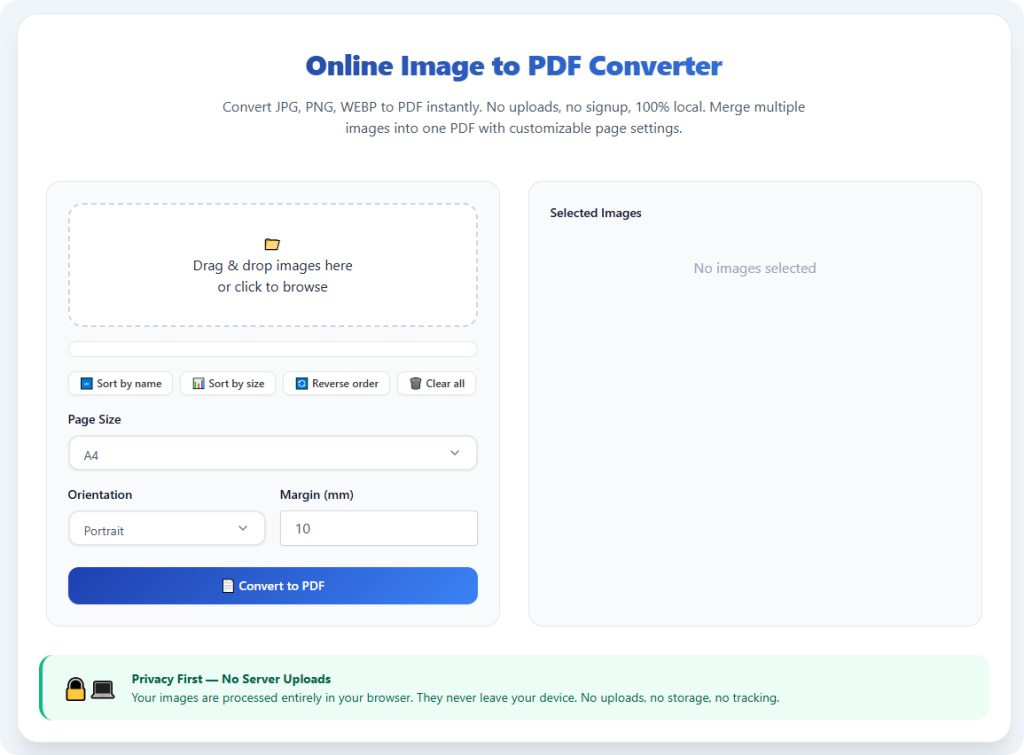
Custom page formatting controls: Users can manually adjust page size, margins, orientation, and image scaling to avoid cropping or stretching. You can perfectly fit images into standard Letter or A4 page sizes while retaining full original image content and composition.
Batch high-quality conversion: Unlike low-quality tools that degrade multiple files heavily during batch processing, this premium converter maintains consistent high resolution and clarity across every image in a multi-page PDF, ensuring uniform quality throughout the entire document.
Zero pixelation and edge distortion: Advanced sharpening and anti-blur technology keeps text edges crisp, graphic lines clean, and image boundaries sharp, even after conversion and repeated file sharing.
Top Use Cases for High-Quality Image to PDF Conversion
The best image to PDF converter for high quality serves a wide range of high-stakes scenarios where quality cannot be compromised. Unlike basic tools fit only for casual use, this professional-grade converter supports formal, official, and creative file creation for all user groups.
Official document submission: Students and professionals frequently convert scanned transcripts, certificates, legal forms, application documents, and government papers. High-quality conversion ensures text remains legible, seals and signatures stay clear, and documents meet official submission standards.
Professional portfolio creation: Designers, photographers, and creative professionals compile high-resolution project photos and artwork into PDF portfolios. Lossless conversion preserves artistic detail, color accuracy, and image sharpness for client presentations and job applications.
Business record archiving: Companies convert high-resolution receipt scans, business contracts, invoices, and financial records for long-term digital archiving. Crisp, clear PDFs ensure documents remain readable and valid for future reference, audits, and record checks.
Print-ready file preparation: Low-quality PDFs result in blurry, faded printed documents. The best image to PDF converter for high quality produces print-optimized files with full resolution, delivering sharp, clean physical prints identical to the original image quality.
Academic research and assignment formatting: Researchers and students convert high-resolution graph images, data charts, textbook screenshots, and experiment photos for research papers and reports, ensuring visual data remains accurate and readable.
Why Quality Preservation Matters More Than You Think
Many users underestimate the impact of poor PDF quality until they face rejected submissions, unprofessional client feedback, or unreadable archived records. A blurry PDF might seem usable on a small phone screen, but when opened on desktop, printed, or reviewed by officials, pixelation and distortion become immediately obvious. Low-quality conversions can lead to rejected school assignments, denied application submissions, unprofessional business presentations, and lost detail in important archived records.
Using the best image to PDF converter for high quality eliminates all these risks entirely. By preserving every detail of your original images, the tool ensures your converted PDFs meet professional, academic, and official standards. You never need to waste time re-converting files, re-scanning documents, or editing blurry outputs to fix preventable quality issues. The small extra precision of a high-quality converter saves hours of rework and protects your professional and academic reputation.
Step-by-Step Guide to Using the Best Image to PDF Converter for High Quality
This simple workflow works for all premium versions of the best image to PDF converter for high quality. Follow these steps to generate flawless, lossless, high-resolution PDF outputs every time, with no quality degradation.
Step 1: Access the High-Quality Conversion Tool
Open the professional image to PDF converter designed for high-fidelity outputs. Ensure the tool explicitly advertises lossless conversion and high-resolution preservation, avoiding generic platforms known for heavy compression.
Step 2: Upload Your High-Resolution Images
Upload your single or batch image files via file selection or drag-and-drop functionality. Always use clear, high-resolution source images for the best final results. The best image to PDF converter for high quality supports large, high-definition file sizes without downgrading resolution during upload.
Step 3: Adjust Quality and Format Settings
Access the custom quality settings and select high-resolution or lossless conversion mode. Avoid default “small file size” presets, as these enable aggressive compression. Adjust page size, margins, and scaling to fit your intended use case, whether for printing, submission, or digital sharing.
Step 4: Organize Batch File Order (If Applicable)
For multi-page documents, rearrange image thumbnails to establish a logical page sequence. This step ensures your final high-quality PDF is organized perfectly without post-conversion editing.
Step 5: Initiate Lossless Conversion
Start the conversion process. The tool will process each image using premium lossless algorithms, preserving full resolution, color accuracy, and sharpness throughout the entire compilation process.
Step 6: Preview and Download Your Final PDF
Review the in-tool preview to confirm crisp text, accurate colors, and proper formatting. Once verified, download the high-quality PDF directly to your device. The finished file will match your original image quality with zero pixelation or detail loss.
Common High-Quality Conversion Mistakes to Avoid
Even with the best image to PDF converter for high quality, user errors can compromise final output quality. Avoid these critical mistakes to guarantee perfect results every time.
Selecting compressed file size presets: Many tools offer “compressed” or “small size” modes. Using these settings will override high-quality algorithms and create blurry outputs, defeating the purpose of premium conversion.
Using low-resolution source images: No converter can improve poor-quality source files. Always upload original high-definition images instead of previously compressed or blurry copies.
Ignoring page margin adjustments: Incorrect margin settings can crop fine edge details on documents and photos, ruining otherwise perfect high-quality conversions.
Overlooking color mode settings: Switching to grayscale mode accidentally will erase colored detail on certificates, portfolios, and branded business documents.
Expert Tips to Maximize PDF Quality
Use these professional tips to get the absolute best results from the best image to PDF converter for high quality and produce studio-grade PDF files for every use case.
- Always prioritize lossless mode: Make lossless conversion your default setting to ensure zero resolution loss for all important documents and creative files.
- Optimize source images before conversion: Straighten tilted scans, clean up backgrounds, and crop excess borders to enhance final PDF clarity.
- Preview thoroughly before downloading: A quick preview catches cropping errors, color inconsistencies, and ordering mistakes instantly.
- Use high-quality mode for print files: Print-ready documents require maximum resolution, so always enable full high-quality settings for printable PDFs.
Final Thoughts
In a world where most online converters prioritize speed and file size over quality, having access to the best image to PDF converter for high quality is a game-changer for anyone working with important documents, creative files, and official records. Low-quality, blurry PDFs create unprofessional results, delayed submissions, and unnecessary rework that wastes valuable time and effort.
A dedicated high-quality conversion tool eliminates all these issues by preserving original resolution, color accuracy, text sharpness, and fine details in every conversion. It supports batch processing, custom formatting, print-ready outputs, and lossless compression, making it suitable for students, business professionals, designers, and everyday users who refuse to compromise on file quality.
Never settle for pixelated, distorted PDFs from generic converters. Start using the best image to PDF converter for high quality to create crisp, clean, professional-grade PDF files that retain every detail of your original images, perfect for sharing, printing, archiving, and official submission.
After learning the operation method, click the link below to enter the tool page for immediate use.