VPN tools promise to mask original public IP and redirect internet traffic to remote overseas servers. Still, plenty of low-quality VPN services fail to fulfill basic location hiding claims and expose users’ genuine network addresses accidentally.
Most regular internet users lack professional network knowledge to spot invisible IP leaks. Without effective inspection methods, people browse unaware that their real geographic location remains visible to third-party trackers and website operators.
Downloading specialized network auditing software for VPN testing costs extra money and takes up device storage. Complicated professional diagnostic tools also demand steep learning curves for casual beginners.
Mastering how to use IP Address Checker to verify VPN delivers a low-effort, cost-free solution. Ordinary users confirm VPN connection authenticity directly through common web browsers in mere seconds.
This detailed user guide covers common VPN leakage risks without verification, core merits of checking VPN via IP lookup, essential checker functions for VPN inspection, typical application scenarios and full step-by-step operation instructions explaining how to use IP Address Checker to verify VPN accurately.
Hidden Risks of Skipping VPN Verification With IP Inspection
Many users connect VPN and start browsing right away, ignoring necessary IP verification and opening themselves up to multiple avoidable online privacy hazards.
Unexpected real IP and location exposure
Faulty VPN tunnel configurations cause accidental traffic leakage. Websites and advertising scripts capture your native public IP despite active VPN connection on your device.
Server location mismatched with service advertisement
Lots of VPN providers list specific country server options yet reroute traffic to cheaper regional nodes secretly. Users pay premium fees for unadvertised random server routing.
Hidden DNS leaks bypassing VPN tunnel protection
Unstable VPN settings push domain request data outside encrypted tunnels. Though public IP looks masked, DNS traces still reveal your original residential network information.
Scam VPN routing traffic through risky proxy nodes
Unregulated low-grade VPN routes user data through unsecure third-party proxy servers. Unchecked connections raise risks of data interception and personal information theft.
Wasted subscription cost on false VPN features
Users subscribe to region-locked content access packages only to find VPN fails location spoofing after payment, all due to missing pre-use IP verification steps.
Core Advantages When You Learn How to Use IP Address Checker to Verify VPN
Once you fully grasp how to use IP Address Checker to verify VPN, you gain an easy, accessible method to eliminate nearly all common VPN connection flaws ahead of daily browsing.
Zero software download required for quick VPN validation
All verification work runs inside regular desktop or mobile browsers. No bulky network diagnostic programs need installation on your local device storage space.
Instant confirmation of actual VPN server geolocation
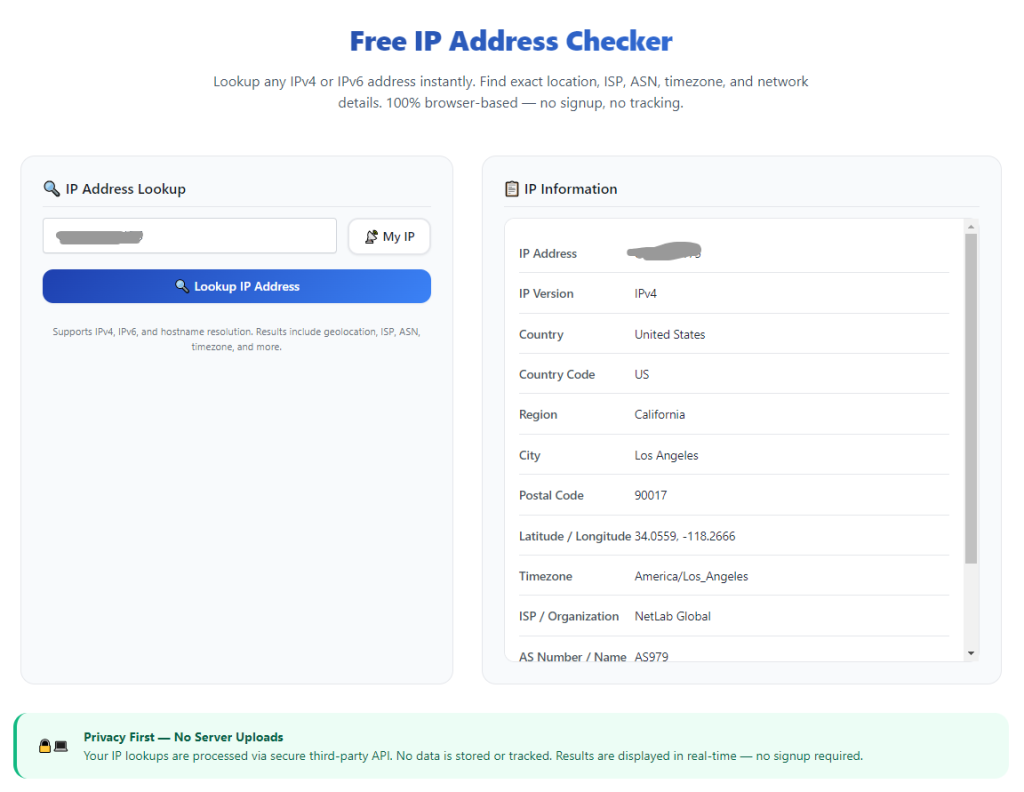
Input auto-detected current IP to pull up detailed location data, directly checking whether the connected node matches the VPN server region you manually selected.
Early detection of accidental IP or DNS leakage issues
Regular spot checks via IP checker catch tiny tunnel loopholes early. Fix flawed VPN settings before sensitive personal browsing data gets exposed online.
Completely free repeated testing with no usage limits
Rerun VPN verification countless times throughout each day at no extra charge. Test multiple VPN servers or different service providers without spending additional funds.
Suitable for both novice users and small business network admins
Straightforward checker layout cuts down technical learning barriers. Complete full VPN validation without advanced IT or networking background knowledge.
Cross-device compatible for mobile and desktop VPN testing
Verify smartphone mobile VPN and computer desktop VPN equally well. Switch testing devices freely without adjusting checker tool setup rules.
Key Checker Features Needed to Use IP Address Checker to Verify VPN Efficiently
Before practicing how to use IP Address Checker to verify VPN, familiarize yourself with core tool modules designed for reliable VPN authenticity testing.
One-click automatic current public IP detection
The tool instantly reads your active network IP upon page load, removing manual IP typing errors when testing live VPN connected networks.
Detailed geolocation breakdown by country, region and city
Full location data lets users cross-reference real server position against the VPN’s advertised server country listed on its official product page.
ISP and network carrier data display
Compare retrieved internet service provider information against known VPN server carrier databases to spot hidden proxy rerouting behaviors easily.
Separate manual input field for custom IP cross-check
Paste alternative IP strings from supplementary leak test results to double-check inconsistent address data caused by partial VPN tunnel failure.
IPv4 and IPv6 dual protocol recognition support
Modern VPN leaks can happen on either IP version. Dual compatible checkers cover both address formats for complete all-round VPN inspection.
One-tap copy for all generated lookup result data
Save verified IP and location details to clipboard to compile comparison logs when testing multiple VPN servers back to back.
Practical Real-Life Scenarios to Verify VPN With IP Address Checker
Knowing how to use IP Address Checker to verify VPN helps resolve VPN authenticity doubts across personal, commercial and remote work related internet usage scenarios.
Personal daily privacy browsing validation
Ordinary users enable VPN before browsing streaming platforms or private websites, then run quick IP checks to confirm location masking works as promised.
Remote employee company network access verification
Remote staff switch to designated business VPN nodes for internal cloud login, verifying assigned regional IP to comply with enterprise network access policies.
Before purchasing premium long-term VPN subscriptions
Test free trial VPN servers thoroughly via IP checker to avoid paying yearly fees for services that falsify server location labels and leak native IP data.
Content region unlock functionality inspection
Check if VPN successfully switches geographic IP to access region-restricted streaming content before committing to monthly entertainment subscription plans.
Small office multi-device shared VPN audit
Business IT staff run spot IP checks on office laptops and mobile phones to confirm shared office VPN works uniformly across all connected employee devices.
Cross-comparison between multiple competing VPN services
Content creators and digital marketers test several VPN options side by side, recording IP lookup results to pick the most reliable location-spoofing service.
Full Step-by-Step User Guide: How to Use IP Address Checker to Verify VPN
Follow this beginner-friendly sequential workflow to master how to use IP Address Checker to verify VPN and finish reliable connection validation within minutes.
Step 1: Finalize your VPN server connection first
Open your installed VPN client software and manually pick your target advertised server country or city from the provider’s available node list.
Wait for the client to display a successful connected status message before moving forward to the IP verification stage.
Step 2: Launch IP Address Checker inside active browser
Open any standard web browser and access a trusted IP lookup tool ready for VPN inspection work.
Confirm the checker includes auto-detect current IP function and detailed geolocation output required for subsequent VPN comparison.
Step 3: Fetch your live public IP data automatically
Allow the tool’s native auto-scan feature to pull your current active network IP without typing any numeric address manually.
Save down the displayed IP string and matching geographic region information for later cross-check against VPN’s listed server location.
Step 4: Cross-reference real location with advertised VPN server info
Compare the country and city data from lookup results against the server description shown inside your VPN client menu.
Flag mismatched geographic details as abnormal rerouting or false server labeling from the selected VPN service provider.
Step 5: Repeat test for extra server nodes when needed
Disconnect current VPN link, switch to another advertised server option on your VPN app and rerun full IP checking procedures again.
Log consistent abnormal location mismatches to judge overall service reliability of the tested VPN product.
Step 6: Bookmark checker for recurring routine VPN verification
Save the checker page to your browser bookmark folder to access instantly ahead of future VPN connection and privacy validation tasks.
Reset all previous lookup records to prepare clean testing space for next round of VPN verification sessions.
Common VPN Checking Mistakes To Avoid While Using IP Address Checker
Even after learning how to use IP Address Checker to verify VPN, simple user missteps lead to inaccurate VPN validation outcomes and hidden privacy risks.
Connect VPN after opening IP checker page
Cached browser network data keeps old native IP visible. Always toggle VPN connection first then reload checker page for fresh accurate lookup data.
Ignore location minor discrepancies during quick spot checks
Small region mismatches often signal hidden rerouting. Repeated inconsistent results mean your chosen VPN fails core location hiding functionality.
Only run one-time single server verification before long-term subscription
One favorable test result cannot represent overall service quality; verify multiple random servers across different advertised countries fully.
Confuse local private LAN IP with public external IP
Internal router assigned private addresses never reflect VPN performance; always rely on checker’s public IP auto-detect output for valid VPN checks.
Close checker tab before recording location comparison data
Unintended page refresh wipes lookup details, forcing users to reconnect VPN and redo full verification processes all over again.
Pro Optimization Tips to Perfect How to Use IP Address Checker to Verify VPN
These practical expert suggestions refine how to use IP Address Checker to verify VPN and boost long-term privacy protection efficiency for all your network connections.
- Rely on IP lookup tools and master how to use IP Address Checker to verify VPN before committing money to any long-term VPN service subscription.
- Make VPN verification a fixed routine every time you enable VPN for sensitive browsing or region-locked content access activities.
- Test servers from multiple different advertised regions to spot selective server fraud where only a small subset of nodes work correctly.
- Save collected IP and location logs into a simple document to compare performance changes after VPN app updates or server maintenance periods.
- Refresh the checker webpage after every VPN disconnect and reconnect to bypass leftover browser network cache interfering with IP detection.
- Use manual IP input mode to cross-check supplementary leak test outputs if you suspect partial tunnel leakage during regular VPN use.
Final Thoughts
Reliable VPN privacy hinges entirely on accurate location spoofing and complete IP leakage prevention, two details impossible to judge without independent external verification.
Costly professional network audit software creates unnecessary barriers for regular users, while learning how to use IP Address Checker to verify VPN delivers free, instant validation for all VPN connection needs.
Whether you browse privately at home, access corporate remote networks or test new VPN products before purchase, browser-based IP checking eliminates unseen location leak threats effectively.
Following the complete step-by-step verification guide above lets you confirm every VPN’s true server status, cut losses on deceptive VPN subscriptions and keep your real network information fully shielded during all online sessions.
After learning the operation method, click the link below to enter the tool page for immediate use.