Copying text from PDF files is one of the most routine tasks for students, writers, and business professionals. PDFs are designed for fixed display, not flexible text editing. This core limitation creates one persistent issue: messy, random line breaks that split complete sentences and break paragraph consistency.
When you extract text from standard PDFs, scanned PDFs, or locked PDF documents, every line ends with an unnatural break. Short sentences get split awkwardly, full paragraphs break into fragmented chunks, and excess blank lines clutter your draft. These errors force users to spend excessive time fixing formatting instead of focusing on content refinement.
Basic word processors and generic text cleaners cannot solve PDF-specific line break issues. They often over-delete necessary spacing, alter paragraph structure, or fail to fix bulk fragmented text. This is why the best line break remover for PDF text is an essential tool for anyone who regularly works with extracted PDF content.
This in-depth, beginner-friendly tutorial covers why PDF text creates unique line break problems, flaws of traditional editing methods, key features of the top tool, practical use cases, and a step-by-step workflow to perfectly clean PDF text formatting every time.
Why Copied PDF Text Creates Broken Line Breaks
PDF formatting differs completely from editable document formats. Understanding this difference helps explain why line break errors occur and why standard tools fail to fix them properly.
Fixed-page layout restriction
PDF files use fixed page dimensions and line positioning. Every line is locked to a specific page width. When copied to editable editors, these fixed line boundaries transfer as permanent unnatural line breaks.
Non-standard text coding
Many PDFs use embedded text coding that does not match regular document formatting. This generates hidden line break markers that generic cleaners cannot detect or remove.
Scanned PDF text fragmentation
Scanned and image-based PDFs split text by visual lines instead of logical sentences. This creates extreme fragmentation, turning single paragraphs into dozens of broken short lines.
Preset margin spacing conflicts
PDF margin settings create forced line wraps. When extracted to modern editors with different margin rules, these wraps turn into redundant, unneeded line breaks that disrupt flow.
Problems Caused by Unfixed PDF Text Line Breaks
Leaving broken line breaks unaddressed harms document quality, editing efficiency, and overall content professionalism in multiple ways.
Disrupts logical sentence flow
Split sentences force readers to restart their focus repeatedly. Clean, continuous paragraphs turn into choppy, hard-to-follow text that reduces content readability significantly.
Wastes hours of manual editing time
Manually merging broken PDF lines is repetitive and slow. Users must delete each break individually, rejoin sentences, and restructure entire paragraphs for long documents.
Ruins uniform document formatting
Broken PDF text creates uneven paragraph blocks and inconsistent spacing. Formal academic papers, business reports, and published content look unpolished and unstructured.
Causes editing errors during revision
Fragmented lines make grammar checks, sentence rewriting, and content expansion difficult. Editors often misjudge sentence structure, leading to accidental content changes.
Leads to submission rejections
Most academic and professional platforms require continuous paragraph formatting. Broken PDF line breaks often result in formatting deductions or full submission revisions.
Why Generic Tools Fail to Fix PDF Text Line Breaks
Most regular text cleaners and word processor tools are not built for PDF-specific formatting errors. They create more problems than solutions for extracted PDF content.
Unable to detect PDF hidden line markers
Generic tools only target visible blank lines. They ignore invisible embedded line breaks unique to PDF text, leaving most fragmentation unfixed.
Over-merges valid paragraph breaks
Basic cleaners remove all line breaks indiscriminately. They merge separate paragraphs into one massive block, destroying intentional content structure and logical section division.
Alters original text spacing and punctuation
Low-quality tools often shift spacing around punctuation or modify original text alignment. This compromises the accuracy of research content and formal statements.
No bulk PDF text processing support
Many free tools have word limits. They cannot process long PDF excerpts, multi-page research text, or full report extractions in one single session.
Key Features of the Best Line Break Remover for PDF Text
The best line break remover for PDF text includes specialized, PDF-focused features that generic alternatives lack, ensuring precise, safe, and fast formatting fixes.
PDF-specific line break detection
This professional tool recognizes unique PDF line coding and hidden break markers. It targets only unnatural fixed-layout breaks while preserving normal paragraph divisions.
100% original text preservation
It never modifies wording, punctuation, technical terms, or sentence meaning. The tool only adjusts line structure, keeping all extracted PDF content completely accurate.
Smart paragraph separation logic
The algorithm distinguishes between forced PDF line splits and intentional paragraph gaps. It merges fragmented lines while keeping separate paragraphs properly divided.
Bulk long-text processing
It handles large PDF text extracts, full research chapters, and multi-page documents without truncation or incomplete cleaning, perfect for heavy editing tasks.
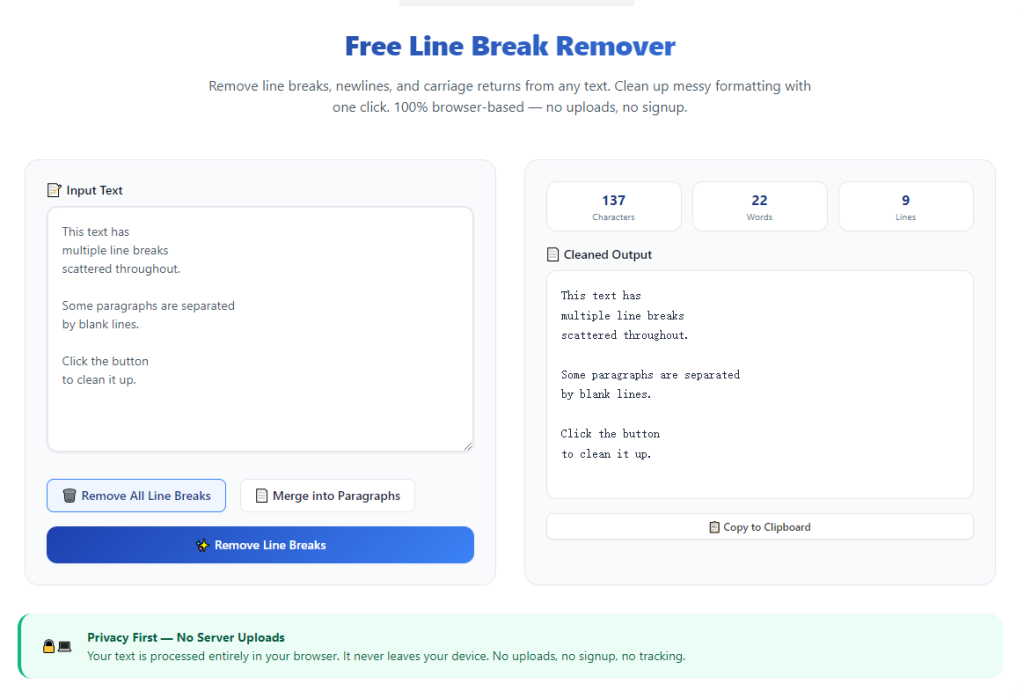
One-click instant optimization
The entire formatting repair process takes seconds. Users avoid repetitive manual work and complex setting adjustments for fast results.
Consistent flow restoration
The tool reconnects split sentences smoothly, creating continuous, readable paragraphs that match standard editable document formatting rules.
Top Use Cases for the Best Line Break Remover for PDF Text
The best line break remover for PDF text fits all scenarios where users extract and edit content from PDF files for academic, professional, and personal use.
Academic research and essay writing
Students extract journal articles, textbooks, and thesis content from PDFs. The tool fixes fragmented lines quickly, letting users integrate research text seamlessly into essays and literature reviews.
Business report compilation
Professionals pull data and analysis from PDF business files. Cleaning line breaks ensures compiled reports maintain neat, formal formatting for client and internal use.
Content creation and article drafting
Writers gather research materials from PDF guides and publications. Fixed text structure streamlines drafting and improves overall content readability before publishing.
Study note organization
Learners copy lecture PDFs and study guides. Removing messy line breaks creates clean, organized notes that are easier to review, annotate, and store long-term.
Document conversion and archiving
Users convert static PDF text into editable archive files. Proper line break cleanup ensures archived documents follow standard formatting for future editing and reference.
Step-by-Step Guide to Use the Best Line Break Remover for PDF Text
Follow this simple, foolproof workflow to restore clean, continuous formatting for any copied PDF text.
Step 1: Extract and Copy PDF Text
Copy the fragmented text directly from your PDF file. This includes any broken sentences, split paragraphs, and excess blank lines typical of PDF extractions.
Do not manually edit any lines beforehand, as pre-editing can create inconsistent formatting issues.
Step 2: Launch the PDF-Focused Line Break Tool
Open the best line break remover for PDF text. Choose a tool built specifically for PDF formatting issues instead of generic multi-purpose cleaners.
Step 3: Paste Your Full Extracted Text
Paste the entire block of copied PDF text into the tool’s input field. For best results, paste full paragraphs or complete sections to retain logical context.
The tool supports both short excerpts and lengthy multi-page PDF text extracts with no restrictions.
Step 4: Run PDF Line Break Cleaning
Start the dedicated PDF line break removal process. The tool will scan for all forced PDF line splits, hidden breaks, and redundant blank lines.
It will automatically merge fragmented sentences while preserving valid paragraph separations and original text content.
Step 5: Verify Formatting and Content Accuracy
Review the cleaned text to confirm smooth, continuous paragraphs. Check that no original words, data, or phrasing has been altered during processing.
Ensure separate content sections remain properly divided without over-merging.
Step 6: Copy and Save Optimized Text
Once verified, copy the fully formatted text. Paste it into your document editor and save the polished version for writing, revision, or submission.
Common PDF Text Cleaning Mistakes to Avoid
Even with premium tools, these common errors can impact final formatting quality for PDF extracted content.
Using generic multi-purpose cleaners
Regular text tools cannot identify PDF-specific line coding. They either leave breaks unfixed or destroy valid paragraph structure entirely.
Cleaning fragmented partial sentences
Pasting incomplete text snippets disrupts the tool’s logic. Always paste complete paragraphs to ensure accurate merging and clean flow.
Ignoring post-cleanup verification
Rare structural overlaps may occur in complex PDF text. A quick visual check ensures perfect formatting and zero content errors.
Expert Tips for Perfect PDF Text Formatting
Use these professional tips to maximize results with the best line break remover for PDF text every time.
- Always clean PDF text immediately after extraction to avoid carrying fragmented formatting into your final draft.
- Prioritize PDF-specialized tools to eliminate hidden line breaks that standard editors miss.
- Process full sections at once to maintain consistent paragraph flow across your entire document.
- Avoid manual line merging after tool processing to prevent new inconsistent spacing errors.
- Verify technical data and terminology post-cleanup to confirm full content accuracy.
- Use the tool for all scanned PDF text extracts, which contain the most severe line fragmentation issues.
Final Thoughts
PDF text line breaks are an unavoidable byproduct of fixed-layout file formatting. These frustrating errors slow down editing, ruin document polish, and create unnecessary workload for all types of writers.
Generic editing tools fail to address PDF-specific issues, leaving users stuck between fragmented text and over-merged paragraphs. The best line break remover for PDF text solves this problem perfectly with targeted, accurate, and safe formatting repair.
It restores smooth paragraph flow, preserves 100% original text content, and eliminates hours of tedious manual editing. Whether you are refining academic research, building business reports, or organizing personal notes, this tool elevates your editing workflow significantly.
By following this complete guide, you can permanently fix PDF text line break issues, produce clean professional documents, and streamline your entire content editing process.
After learning the operation method, click the link below to enter the tool page for immediate use.