Editing PDF files often hits one frustrating roadblock: stuck page numbers you cannot delete without ugly brand watermarks cluttering your final file.
Students, freelancers, office staff and content creators all run into this identical hassle. You finish formatting a report, thesis or portfolio PDF, only to find auto-generated page numbers locked into headers and footers.
Most online PDF editors lock page number removal behind paywalls. Even tools advertising “free” will stamp a giant watermark across every page once you export your edited document. This ruins professional submissions, school assignments and client-ready files.
That’s why hunting for the best PDF page number remover no watermark free becomes a top priority for anyone handling regular PDF edits. A reliable zero-cost, watermark-free tool cuts out subscription fees and preserves your document’s clean layout entirely.
This hands-on tutorial walks through every detail of using a top-tier free PDF page number remover, breaks down its advantages, highlights must-have features, shares real-world use cases, step-by-step operation guides, common user mistakes to skip and expert editing hacks for flawless PDF outputs.
Why Generic PDF Editors Fail to Remove Page Numbers Cleanly
Before jumping into the best PDF page number remover no watermark free, let’s unpack the limitations of regular free PDF tools you’ve likely tried before.
Locked page number layers
Many basic PDF viewers treat header/footer page numbers as embedded background layers. Clicking, highlighting or deleting text will not touch these fixed markers, leaving them permanently visible on every page.
Mandatory watermarks for free exports
Nearly all competing free PDF tools enforce watermarks on all edited downloads. If you erase page numbers with their free tier, a large semi-transparent logo covers half your document, making the file unfit for formal use.
Hidden paywall restrictions
Some platforms advertise free page editing, then hide page number removal behind premium monthly plans. You waste time uploading, editing and adjusting your PDF only to hit a payment pop-up when saving changes.
Clunky, confusing multi-step workflows
Generic PDF editors split page management, text editing and footer modification into separate menus. Navigating multiple tabs just to delete page numbers eats up valuable work time, especially when handling long multi-page PDFs.
No batch processing support
If you need to remove page numbers across dozens of PDF files, basic tools force single-file uploads one at a time. This drags out simple bulk editing tasks for anyone managing portfolios or business archives.
All these frustrations vanish when you switch to the best PDF page number remover no watermark free. It eliminates every barrier of low-quality free PDF software while keeping all core editing functions fully unlocked at zero cost.
Core Benefits of the Best PDF Page Number Remover No Watermark Free
Choosing a dedicated free page number remover with zero watermark output delivers tangible perks for every type of PDF user. Below are its most impactful advantages, written in plain American conversational language.
1. 100% free full functionality, zero hidden fees
The biggest draw of the best PDF page number remover no watermark free is complete access to page number deletion tools with no tiered restrictions. There is no daily upload limit, no file size cap and no mandatory sign-up to unlock core features. You can upload lengthy thesis PDFs, multi-page business proposals and creative portfolios without hitting paywalls.
2. Zero watermarks on all exported documents
Unlike competing free PDF software, this tool never stamps logos, text overlays or brand marks on your edited PDFs. After erasing page numbers, every page stays blank and professional, perfect for school submissions, client deliverables and formal printed documents.
3. One-click full-document page number removal
Instead of manually deleting numbers page by page, the tool scans the entire PDF in seconds and removes all header, footer and margin page markers with a single click. This works for short 2-page flyers and 200-page research papers alike.
4. Precision manual erasure for selective edits
Sometimes you only want to remove page numbers from specific pages, not the whole file. The best PDF page number remover no watermark free includes a manual highlight tool. Drag your cursor over individual page numbers to erase them while leaving other footer text intact.
5. Cloud-based, no software installation required
You do not need to download bulky desktop programs or install third-party plugins. The tool runs fully inside any standard web browser on Windows, Mac, Chromebook and tablet devices. Storage space on your device stays untouched, and updates apply automatically without extra setup.
6. Safe, private file processing
All uploaded PDF files get automatically deleted from server storage within a short window after you finish editing. No copies of your personal, academic or business documents get stored long-term, so sensitive data stays protected at all times.
7. Extra free PDF editing add-ons bundled in
Alongside page number removal, the tool includes complimentary features to polish your document further: PDF compression, page reordering, blank page deletion and text annotation. You can fix multiple PDF layout issues in one session without switching between separate tools.
Must-Have Features to Verify in Any Free PDF Page Number Remover Without Watermark
Not every tool claiming to erase PDF page numbers without watermarks delivers on its promise. When comparing options, cross-check these critical features to confirm you are picking the best PDF page number remover no watermark free for your workflow.
Bulk PDF upload support
If you manage multiple documents weekly, batch upload functionality cuts your editing time in half. Top-tier free removers let you drag and drop 10+ PDFs simultaneously to strip page numbers from every file in one go.
Adjustable eraser strength
Thin, small page numbers in document margins need a lighter erase tool, while bold large footer numbers require full coverage. Customizable eraser thickness ensures you wipe only page markers without accidentally deleting nearby footnotes or contact text.
Preview panel before final export
A live real-time preview window lets you scroll through every PDF page after editing. You catch leftover page numbers before downloading the file, avoiding repeated upload and edit cycles.
Multiple output format options
Beyond standard PDF exports, the tool should let you save edited files as printable high-res PDFs, compressed lightweight PDFs for email sharing, or printable PDF/A formats for formal archive storage.
Mobile browser compatibility
Many users edit PDFs on phones or tablets while traveling or working remotely. A fully responsive mobile interface lets you access the best PDF page number remover no watermark free without desktop access.
No mandatory account creation
For quick one-off edits, forcing users to register emails or create accounts creates unnecessary friction. Top free tools let you upload, edit and download PDFs as a guest user with zero login requirements.
Common Real-World Use Cases for Free PDF Page Number Remover No Watermark Free
This versatile tool fits into nearly every personal, academic and professional workflow. Below are everyday scenarios where the best PDF page number remover no watermark free solves critical document formatting issues.
College & graduate student thesis editing
Most university template PDFs auto-generate page numbers that conflict with department formatting rules. Students need to erase default page markers to add custom roman numeral page counts for abstracts and table of contents pages. A watermark-free free remover lets them adjust layouts without paying for premium PDF software.
Freelance graphic designers & portfolio creators
Designers compile multi-page PDF portfolios for client pitches. Auto-exported page numbers from design software break clean visual layouts. Removing these markers creates sleek, uncluttered portfolio files to send to potential clients.
Small business office document formatting
Sales proposals, invoices and internal policy manuals often carry unwanted page numbers from template downloads. Staff can quickly erase markers to build polished, brand-consistent PDFs for customer distribution.
E-book and digital magazine formatting
Independent authors export manuscript PDFs with automatic page numbering that clashes with e-book layout standards. A free no-watermark remover strips old page markers to make space for custom chapter page labeling.
Legal document preparation
Legal contracts, case briefs and filing paperwork require unmarked clean pages for official submission. Watermarks from cheap PDF tools invalidate formal filings, making a zero-watermark free remover essential for paralegals and solo attorneys.
Archive and old document digitization
Scanned legacy PDF files often carry stamped page numbers from physical scanning software. Users remove these markers to restore clean, unmarked digital archive copies for long-term storage.
Guest content & collaborative team document editing
When multiple team members contribute to a shared PDF report, inconsistent auto-generated page numbers clutter the final draft. The tool standardizes the document by wiping all conflicting page markers for a unified finished file.
Step-by-Step Full Tutorial: Use the Best PDF Page Number Remover No Watermark Free
This simple 10-step workflow works for all desktop and mobile browsers, no technical skills required. Follow each stage to fully erase PDF page numbers and export clean, watermark-free documents.
Step 1: Prepare your target PDF file
Locate the PDF you want to edit on your device storage. If working with multiple files, group them in a single folder for fast batch upload. You do not need to pre-convert or adjust the file before opening the tool.
Step 2: Open the free PDF page number remover browser tool
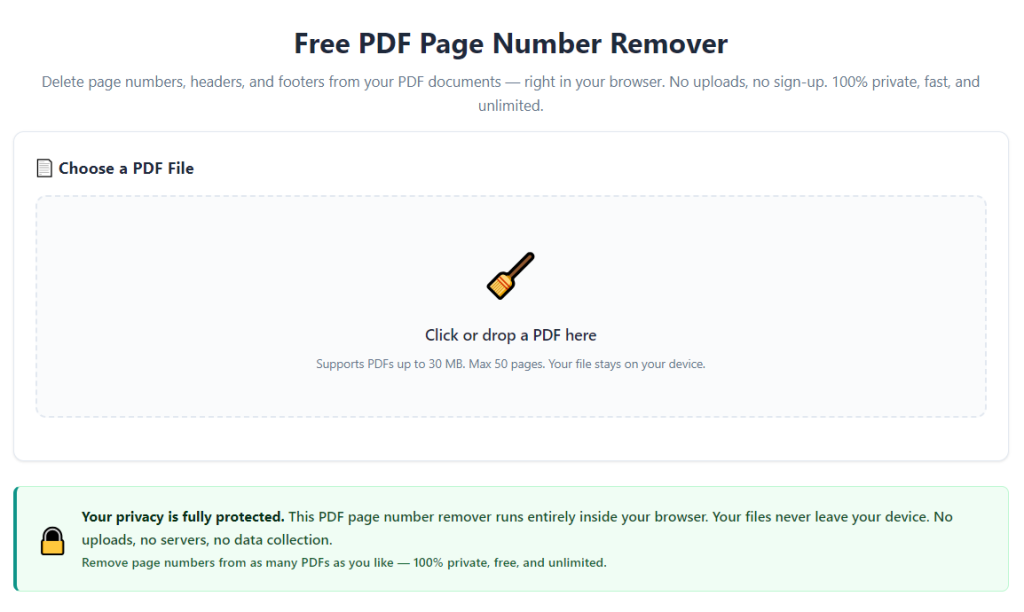
Launch any standard web browser and navigate to the tool’s main interface. The homepage features a large drag-and-drop upload zone front and center, with all core editing menus visible without scrolling through ads or pop-ups.
Step 3: Upload your PDF via drag-and-drop or file selector
Two upload options are available for convenience: drag your PDF file directly into the upload box, or click the “Select PDF File” button to browse local device storage. For bulk edits, highlight multiple PDFs to upload all at once.
Step 4: Wait for automatic full-document scan
The tool runs a quick background scan to detect all embedded page numbers across headers, footers and side margins. This process takes under five seconds even for 100+ page long PDFs. A progress bar shows scan completion status on screen.
Step 5: Choose your page number removal mode
Two editing modes appear after scanning finishes:
- Full Document Erase: One-click removal of every page number across all PDF pages (best for quick full-document cleanup)
- Selective Manual Erase: Activate the eraser cursor tool to drag over only specific page numbers you want to delete (ideal for partial edits) Pick the mode matching your formatting goals.
Step 6: Adjust eraser tool settings (if using manual mode)
Tweak eraser thickness and opacity using the simple slider controls. Narrow the tool for tiny margin page numbers, or widen the cursor to cover large bold footer markers without overlapping surrounding text.
Step 7: Review the live page preview panel
Scroll through every page of your PDF in the built-in preview window. Double-check page corners, headers and footers to confirm no leftover page number fragments remain visible. If you spot missed markers, use the manual erase tool to touch up those sections.
Step 8: Apply secondary PDF edits (optional)
Use the bundled free editing features to refine your document further: compress file size, reorder misaligned pages, delete blank empty pages or add text annotations. All extra edits stay watermark-free alongside your page number removal changes.
Step 9: Confirm export output settings
Select your preferred output file type: standard printable PDF, compressed small-size PDF for email, or PDF/A archival format. Toggle the “No Export Watermark” checkbox (automatically enabled by default on the best PDF page number remover no watermark free).
Step 10: Download your finished edited PDF
Click the “Export Clean PDF” button to save the file to your device. The download completes instantly, with zero watermarks, hidden logos or text overlays on any page. You can immediately share, print or store the edited PDF for professional or personal use.
Critical Mistakes to Avoid When Using a Free PDF Page Number Remover Without Watermark Free
Even with the best PDF page number remover no watermark free, common user errors can ruin your edited documents or slow down your editing workflow. Watch out for these frequent missteps.
Only relying on full-document erase mode for complex PDFs
Full auto-erase works great for simple uniform page numbers, but long documents with mixed header/footer markers may leave stray number fragments. Always use the preview panel to cross-check, and switch to manual erase for partial cleanup.
Uploading password-locked encrypted PDFs
The tool cannot modify password-protected PDF files. Unlock the document with its original password before uploading, otherwise the page number scan feature will fail to detect embedded markers.
Ignoring file size limits for bulk uploads
While the tool offers generous free upload caps, extremely large high-resolution scanned PDFs may hit size restrictions. Split oversized files into smaller batches if upload errors appear during processing.
Saving edited files over your original raw PDF
Always download the revised document as a new separate file. Overwriting your unedited original PDF means you lose the source file if you need to revert page numbers later for alternative formatting drafts.
Skipping the preview step before export
Many users rush straight to download after running auto-erase. Small partial page number fragments often hide in margins, and skipping the preview leads to re-uploading and re-editing the same file twice.
Using low-quality scanned PDF files
Blurry, low-resolution scanned PDFs make page number detection harder for the tool’s scanner. Convert scanned image PDFs to searchable text PDFs first for more accurate automatic page marker removal.
Expert Hacks to Maximize Results With the Best PDF Page Number Remover No Watermark Free
These professional editing tips streamline your PDF workflow and produce cleaner, more polished documents every time you use the free page number remover tool.
- Bookmark the tool homepage in your browser bookmarks bar for instant access when you finish drafting a PDF file. Cut down time spent searching for editing software mid-workflow.
- Create a dedicated folder on your device labeled “Edited Watermark-Free PDFs” to store all exported files separately from raw unedited source documents. This organizes your archive and prevents file mix-ups.
- For recurring template PDFs (monthly reports, class assignment templates), run a bulk page number removal session once, then save the blank template to reuse indefinitely without repeated editing.
- Pair page number removal with the tool’s built-in page reorder function. After erasing markers, rearrange document pages to fix misordered chapters or sections in one single editing session.
- If you need custom page numbers added after erasing old markers, use the free text annotation tool to type new roman or arabic numerals into headers and footers without switching to external software.
- Share the tool link with teammates, classmates or freelance collaborators to enforce uniform clean PDF formatting standards across all shared project documents.
- Schedule monthly archive cleanup sessions to run the free page number remover on old stored PDFs, refreshing outdated files with unwanted page markers for professional re-distribution.
Final Thoughts
Clean, unmarked PDF pages make a massive difference for school submissions, client deliverables, business filings and personal creative portfolios. Paying monthly subscriptions just to delete basic page numbers wastes unnecessary time and money for casual and frequent PDF editors alike.
Manual editing tricks or low-grade free PDF tools only create new headaches: locked page layers, mandatory watermarks, hidden paywalls and slow fragmented workflows. The best PDF page number remover no watermark free eliminates all these pain points in one streamlined browser-based solution.
Every core function for page number deletion stays fully unlocked at zero cost, with zero branding overlays on all exported files, cross-device compatibility and robust privacy protection for sensitive documents.
Whether you edit PDFs daily for a small business, occasionally format school research papers, or build digital portfolios as a creative professional, this free watermark-free page number remover fits every editing routine seamlessly.
Follow the step-by-step tutorial, avoid the listed common user mistakes, and apply the expert editing hacks above to consistently generate crisp, professional PDFs without extra fees or ugly watermarks slowing you down.
After learning the operation method, click the link below to enter the tool page for immediate use.