Portrait photography is one of the most popular visual formats for personal profiles, social media branding, professional headshots, and creative artwork. However, even high-quality portrait shots often fail to look polished due to cluttered, distracting, or mismatched backgrounds. Busy indoor walls, crowded outdoor scenery, or dull plain backdrops can take focus away from facial features, body posture, and the overall mood of a portrait. Many amateur editing tools struggle with portrait-specific details, leaving jagged edges, patchy hair cutouts, and unnatural outlines that make edited photos look fake and unprofessional.
If you regularly edit headshots, selfies, model portraits, or professional profile photos, you need a tool built specifically for human photo retouching rather than generic object removal. The best background remover for portrait picture editing is engineered with specialized AI trained exclusively on human facial structures, hair textures, and body outlines. Unlike universal background removal tools that treat every image the same, this portrait-focused tool handles fine details like wispy hair strands, blurred edges, and soft skin gradients perfectly. In this detailed, beginner-friendly guide, we will explain why standard tools fail portrait editing tasks, what features make the best background remover for portrait picture editing stand out, and how to achieve studio-level portrait cutouts with zero professional skills.
Why Generic Background Removers Ruin Portrait Photos
Most free and cheap background removal tools are designed for simple objects, product images, and solid-shaped subjects. They work well for flat, clear-edged items but struggle dramatically with organic human features. Portraits contain countless delicate details that generic AI cannot interpret accurately, resulting in low-quality edits that ruin your entire photo.
The biggest issue with standard tools is poor hair detection. Human hair is thin, layered, and semi-transparent in many areas. Basic AI often cuts off large chunks of hair, leaves unnatural blocky edges, or fills transparent hair gaps with solid background color. This creates a plastic, artificial look that instantly makes a portrait feel edited and unauthentic. For professional headshots and high-quality personal portraits, this level of imperfection is completely unacceptable.
Additionally, generic removers frequently misinterpret soft portrait shadows, skin gradients, and blurred background bokeh. They either erase subtle shadow details that add depth to a portrait or leave random background spots around shoulders and hairlines. The best background remover for portrait picture editing solves all these issues by using portrait-trained AI models that recognize human anatomy, hair texture, and natural shadow layering to deliver smooth, realistic results every single time.
Key Features of the Best Background Remover for Portrait Picture Editing
A true portrait-focused editing tool includes unique features you will never find in regular background removers. Thebest background remover for portrait picture editing comes packed with portrait-specific functions built to refine human subjects and produce flawless, natural-looking cutouts:
- Advanced hair refinement AI: This specialized feature detects fine hair strands, layered bangs, curly textures, and transparent flyaway hairs, preserving natural flow instead of creating harsh, chopped edges.
- Soft edge blending technology: Unlike generic tools that produce sharp, unnatural cut lines around skin and shoulders, this tool blends edges softly to retain the portrait’s original depth and softness.
- Shadow and highlight preservation: It keeps natural portrait shadows, facial dimension, and lighting gradients intact, ensuring the edited portrait does not look flat or artificially processed.
- Automatic facial area protection: The AI intelligently locks facial features to avoid accidental erasure or distortion, keeping eyes, noses, mouths, and facial proportions perfectly intact.
- Skin tone consistency retention: High-quality portrait removers preserve original skin tone clarity and texture, preventing washed-out or over-smoothed skin after background removal.
- High-resolution portrait output: Maintains full photo resolution for large headshots, printing files, and professional branding portraits without compression or blurriness.
- Clean bokeh and blur background clearing: Effortlessly removes complex blurred backgrounds, gradient backdrops, and multi-color scenery without leaving leftover patches.
Top Use Cases for Professional Portrait Background Removal
Using the best background remover for portrait picture editing elevates all types of personal and professional portrait projects, delivering consistent studio-quality results for every scenario. Unlike generic tools that limit your editing potential, this specialized tool adapts to every portrait style and purpose.
Professional business headshots: Corporate profiles, LinkedIn avatars, and company team photos require clean, distraction-free backgrounds. A precise portrait cutout lets you replace messy original backdrops with solid neutral tones, branded colors, or transparent layouts for formal professional use.
Social media profile branding: Content creators, influencers, and entrepreneurs rely on cohesive profile aesthetics. This tool creates uniform transparent or solid-background portraits for Instagram, YouTube, and other platforms, building a clean and recognizable personal brand.
Model and portfolio photography: Creative portfolios require high-end, flawless portrait edits. The accurate hair and edge refinement ensures every portfolio photo looks professionally edited, suitable for client presentations and public showcases.
Personal photo enhancement: Casual selfies, family portraits, and travel photos often have messy backgrounds. You can quickly remove clutter and replace backdrops to turn ordinary snapshots into polished, keepsake-quality images.
Custom graphic design projects: Transparent portrait cutouts work perfectly for flyers, banners, invitation designs, and digital collages, allowing seamless integration into any design layout without awkward background overlaps.
Step-by-Step Guide to Using the Best Background Remover for Portrait Picture Editing
This simple, beginner-proof workflow works for every premium best background remover for portrait picture editing. No professional Photoshop skills or editing experience are required to create perfect, natural portrait cutouts in seconds.
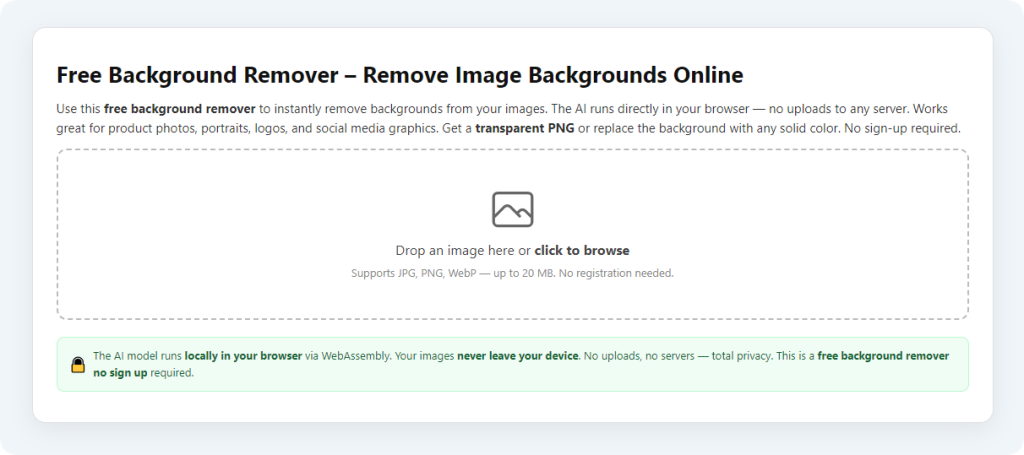
Step 1: Upload Your Original Portrait Photo
Start by uploading your high-resolution portrait file to the tool. You can upload selfies, headshots, half-body portraits, or full-body portrait images. For the best results, always use the original uncompressed photo file instead of social media screenshots or resized copies, as higher source quality delivers sharper final edits.
Step 2: Run Automatic Portrait AI Processing
Once uploaded, the tool’s portrait-trained AI immediately analyzes your photo. It automatically identifies the human subject, detects hair texture, maps facial boundaries, and separates the portrait from the original background. Unlike generic tools that rush the process, this dedicated portrait remover takes extra time to refine delicate edges for a natural finish.
Step 3: Preview the Auto-Generated Cutout
After processing finishes, preview the transparent portrait result. Check the hairline, shoulder edges, and surrounding areas for leftover background spots. You will notice far smoother details compared to regular background tools, especially around flyaway hairs and soft portrait edges.
Step 4: Use Portrait Refine Tools for Perfection
For ultra-detailed portraits, use the built-in hair refine and edge restore brushes. Gently brush over thin hair strands to restore lost details or clean up tiny background remnants. This quick optional step transforms good edits into studio-quality professional portraits ideal for business and portfolio use.
Step 5: Replace or Remove Background & Download
You can either save the transparent portrait directly or apply a new solid color, gradient, or custom background. Once satisfied with the final look, download the full-resolution image. The best background remover for portrait picture editing saves crisp, uncompressed files ready for immediate use.
Common Portrait Editing Mistakes to Avoid
Even with the best background remover for portrait picture editing, small user errors can affect final portrait quality. Avoid these common mistakes to ensure every edit looks natural and professional.
Using low-resolution compressed photos: Blurry or heavily compressed source images limit the AI’s ability to detect fine hair and edge details, resulting in lower-quality cutouts.
Skipping hair refinement steps: Automatic processing works great for most portraits, but curly, long, or fine hair always benefits from a quick manual touch-up for perfect results.
Over-edging portrait boundaries: Avoid over-sharpening soft portrait edges. Natural slight blurriness around shoulders and hair keeps portraits looking human, not artificial.
Ignoring lighting consistency: When adding new backgrounds, match the new backdrop brightness to the portrait’s original lighting to avoid mismatched, unnatural contrast.
Pro Tips for Studio-Level Portrait Edits
Use these expert tips to maximize the performance of the best background remover for portrait picture editing and elevate every portrait you edit:
- Choose well-lit portrait sources: Photos with soft, even lighting allow the AI to detect facial and hair details far more accurately than dark, shadow-heavy shots.
- Always refine hairlines manually: Flyaway hairs are the hardest detail for any AI to perfect. A 10-second manual refine creates a drastically more natural portrait finish.
- Save final outputs in PNG format: PNG preserves full transparency, while JPG flattens backgrounds. Always use PNG for professional portrait files.
- Match background tone to portrait mood: For formal headshots, use neutral tones; for creative portraits, use soft gradients to keep focus on the human subject.
- Avoid overly cluttered source backgrounds: Simple original backdrops help the AI separate subjects cleaner and reduce manual editing time significantly.
Why Dedicated Portrait Tools Beat Generic Editors
Many casual editors assume all background removal tools deliver similar results. In reality, generic tools are built for speed and bulk object processing, while thebest background remover for portrait picture editing is optimized for human photo aesthetics. Portraits rely on subtle softness, natural texture, and dimensional lighting—details generic AI routinely destroys.
Professional desktop editing software requires hours of practice to master masking, feathering, and hair selection tools. This dedicated online portrait tool automates all complex technical work while retaining artistic portrait quality. It bridges the gap between expensive professional software and low-quality free tools, delivering perfect middle-ground results for creators of all skill levels.
Final Thoughts
Portrait editing success hinges on clean, natural background removal that preserves human texture, hair detail, and facial dimension. Generic background removers leave choppy edges, ruined hair details, and artificial-looking portraits that undermine your personal or professional brand. The best background remover for portrait picture editing solves every portrait-specific editing challenge with specialized AI built exclusively for human photography.
Whether you are polishing professional headshots, refining social media portraits, building creative portfolios, or enhancing personal photos, this tool delivers consistent, high-quality results without complicated software or paid subscriptions. It protects fine details, maintains natural lighting, and produces clean transparent or custom-backed portraits every time. Stop settling for distorted, low-quality portrait cutouts from generic tools. Use the best background remover for portrait picture editing to turn every ordinary portrait into a sharp, professional-quality visual asset.
After learning the operation method, click the link below to enter the tool page for immediate use.