PDF documents remain the gold standard for professional, academic and personal file sharing. Their fixed layout preserves text formatting, charts, graphics and margins across every device and platform. However, converting PDFs to JPG images often leads to disappointing results for most users. Generic converters produce pixelated, faded or cropped images that fail for formal and high-detail use cases.
The root cause of poor conversion results is simple: most basic tools prioritize fast processing and small file sizes over image clarity. They lower DPI settings, apply heavy compression and strip fine details to speed up workflows. This leaves users with low-grade JPGs unsuitable for printing, client presentations, social media posting or long-term archiving.
To avoid blurry outputs and retain every original detail, you need specialized conversion software. Picking the best PDF to JPG converter for high resolution eliminates compression errors, color distortion and pixelation. It delivers studio-quality, true-to-original images for all your document conversion needs.
This in-depth tutorial breaks down why high-resolution conversion matters, what features define top-tier tools, common conversion mistakes, and a step-by-step workflow to generate ultra-sharp JPGs from any PDF. Every section is optimized for practical, real-world use for beginners and professional users alike.
Why You Need a High-Resolution PDF to JPG Converter
Standard conversion tools work fine for quick, casual previews. But they fall short for any scenario that demands visual clarity and precision. Understanding the value of high-resolution output explains why the best PDF to JPG converter for high resolution is a must-have tool.
Preserves tiny text and fine details
Many PDFs contain small font text, thin table borders, detailed graphs and fine graphic lines. Low-resolution conversion blurs these elements into unreadable blobs. High-resolution tools retain every sharp edge, ensuring all text and visuals stay legible and precise.
Delivers print-ready quality
Regular converted JPGs look fine on phone screens but appear fuzzy when printed. High-resolution outputs maintain high DPI values, creating crisp, vibrant prints perfect for flyers, reports, posters and official paperwork.
Maintains accurate color grading
Branded business documents, design layouts and colored charts rely on precise color matching. Basic converters wash out hues and shift contrast. Premium high-resolution tools replicate original PDF colors perfectly for consistent visual branding.
Supports zoom and cropping without quality loss
Low-quality JPGs pixelate heavily when zoomed or cropped. High-resolution files retain clarity even after editing, making them ideal for content repurposing and detailed analysis.
Creates professional shareable content
Sharp, clean JPGs elevate your work when shared with clients, teachers or team members. Polished high-resolution images build credibility, while blurry conversions create an unprofessional impression.
Flaws of Low-Quality Generic PDF Converters
Before selecting the best PDF to JPG converter for high resolution, it is critical to recognize the common flaws found in free generic tools that compromise your image quality.
Fixed low DPI default settings
Most basic converters lock resolution at low levels to reduce processing load. There is no option to upgrade DPI, resulting in permanently pixelated images that cannot be fixed after conversion.
Automatic aggressive compression
Generic tools compress image data aggressively to shrink file sizes. This process erases fine textures, blurs text edges and fades subtle color gradients in original PDF files.
Uncontrollable color distortion
Many free tools alter color profiles during format conversion. Bright tones become dull, dark shades wash out, and contrast ratios shift drastically from the original document.
Accidental content cropping and layout shifts
Budget converters often misread PDF margins and page boundaries. They crop outer content or shift layouts, leaving incomplete, lopsided JPG images after conversion.
Batch quality inconsistency
When converting multi-page PDFs, cheap tools deliver uneven quality. Some pages appear sharp, while others turn blurry, creating inconsistent file batches for your projects.
Key Features of the Best PDF to JPG Converter for High Resolution
A true premium best PDF to JPG converter for high resolution includes specific professional features that separate it from generic free tools. These features guarantee flawless, lossless conversion every time.
Customizable high DPI resolution controls
Top converters let users manually adjust DPI settings. You can select standard high-resolution presets or customize values to match printing, digital sharing or archiving requirements.
Adjustable compression sliders
Instead of forced heavy compression, premium tools offer manual compression control. You can prioritize maximum clarity or balance quality and file size based on your unique needs.
Original color profile preservation
High-resolution converters retain the PDF’s native color profile. All gradients, shadows, brand colors and contrast levels stay identical to the source document with zero distortion.
Full-page boundary protection
These tools detect exact PDF page margins and boundaries. No content gets cropped, stretched or shifted during conversion, preserving the original document layout completely.
Consistent batch conversion quality
Whether converting 5 pages or 100 pages, premium tools maintain uniform high resolution across every output image. No page suffers from inconsistent quality or compression errors.
Watermark-free clean outputs
Trusted high-resolution converters generate unmarked JPG files. There are no brand logos, text overlays or watermarks ruining your professional images.
Intuitive user interface
Advanced quality settings remain easy to access and adjust. Beginners can achieve professional results without technical expertise or complicated training.
Top Use Cases for High-Resolution PDF to JPG Conversion
Using the best PDF to JPG converter for high resolution fits a wide range of academic, professional, creative and personal workflows where quality cannot be compromised.
Business presentations and client reports
Professionals convert PDF charts, proposals and analytics reports into high-res JPGs for slideshows and client meetings. Sharp visuals enhance presentation quality and business credibility.
High-quality physical printing
Flyers, posters, brochures and official forms require print-ready resolution. High-res JPGs ensure crisp details, vibrant colors and clean edges on all printed materials.
Social media and digital content creation
Content creators convert PDF guides, infographics and document snippets into clear JPGs for online posting. High-resolution images perform better on social platforms with sharper visual appeal.
Academic study materials and research
Students convert research papers, textbook pages and lab reports into JPGs for mobile studying and note compilation. Sharp text eliminates eye strain and improves learning efficiency.
Professional design and creative projects
Designers repurpose PDF templates, artwork and layout files for creative projects. Lossless high-res conversion preserves every design detail for further editing and repurposing.
Long-term digital archiving
High-resolution JPGs are ideal for archiving scanned documents, official records and old files. They retain full detail and do not degrade over repeated viewing or storage.
Step-by-Step Tutorial: Use the Best PDF to JPG Converter for High Resolution
Follow this professional workflow to maximize quality every time you use a high-end best PDF to JPG converter for high resolution.
Step 1: Prep and Back Up Your Source PDF
Review your PDF file and remove blank, damaged or duplicate pages. Save a full backup of the original document to avoid permanent data loss if you need to adjust settings later.
Flag pages with small text, complex charts or colored graphics for extra quality checks after conversion.
Step 3: Upload Your Target PDF File
Step 4: Customize Resolution and Compression Settings
Select full-document conversion or pick specific pages based on your project needs.
Use the built-in preview tool to zoom in on converted samples. Check text sharpness, color accuracy, border clarity and page margins. Adjust settings immediately if any blurriness or distortion appears.
Once your preview meets your standards, start the full conversion process. Allow the tool time to process high-resolution data without closing the program or browser window.
Download your finished high-res JPG files. Open each image, zoom in on fine details and test a sample print to confirm full quality retention before final use.
Even with premium tools, minor issues can occur. Use these quick fixes to maintain perfect high-resolution JPG outputs consistently.
Increase the DPI setting and reduce compression. Low resolution is the primary cause of fuzzy text in converted images.
Enable original color profile preservation in tool settings. This locks in the PDF’s native hues and contrast levels.
Make minor compression adjustments instead of lowering resolution. This balances quality and file size without sacrificing clarity.
Disable auto-crop features and enable full-page rendering to protect all margin and edge content.
Use these professional tips whenever you utilize the best PDF to JPG converter for high resolution to optimize your results long-term.
- Use maximum DPI settings for files intended for printing or professional presentations.
- Process extremely long PDFs in smaller batches to prevent processing lag or incomplete outputs.
- Avoid uploading confidential documents to public conversion tools to protect data privacy.
Final Thoughts
Choosing the best PDF to JPG converter for high resolution completely transforms your conversion workflow. Customizable DPI settings, controlled compression, accurate color replication and full layout preservation ensure every JPG matches the original PDF’s crisp quality.
Invest in quality-focused conversion tools for all your PDF to JPG tasks. By prioritizing high-resolution output, you ensure every converted file maintains professional standards, perfect detail clarity and long-term usability for any scenario.
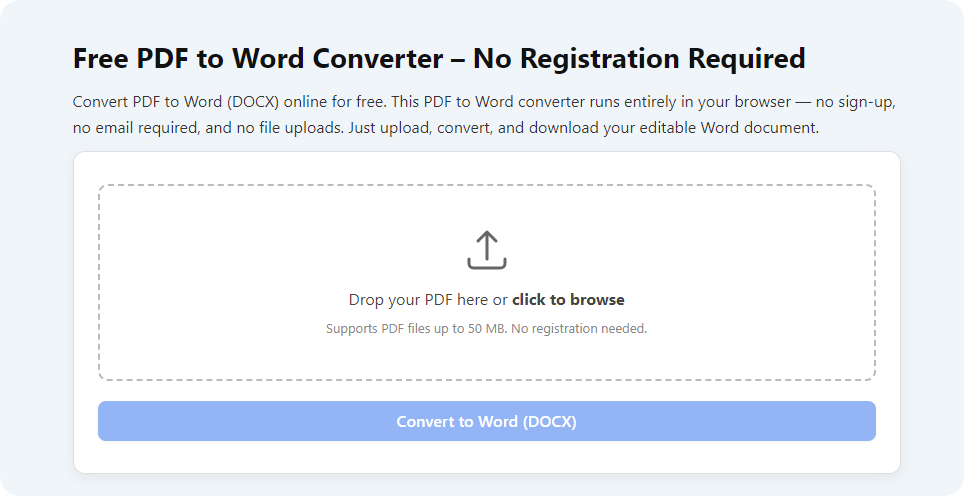
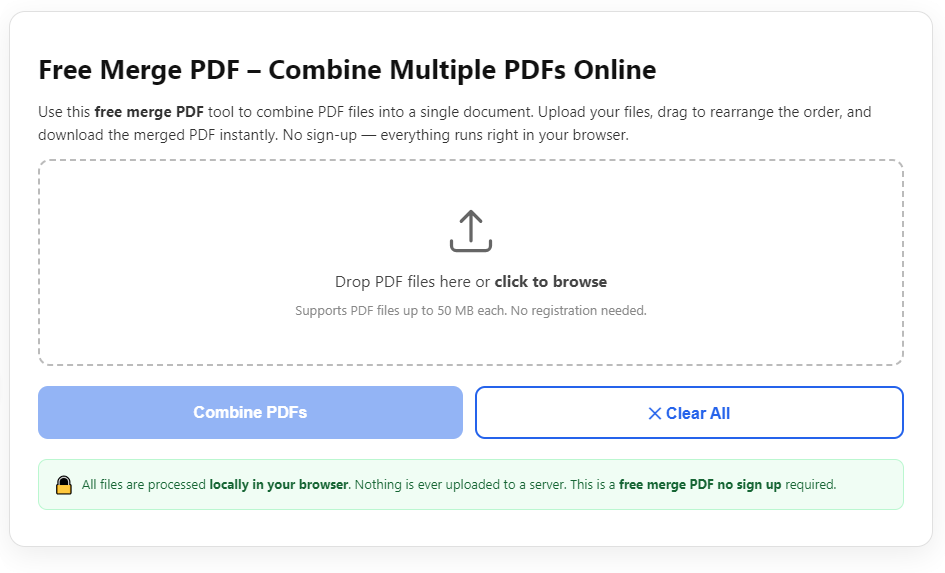
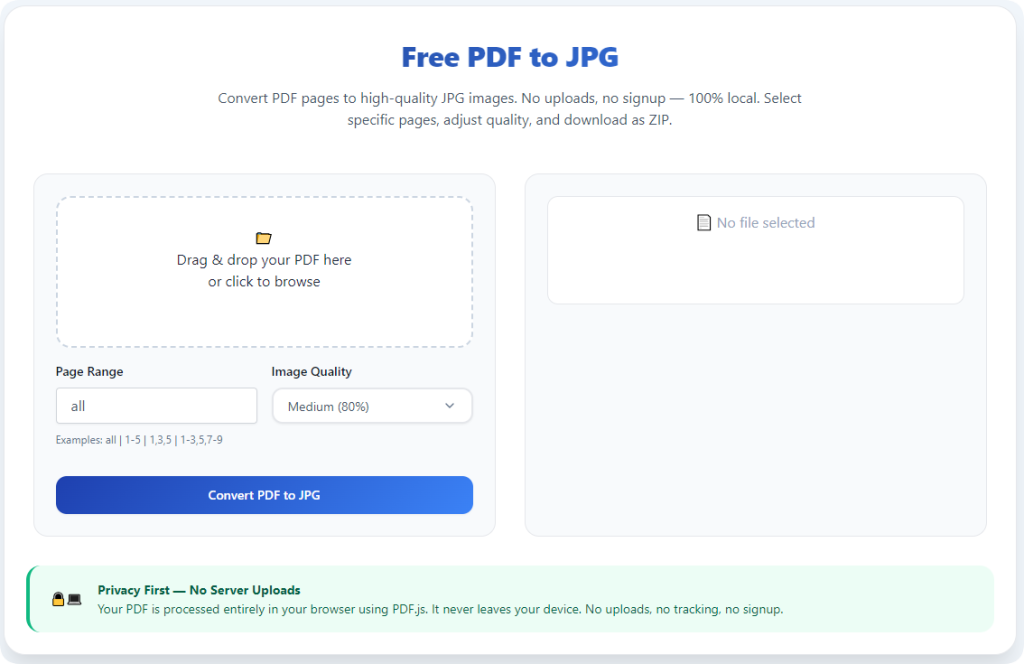
After learning the operation method, click the link below to enter the tool page for immediate use.