Working with long PDF files slows down nearly every professional workflow. Academic textbooks, business whitepapers, legal contracts, and technical manuals all rely on clear navigation to save readers hours of scrolling.
Most basic PDF readers only let you create single-level bookmarks with no way to group subsections. Flat bookmark lists force users to scan dozens of entries just to find a single subtopic, killing document readability and usability.
If you regularly handle multi-chapter PDFs, you need the best PDF bookmark adder with nested outline support. This specialized tool builds layered, collapsible outlines that mirror physical book tables of contents, streamlining access for anyone opening your files.
This hands-on guide breaks down every critical detail about nested PDF bookmark tools. We cover the flaws of manual bookmark creation, core advantages of dedicated nested outline software, must-have tool features, real-world use cases, a full step-by-step workflow, common user mistakes to avoid, and expert hacks to refine your PDF outlines faster.
Why Manual PDF Bookmark Creation Fails Without Nested Outline Tools
Many people waste time manually adding bookmarks inside generic PDF editors, only to end up with disorganized, hard-to-navigate files. The biggest limitations come from lacking a dedicated PDF bookmark adder with nested outline support.
Flat bookmark structure limits document hierarchy
Standard PDF software only generates standalone bookmarks with zero nesting capability. A 10-chapter research paper with subsections will display 50 separate bookmark entries in one unordered list. Readers cannot collapse chapter groups, making quick topic jumps nearly impossible.
Manual nesting requires repetitive drag-and-drop work
Even editors that offer basic bookmark nesting lack bulk processing features. You must drag every secondary bookmark under its parent one at a time. For lengthy technical PDFs, this tedious process can take an hour or more of repetitive clicking.
No bulk bookmark import for structured documents
If you write content in Word or Google Docs with built-in headings, generic PDF tools cannot auto-convert H1/H2/H3 headers into nested PDF bookmarks. You have to recreate every outline entry manually, duplicating work you already finished.
Inconsistent formatting across bookmark sets
Manually typed bookmark titles often mismatch in font size, color, and naming rules. Without standardized controls from a specialized PDF bookmark adder with nested outline support, your document outline looks unpolished and unprofessional.
Risk of broken page links during edits
When you split, merge, or reorder PDF pages after creating manual bookmarks, page jump links frequently break. Most basic editors do not auto-update bookmark destinations, forcing you to reassign every entry’s target page manually.
Core Benefits of the Best PDF Bookmark Adder with Nested Outline Support
Switching to purpose-built nested bookmark software eliminates every headache of manual PDF outline building. The key advantages directly improve both creator efficiency and end-user document experience.
Auto-generate multi-tier nested outlines from document headings
Top-tier PDF bookmark adder with nested outline support scans your PDF’s embedded heading tags and instantly creates layered bookmarks. H1 headers become parent bookmarks, H2 tags nest as children, and H3 entries form third-level subsections in one click. No manual dragging required.
Collapsible navigation improves PDF readability for all users
Nested outline bookmarks fold and expand inside PDF viewers. Readers can hide all subsections under a chapter they are not using, cutting visual clutter on the sidebar. This feature alone makes long technical PDFs far easier to navigate for students, clients, and team members.
Bulk edit and reorder nested bookmark hierarchies
The tool lets you select entire groups of nested bookmarks to rename, reposition, or delete in batches. If you restructure your document’s chapter order, you can drag full parent-subtree blocks instead of moving each entry individually. This slashes editing time by 70% or more for large files.
Preserve bookmark links after page reordering
Unlike generic PDF editors, dedicated nested bookmark software automatically recalibrates page jump destinations when you insert, delete, or reorder PDF pages. You never waste time fixing broken bookmark navigation links mid-project.
Customize nested bookmark visual styling
Adjust font weight, text color, indent spacing, and icon markers for each outline level. Make parent chapter bookmarks bold and dark blue, while subsections use lighter gray text, creating clear visual separation between hierarchy tiers for anyone viewing the PDF.
Compatible with all standard PDF file types
The best PDF bookmark adder with nested outline support works on scanned editable PDFs, digital native documents, merged multi-file PDFs, and exported Word/Markdown PDF outputs. No file conversion steps are needed before building your outline.
Zero permanent file damage during editing
All bookmark and outline changes save as non-destructive layers. You can revert every nested bookmark edit with one undo click, and your original PDF content, images, and text remain untouched through every revision cycle.
Key Features to Look for in a PDF Bookmark Adder with Nested Outline Support
Not all PDF outline tools deliver reliable hierarchical bookmark functionality. When comparing software options, prioritize these blogger and professional-focused features built for layered PDF navigation.
Multi-level nesting depth flexibility
Choose tools that support at least four outline tiers (parent, child, sub-child, minor section). Academic dissertations, technical manuals, and multi-part business proposals often require three or four nested bookmark levels to mirror full table of contents structure.
Heading auto-scan and one-click outline generation
The most valuable feature is automatic header detection. Upload your PDF, run the scan function, and the PDF bookmark adder with nested outline support builds a complete nested bookmark tree without manual data entry.
Drag-and-drop hierarchical bookmark reordering
Intuitive sidebar drag controls let you shift individual bookmarks or entire nested branches. You can move a full chapter with all its subsections to a new position without recreating any entries.
Bulk bookmark import from text/CSV outlines
If you have a pre-written table of contents saved as a text list or CSV file, import the outline directly into the tool. The software recognizes indentation markers to auto-assign correct nested parent-child relationships.
Bookmark batch rename and mass formatting
Apply uniform naming rules, font styles, or color coding to all bookmarks within a single nested branch. This eliminates repetitive styling work for consistent, professional PDF outlines.
Cross-platform file saving without outline corruption
Ensure the tool exports standard PDF files that retain full nested outline functionality on Windows, Mac, mobile PDF readers, and web-based PDF viewers. Some cheap tools flatten bookmarks during export, losing all nesting structure.
Lightweight interface with no lag on large PDFs
Working with 500+ page manuals requires smooth performance. Avoid bloated editors that freeze when loading complex nested bookmark trees; pick streamlined software built exclusively for PDF outline management.
Common Real-World Use Cases for a Nested PDF Bookmark Adder
A quality PDF bookmark adder with nested outline support fits nearly every industry that distributes long-form PDF documents. Below are the most frequent professional use scenarios.
Academic textbooks, dissertations, and research papers
University students and professors rely on multi-tiered nested bookmarks to separate chapters, literature reviews, methodology sections, and appendixes. Collapsible subsections make cross-referencing research data far faster during study and writing.
Business proposals, contracts, and client whitepapers
Sales teams build layered outlines for lengthy client proposals. Top-level bookmarks cover executive summaries, pricing breakdowns, and legal terms, while nested sub-bookmarks organize individual service line details and addendums. Clients jump directly to relevant sections without scrolling through hundreds of pages.
Technical manuals, engineering guides, and software documentation
IT teams and hardware engineers create dense technical PDFs with dozens of sub-procedures. Three or four levels of nested bookmarks separate core setup steps, troubleshooting flows, error code references, and component specifications for field technicians.
Legal filings, court documents, and compliance handbooks
Law firms manage multi-volume legal filings with nested bookmarks for case backgrounds, witness statements, evidence exhibits, and statute references. Judges and paralegals quickly locate specific filing sections using collapsible outline trees.
E-book and digital publication creation
Self-published authors format digital PDFs with nested bookmarks matching printed book tables of contents. Readers expand chapter subsections to access footnotes, character guides, and supplementary material without losing their reading position.
Internal company training materials and HR handbooks
Corporate HR teams build layered outlines for employee manuals. Parent bookmarks cover hiring, benefits, workplace policies, and safety training, with nested sub-bookmarks breaking down individual policy clauses and training modules.
Archived project portfolios and creative design files
Graphic designers and architects compile multi-section portfolio PDFs. Nested bookmarks separate brand identity projects, interior design drafts, and client case studies, with sub-bookmarks for concept sketches, final renders, and client feedback notes.
Step-by-Step Tutorial: Use the Best PDF Bookmark Adder with Nested Outline Support
Follow this straightforward workflow to generate, edit, and export fully functional nested PDF outlines with zero broken links or formatting errors.
Step 1: Prepare your source PDF file
Finalize all text, images, page order, and internal content edits before building bookmarks. If you edit PDF pages after creating nested outlines, you will need to refresh bookmark page targets. Confirm all document headings (H1, H2, H3) are properly tagged if you plan to use auto-outline generation.
Step 2: Launch the PDF bookmark adder with nested outline support
Open your selected tool and select the “Import PDF” option from the main dashboard. Locate your target document on local storage and upload it to the editor workspace. Wait for the file scan to complete; larger PDFs may take 10–30 seconds to load fully.
Step 3: Choose your nested bookmark creation method
Two primary workflows exist for building outlines:
- Auto-generate from document headings: Click “Scan Headings for Bookmarks” to let the tool build a full nested tree automatically.
- Manual custom nested outline: Select “New Blank Bookmark Tree” if your PDF lacks tagged headers, and create parent bookmarks manually first.
Step 4: Build out multi-level nested bookmark hierarchy
For auto-scanned outlines: Review the generated bookmark tree in the left sidebar. Drag any misplaced subsections under their correct parent bookmark to fix minor hierarchy errors.
For manual outlines: Right-click a parent bookmark, select “Add Child Bookmark,” input the subsection title, and link it to the matching PDF page number. Repeat for all second, third, and fourth-tier sections.
Step 5: Customize nested bookmark styling and labels
Select a full nested branch or individual bookmarks to adjust visual settings. Modify font weight, text color, indent size, and folder icons to differentiate outline levels. Double-click any bookmark title to rewrite labels for clarity, keeping naming consistent across all tiers.
Step 6: Bulk reorder nested bookmark branches
If your chapter sequence needs adjustment, click and hold a parent bookmark containing all its subsections, then drag the entire nested block to its new position in the outline tree. The tool auto-updates all child bookmark page links during reordering.
Step 7: Test every bookmark page jump functionality
Click each top-level parent bookmark and random nested child entries to verify page navigation works correctly. If any link sends you to the wrong page, right-click the bookmark, select “Update Target Page,” and reassign the correct PDF page location.
Step 8: Remove duplicate or unused nested bookmarks
Scan the full outline tree for redundant entries, empty placeholder bookmarks, or outdated section labels. Select multiple nested bookmarks at once using the shift key, then click “Delete Selected” to clean up clutter in one bulk action.
Step 9: Export the final PDF with preserved nested outline
Click “Save Exported PDF” and choose a new file storage location. Do not overwrite your original raw PDF to retain an unedited backup. Enable the “Preserve Full Nested Bookmark Hierarchy” export toggle to avoid flattening your outline structure during file output.
Step 10: Validate the nested outline in a standard PDF viewer
Open your newly exported file in a mainstream PDF reader to confirm collapsible nested bookmarks load correctly. Expand and collapse multiple branches to ensure all subsections remain grouped under their parent chapters for end-user navigation.
Common Mistakes to Avoid When Working With Nested PDF Bookmarks
Even with the best PDF bookmark adder with nested outline support, these frequent user errors ruin outline functionality and waste editing hours.
Overloading the outline with unnecessary nested tiers
Adding four or five bookmark levels for short 50-page PDFs creates an overly complex navigation tree. Stick to two or three hierarchy tiers for brief documents to keep the sidebar easy to scan.
Skipping post-export bookmark validation
Many users save the PDF and close the tool without testing navigation. Minor page link errors only appear after export, so always verify jumps in an external PDF viewer before sharing files with clients or team members.
Mixing inconsistent naming formats across nested levels
Random capitalization, abbreviations, and title lengths make the outline look unprofessional. Create a simple naming rule and apply it to every parent and child bookmark for uniform readability.
Editing PDF page content after finalizing bookmarks
Inserting or deleting pages shifts all document page numbers, breaking every bookmark’s target link. Complete all content edits first, then build your nested outline as the final pre-share step.
Ignoring mobile PDF viewer compatibility
Some overly customized bookmark styling (extreme font sizes, rare icon sets) fails to render nested structure on mobile PDF apps. Stick to default font and color presets for cross-device consistent navigation.
Manually recreating outlines instead of using heading auto-scan
Users new to the tool often build every bookmark by hand, unaware of the auto-heading scan feature. The one-click generation function cuts outline creation time by 90% for structured PDFs with tagged headers.
Expert Pro Tips to Maximize Your PDF Bookmark Adder with Nested Outline Support
Use these simple, actionable strategies to speed up workflow and build cleaner, more functional nested PDF outlines every time.
- Save custom bookmark styling presets to reuse formatting rules across all your PDF documents, eliminating repetitive style adjustments.
- Export completed nested bookmark trees as CSV backup files before final PDF export, so you can quickly restore the outline if you need to rework the document later.
- Use unique color coding for each outline tier: dark blue for chapter parents, medium gray for subsections, light black for minor subtopics to create instant visual hierarchy.
- Collapse all nested branches before sharing PDFs with clients; users can expand relevant sections instead of scrolling through a fully expanded long bookmark list.
- Batch process multiple PDFs with identical outline structures by importing your saved CSV bookmark template into each file through the tool’s bulk import function.
- Shorten overly long bookmark titles to under 60 characters; lengthy labels get cut off in narrow PDF viewer sidebars, hiding critical subsection names.
- Combine nested bookmark outlines with internal PDF hyperlinks for cross-referencing between separate chapters, creating fully interconnected document navigation.
Final Thoughts
Clean, layered navigation transforms generic PDFs into user-friendly professional documents, and you cannot achieve functional multi-tiered outlines without the best PDF bookmark adder with nested outline support.
Manual bookmark creation inside basic PDF editors delivers flat, disorganized navigation that frustrates anyone reading long technical, academic, or business files. Specialized nested outline tools automate the most time-consuming outline building work, while giving full control over hierarchy, styling, and page link accuracy.
Whether you create student research papers, client business proposals, engineering manuals, or digital e-books, nested PDF bookmarks cut document navigation time for every reader who opens your files. The step-by-step workflow, feature checklist, and expert hacks covered in this guide eliminate the learning curve for new users.
By selecting a tool with robust multi-level nesting, auto-heading scanning, and non-destructive editing, you will produce polished, navigable PDF outlines that stand out from generic unorganized documents in every industry. Take advantage of bulk editing and template functions to streamline your PDF workflow and deliver cleaner, more accessible files to every reader.
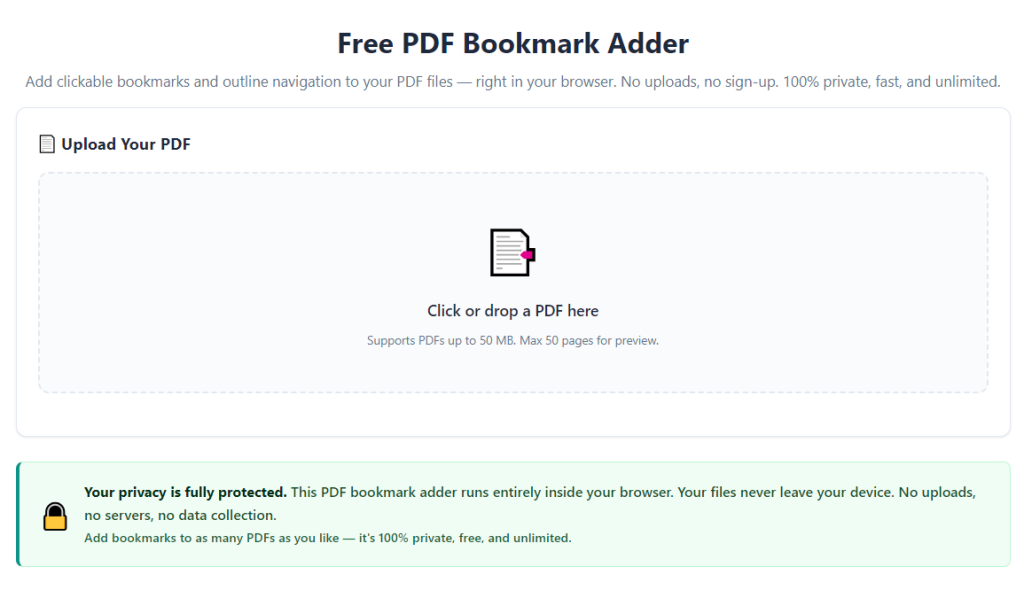
After learning the operation method, click the link below to enter the tool page for immediate use.